
How to Go On Duty and Set Your Working Hours in Lumo

One of the biggest advantages of gig work is choosing your own schedule. But that only works if you can actually control when job alerts interrupt your day. Nothing's worse than getting pinged for a cleaning job at 11 PM when you're winding down, or having your phone buzz during dinner with family.
Lumo's worker app puts you in the driver's seat with two simple controls: an on/off duty toggle for instant availability changes, and a working hours schedule that runs automatically. Master these two features and you'll never miss a good job or get bothered during your off time. Here's exactly how they work and how to set them up for your life.
- 01
Step 1: Understand the on/off duty toggle
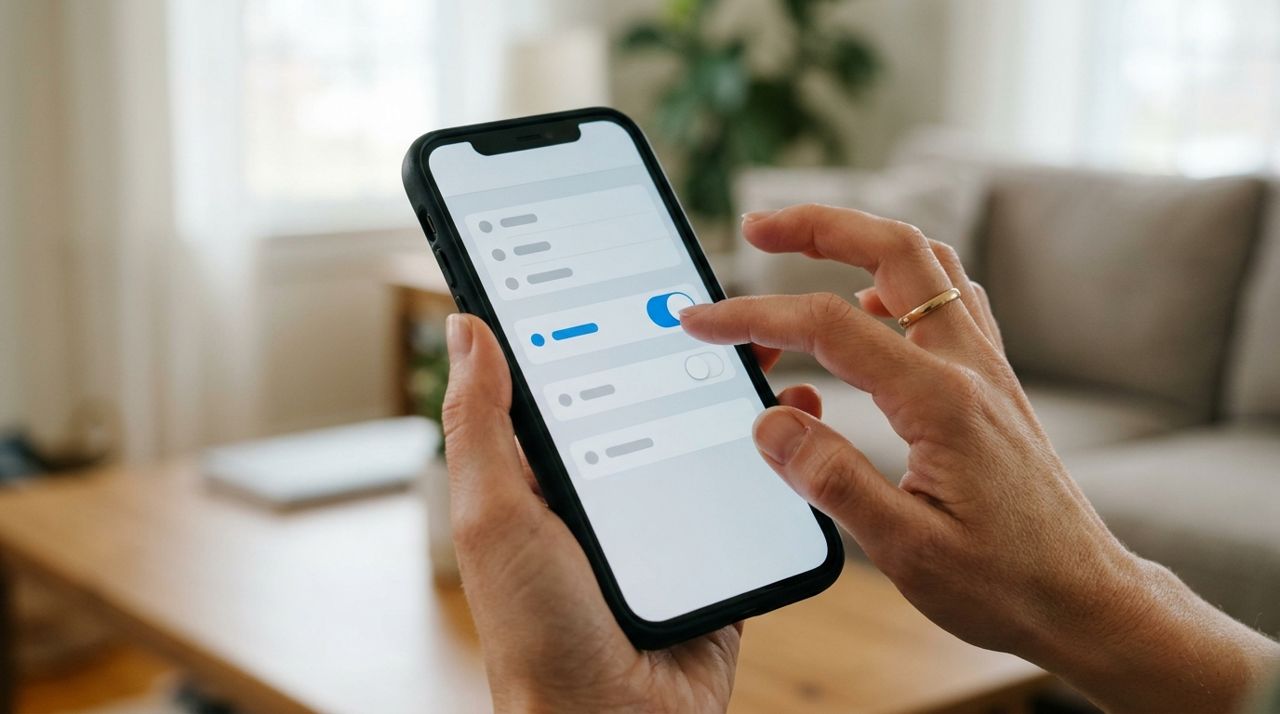
Close-up of a hand tapping a toggle switch on a smartphone screen The on/off duty toggle is your emergency brake and your gas pedal. When you're 'on duty', the app sends you job alerts based on your job-alert radius and the types of work you've selected. When you're 'off duty', you get zero alerts—complete silence.
You'll find this toggle prominently displayed on your worker home screen. It's designed for instant changes: flip it off when you need to run errands, pick up your kids, or just take a breather. Flip it back on when you're ready to accept jobs again. Your status updates immediately, so you won't lose a second of earning time when you're ready to work.
- 02
Step 2: Set your recurring working hours

Person marking time blocks on a weekly calendar planner Working hours are your autopilot. Instead of remembering to toggle on and off every day, you set a weekly schedule once and the app handles it automatically. Think of it as office hours for your gig work.
To set your hours, open the Lumo worker app, go to Settings, and tap 'Working Hours'. You'll see a weekly calendar where you can mark blocks of time for each day. Maybe you want Monday through Friday, 8 AM to 5 PM, or Tuesday and Thursday evenings from 6 to 10 PM. Set whatever fits your life. The app will only send you alerts during these windows, even if you forget to toggle off duty manually.
- 03
Step 3: Combine working hours with manual toggles

Worker checking their phone schedule while sitting in a waiting room Here's where it gets powerful: working hours and the on/off duty toggle work together. Your working hours define your default availability, but the toggle always overrides them.
Say your working hours are set for 9 AM to 6 PM, Monday to Friday. It's Wednesday at 2 PM—normally you'd get alerts—but you have a doctor's appointment. Just flip the toggle to 'off duty' and you're instantly unavailable. When your appointment ends at 3 PM, flip it back on and you're receiving alerts again, even though you're still within your working hours. This combo gives you both routine and flexibility.
- 04
Step 4: Use the busy map to inform your schedule

Smartphone displaying a map with multiple location pins showing activity hotspots The Lumo worker app includes a 'busy map' that shows you where orders are coming in throughout your area. Before you finalize your working hours, spend a few days checking this map at different times.
You might discover that your neighborhood lights up with cleaning requests every Saturday morning, or that dinner delivery jobs cluster between 5 and 8 PM on weeknights. Use this intel to set working hours that match actual demand. There's no point being on duty Tuesday at 10 AM if nobody books anything until afternoon. Work smarter by working when customers actually need you.
- 05
Step 5: Adjust your job-alert radius along with your hours

Illustration of a circular radius drawn around a location on a map Your job-alert radius determines how far away jobs can be before you get pinged. If you set tight working hours—say, just evenings after your day job—you might want a smaller radius so you don't waste precious time driving.
Go to Settings and find 'Job Alert Radius'. During your peak availability, you might set 10 or 15 miles to maximize opportunities. During shorter windows, dial it down to 3 or 5 miles so you can fit more jobs into less time. Some workers adjust this weekly based on gas prices, traffic patterns, or how much driving they feel like doing. It's another dial you control.
- 06
Step 6: Check your status before closing the app

Hand pressing the lock button on the side of a smartphone This sounds obvious, but it's the most common mistake: workers close the app thinking they're off duty when the toggle is still on. You'll get alerts until you manually flip it off or your working hours end.
Before you lock your phone for the night, swipe open Lumo and glance at your duty status. If it says 'on duty' and you don't want to work, tap it to turn it off. If it says 'off duty' and it's 8 AM on a workday, flip it on. Make this a two-second habit and you'll never get woken up by a 6 AM handyman request again—or miss a morning rush of orders because you forgot to activate yourself.
- 07
Step 7: Review and tweak your schedule monthly

Worker sitting at a table reviewing earnings and schedule data on their phone Your life changes, and so should your working hours. Set a monthly reminder to review your schedule and your earnings data. Did you make more on weekends? Were weekday mornings dead? Did you burn out working seven days straight?
Open your working hours settings and make small adjustments. Add an hour here, drop a slow day there, shift your evening window earlier or later. Workers who review their schedules monthly report higher earnings and better work-life balance than those who set it once and forget it. The app adapts to you, but only if you tell it what's working and what's not.
Pro tips
- Turn off duty during meals and breaks so you can actually rest without your phone buzzing.
- If you're testing a new neighborhood or job type, go on duty for just one or two hours to see what comes in before committing to a full schedule.
- Set working hours slightly shorter than you think you want—it's easier to manually toggle on for extra time than to feel trapped by a too-long schedule.
- Use airplane mode as a last resort: it stops alerts but also kills navigation and customer messaging, so the on/off toggle is always better.
Frequently asked questions
- Do I still get paid if I'm off duty?
- No. You only earn money for jobs you accept and complete. Being off duty means you won't receive any job alerts, so you can't accept work during that time. Your working hours and duty status control when you're available to earn.
- Can I change my working hours in the middle of the week?
- Absolutely. Your working hours aren't a contract—they're a preference. Open Settings and adjust them anytime. Changes take effect immediately, so if you suddenly have a free afternoon, add those hours and flip your toggle on.
- What happens if I forget to go off duty?
- You'll keep getting job alerts until your working hours end or you manually toggle off. If you ignore the alerts, nothing bad happens—you just won't earn anything. But turning off duty when you're done working is a good habit so you're not tempted by notifications when you're trying to relax.
Control over your schedule isn't a perk of gig work—it's the whole point. Lumo's on/off duty toggle and working hours give you that control down to the minute. Set your hours to match your life, use the toggle for day-to-day tweaks, and review your schedule every month. You'll work more when it makes sense, rest when you need to, and never feel trapped by your phone. That's working on your terms.
Photos are illustrative. Service prices are typical ranges and vary by city. How we write our guides.
More guides like this

How to Set Up Job Alerts for Your Radius and Job Types
Getting the right job alerts means you'll spend less time scrolling and more time earning. Here's how to set your radius and choose the job types that match your skills and schedule.

Building a worker profile with photos that wins more bookings
Your profile is the first thing customers see before booking. A clear photo, specific skills and honest descriptions help you stand out and win more jobs.

How Lumo's 90% Payout and Wallet Work: A Worker's Guide
Lumo workers keep 90% of every job price, with earnings landing directly in an in-app wallet. Here's exactly how the payout system works and when you get paid.