
How to Get Groceries Delivered From Your Neighborhood Market
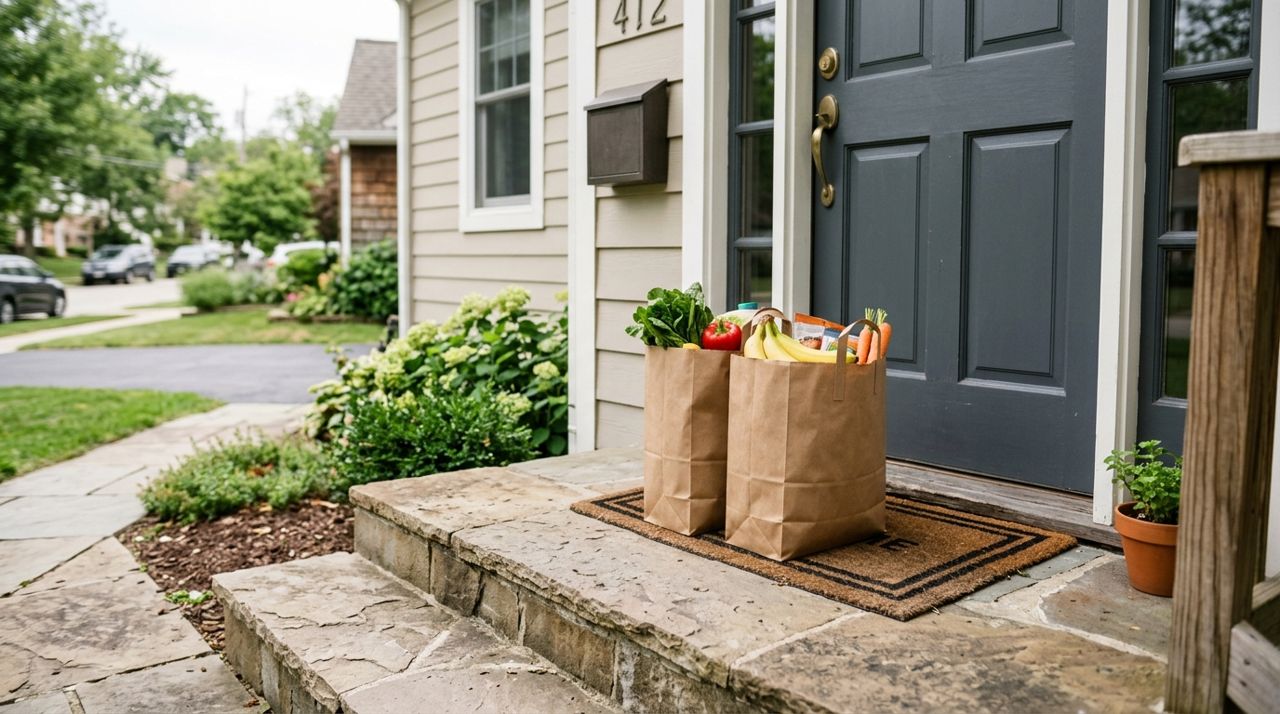
Running out to the store for a few items can eat up an hour of your day—parking, shopping, checkout lines, and the drive home. When you need groceries but don't have the time or energy to shop in person, delivery from a neighborhood market gets you what you need without the trip.
This guide walks you through ordering groceries from local markets for delivery. You'll learn how to browse inventory, place your order, track delivery, and what to expect from start to finish. Whether you need basics for tonight's dinner or a full grocery run, here's how it works.
- 01
Step 1: Open the app and choose your delivery address
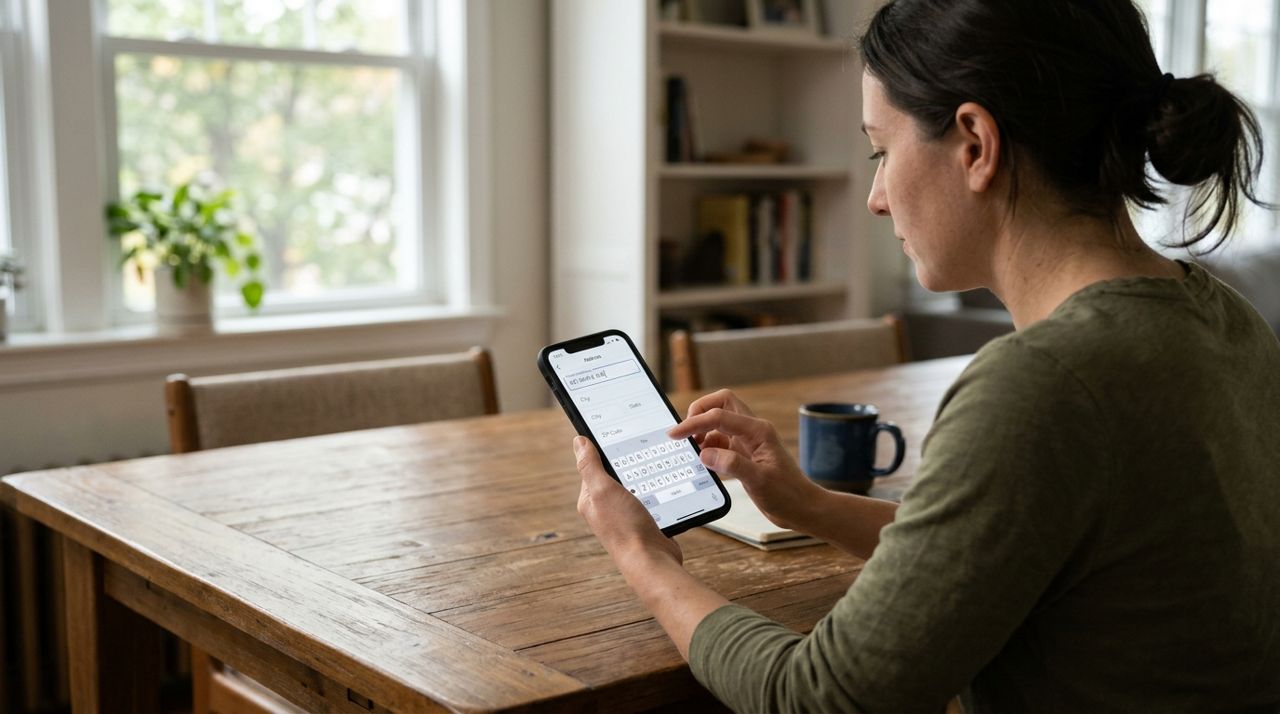
Person entering a delivery address on a smartphone screen Download the Lumo app or visit golumo.app on your phone or computer. When you open it, you'll pick Customer mode on the welcome screen. Enter your delivery address—this helps the app show you which local markets can deliver to you and how much delivery will cost.
The app uses your location to find markets within range. If you're ordering for someone else (a parent, friend, or office), just enter their address instead. Double-check that the address is complete with apartment or suite numbers so the driver can find the right door.
- 02
Step 2: Browse local markets and their inventory
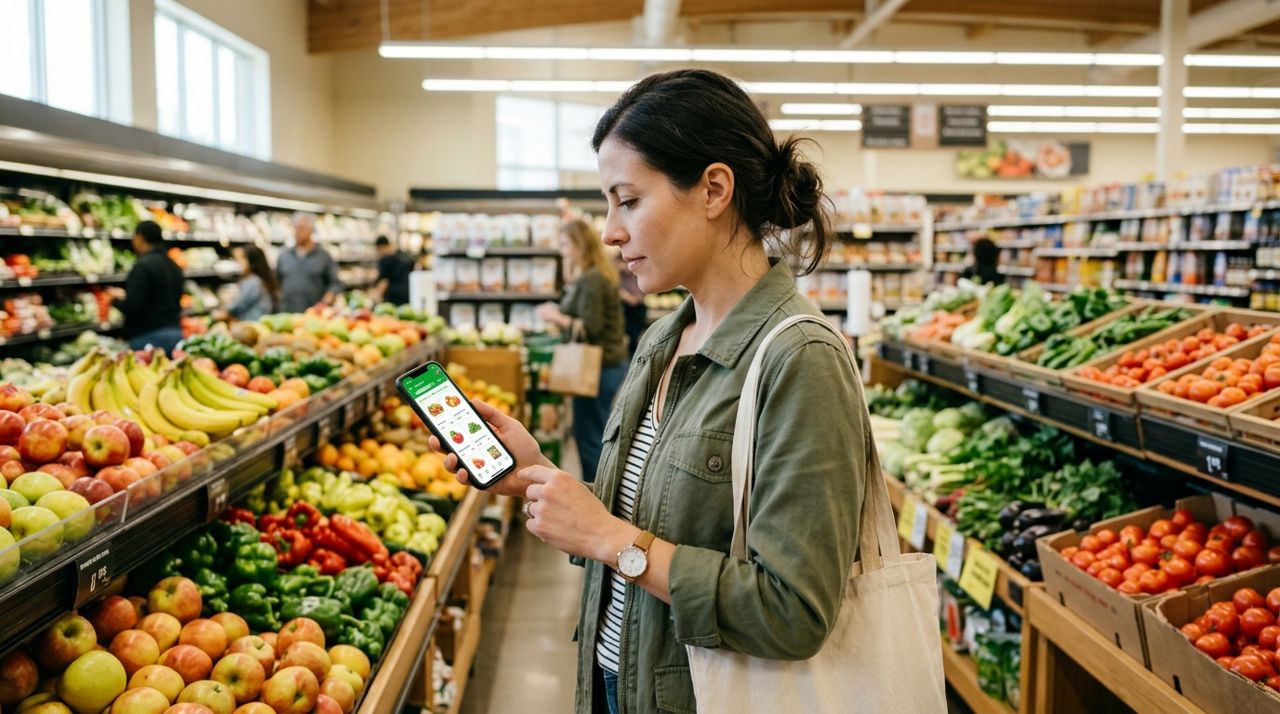
Person browsing fresh produce and grocery items on a phone app You'll see a list of neighborhood markets, grocery stores, and small shops that deliver to your area. Tap on one to see what they carry—produce, dairy, meat, snacks, drinks, pantry staples, household items, and more. Each product listing shows a photo, price, and how much is in stock.
Local markets update their inventory in real time, so you'll know what's available right now. If you need organic produce, specialty items, or just the basics, check the photos and descriptions to confirm you're getting what you want. Some markets carry prepared foods, fresh bread, and local products you won't find at big chains.
- 03
Step 3: Add items to your cart and review your order
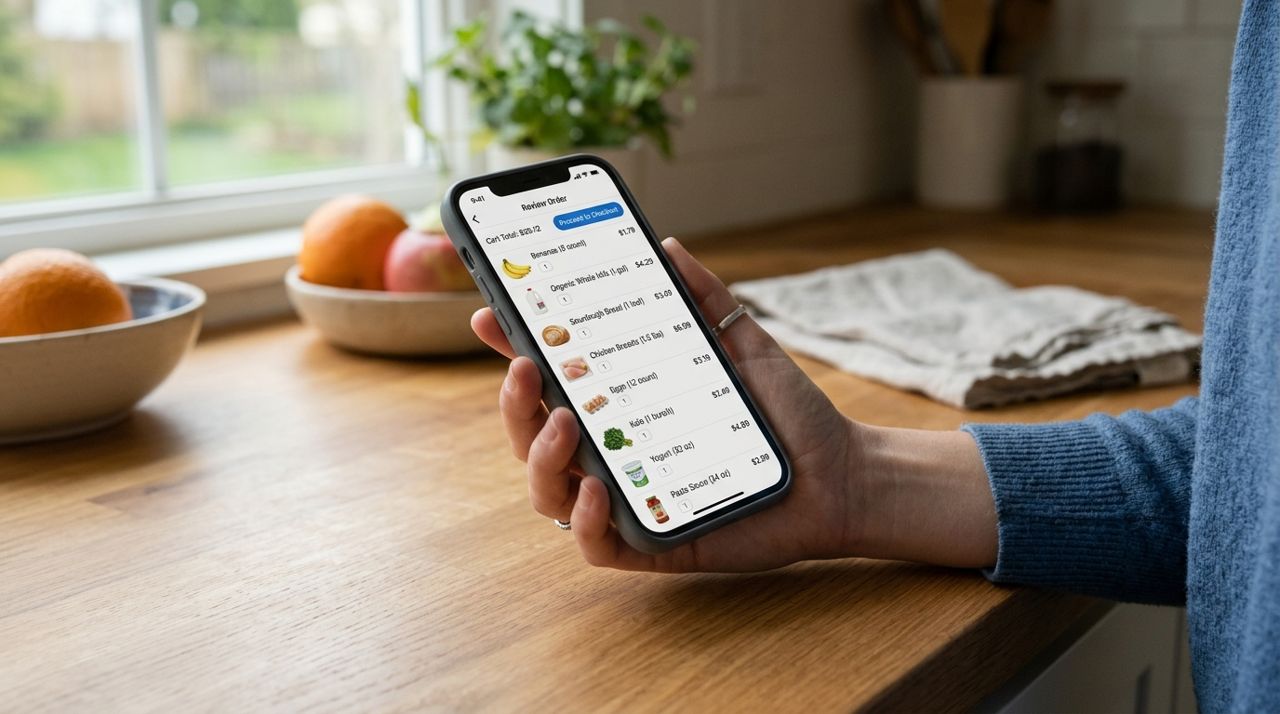
Smartphone screen showing a grocery order cart with items and prices Tap each item you want and add it to your cart. You can adjust quantities, remove things, or keep browsing other shops if the first market doesn't have everything. Once your cart looks good, review the list to make sure you didn't miss anything.
Before you check out, you'll see the subtotal for your groceries, the delivery fee, and any applicable taxes. The delivery fee is calculated based on a base fee plus the distance from the store to your address and the size of your order. If the fee feels high, consider adding a few more items to make the delivery worthwhile, or switch to pickup to avoid the fee entirely.
- 04
Step 4: Choose delivery or pickup and check out
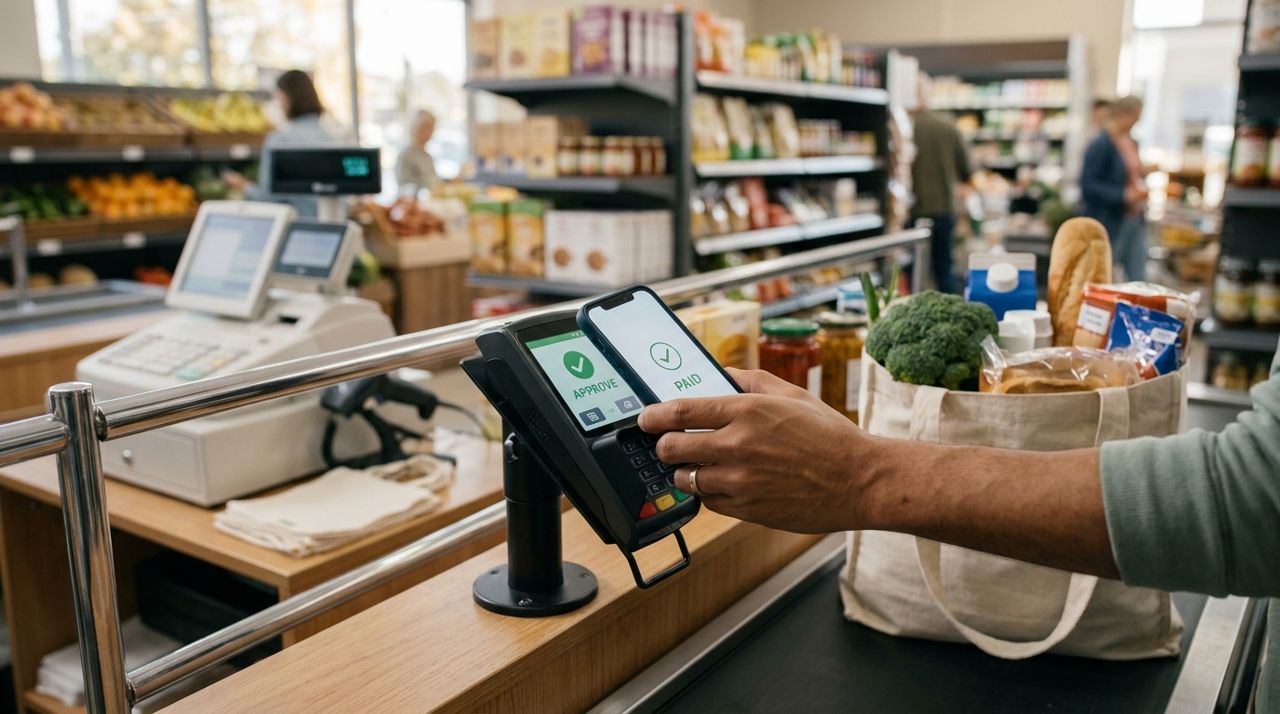
Hand holding smartphone completing a secure mobile payment for groceries Select delivery or pickup. Delivery brings groceries to your door; pickup means you drive to the market and collect the order yourself—no delivery fee. If you choose delivery, confirm your address and add any delivery instructions (side door, gate code, leave on the porch).
Enter your payment card. The app processes payments securely, and you'll get a receipt by email. Your order goes straight to the market, and they start packing it. You'll get a notification when the market accepts the order and when a driver picks it up for delivery.
- 05
Step 5: Track your delivery in real time
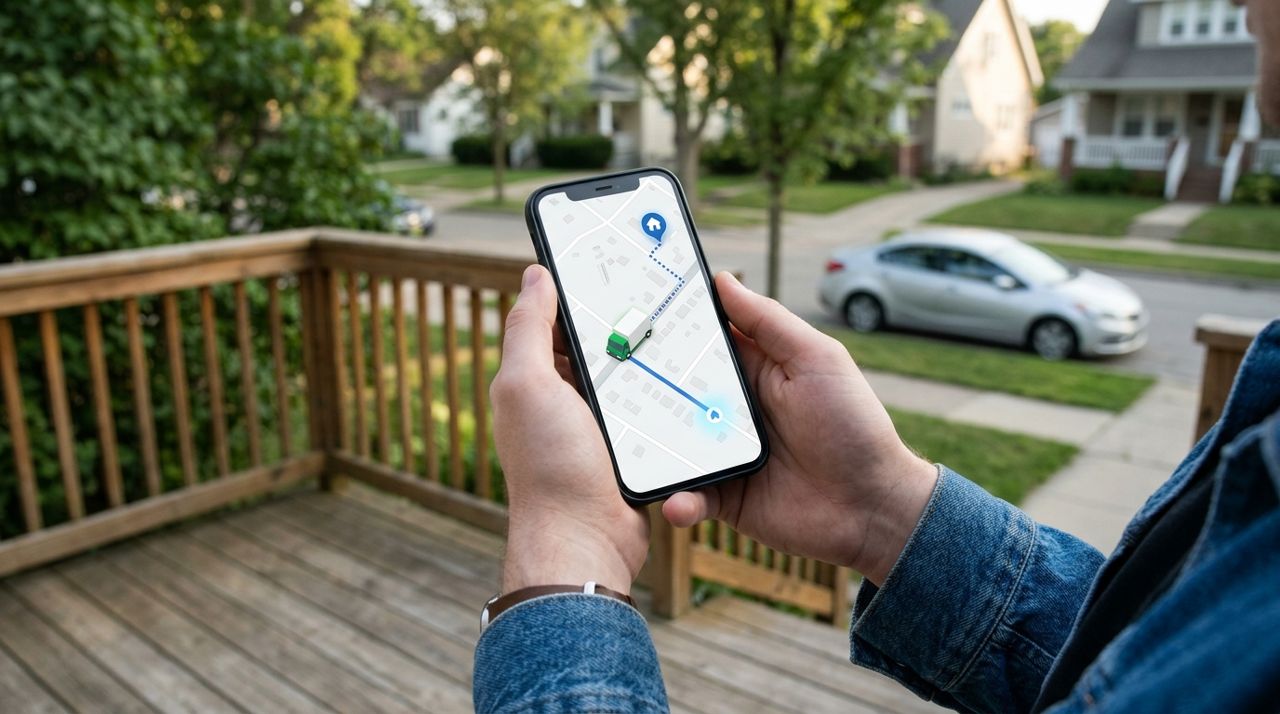
Smartphone showing a live map with a delivery driver's location and route Once a driver picks up your order, you can follow them on a live map in the app. You'll see their location and estimated arrival time. This is handy if you need to be home to receive perishables or if you're coordinating with someone else at the address.
If the driver has trouble finding you or needs to substitute an out-of-stock item, they can message you through the app. You'll get an alert when they're close and another when they arrive. The driver will take a photo of your groceries at drop-off as proof of delivery.
- 06
Step 6: Receive your groceries and tip the driver
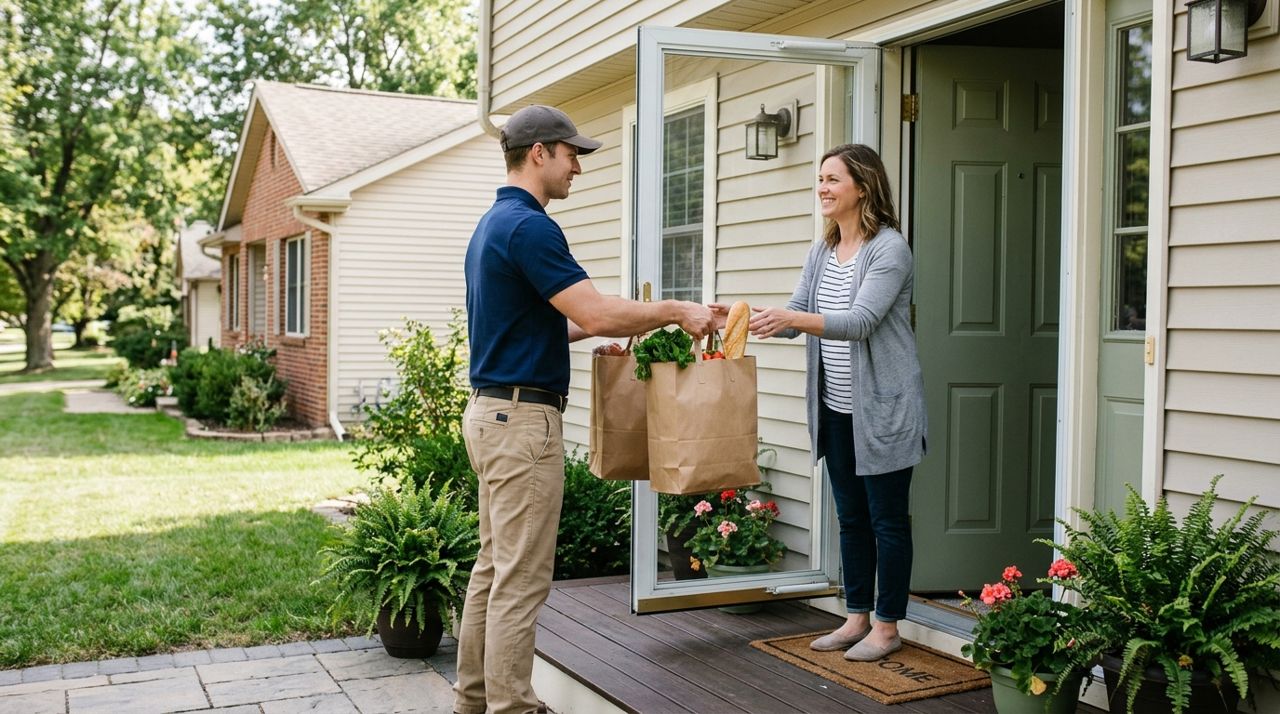
Delivery driver handing grocery bags to a customer at their front door Your groceries arrive bagged and ready. Check the bags to confirm everything is there and in good shape. Perishables should still be cold; produce should look fresh. If something is missing or wrong, contact the market through the app right away.
After delivery, the app will prompt you to tip the driver. You can choose 10%, 15%, or 20%, or enter a custom amount. One hundred percent of your tip goes to the driver—it's how they earn a decent wage for the work. Rate the delivery and leave a review so other customers know what to expect from that market and driver.
- 07
Step 7: Save your favorites for next time
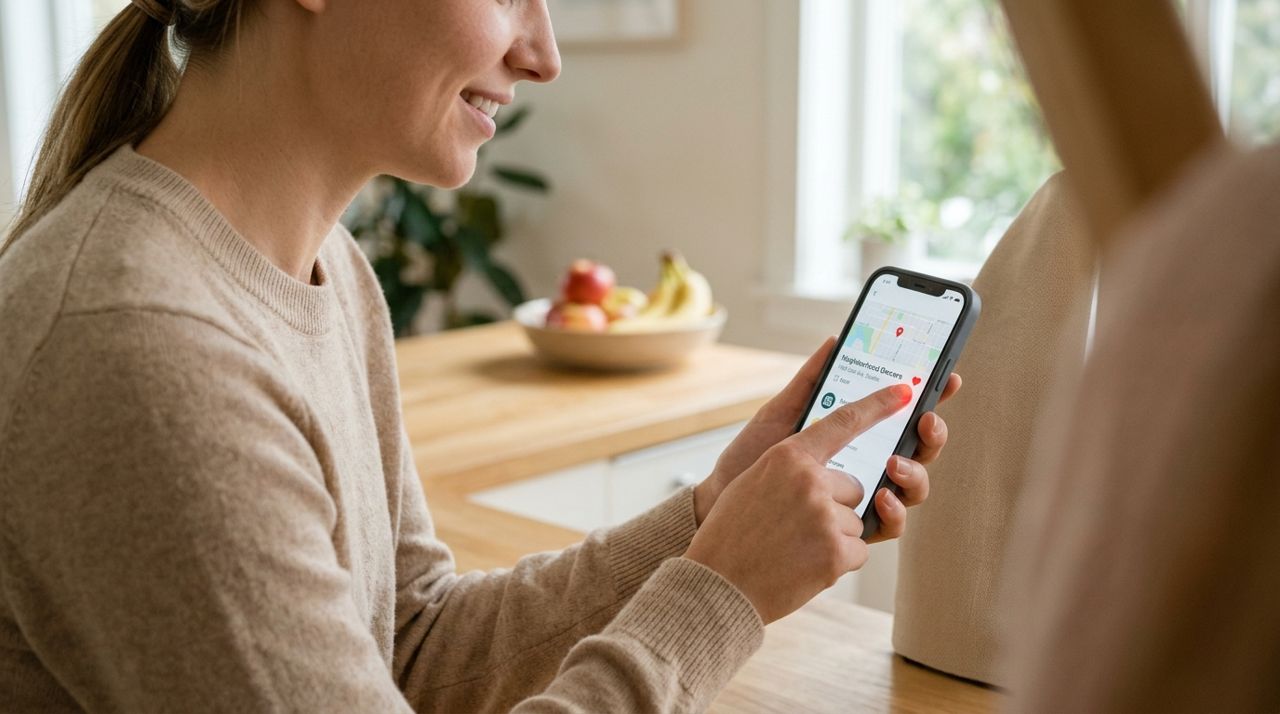
Finger tapping a heart icon to save a favorite grocery store in an app If you liked a particular market or find yourself ordering the same items every week, save the shop as a favorite in the app. Next time you need groceries, you can reorder with a few taps instead of starting from scratch.
You can also message the market directly if you have questions about products, special requests, or custom orders. Local markets are often flexible and happy to help regular customers. Keep an eye on your order history to track spending and see what you've ordered before.
Pro tips
- Order early in the day for the freshest selection; inventory can run low by evening.
- Add a note if you're okay with substitutions—drivers can swap out-of-stock items with your approval.
- Compare delivery fees from different markets; sometimes a shop slightly farther away costs less overall.
- Use pickup if you're nearby—you'll save the delivery fee and get your groceries faster.
- Check reviews for each market to see how other customers rate freshness and accuracy.
Frequently asked questions
- How much does grocery delivery cost?
- The delivery fee varies based on a base fee, the distance from the market to your address, and the size of your order. You'll see the exact fee before you check out. Pickup orders have no delivery fee.
- What if an item I ordered is out of stock?
- The driver or market will message you through the app if something isn't available. You can approve a substitution, skip that item, or cancel the order if it's a deal-breaker. Always check your order when it arrives.
- Can I schedule a delivery for later in the day?
- Delivery timing depends on driver availability and the market's hours. Some orders arrive within 30–60 minutes; others take longer if it's busy. Check the app for estimated delivery windows and plan accordingly.
Getting groceries delivered from a neighborhood market saves you time and supports local businesses. Once you've placed an order or two, the process becomes second nature—browse, order, track, and receive fresh groceries without leaving home. Next time you're out of essentials or just don't feel like shopping, open the app and let a local market do the work.
Photos are illustrative. Service prices are typical ranges and vary by city. How we write our guides.
More guides like this

How to Get Groceries Delivered When You're Sick at Home
Feeling too sick to leave the house but out of tissues, soup, and medicine? Here's exactly how to get groceries and household essentials delivered to your door without having to go anywhere.
How Food Delivery Works: From Browsing Menus to Getting Dinner
Ordering dinner for delivery is simple once you know the process. This guide walks through every step from browsing restaurants to getting your meal at the door.

How to Order Lunch for Your Office Team Without the Chaos
Ordering lunch for eight coworkers shouldn't feel like herding cats. Here's how to coordinate a group order, keep everyone happy, and get food delivered on time without juggling twenty phone calls.