
How to Help Your Grandparent Set Up Their New Phone and Video Calls

If your grandparent just got a new smartphone, you're probably the one they're calling for help. Setting up the device, creating accounts, and teaching them how to video call can feel overwhelming—for both of you. But with the right approach, you can get them up and running in an hour or two and keep frustration to a minimum.
This guide gives you a practical, step-by-step plan to set up an iPhone or Android phone for an older adult, configure video calling apps, and teach the basics in a way that sticks. Whether you're doing this in person or walking them through it over the phone, these steps will save you time and repeat questions.
- 01
Step 1: Unbox and charge the phone together
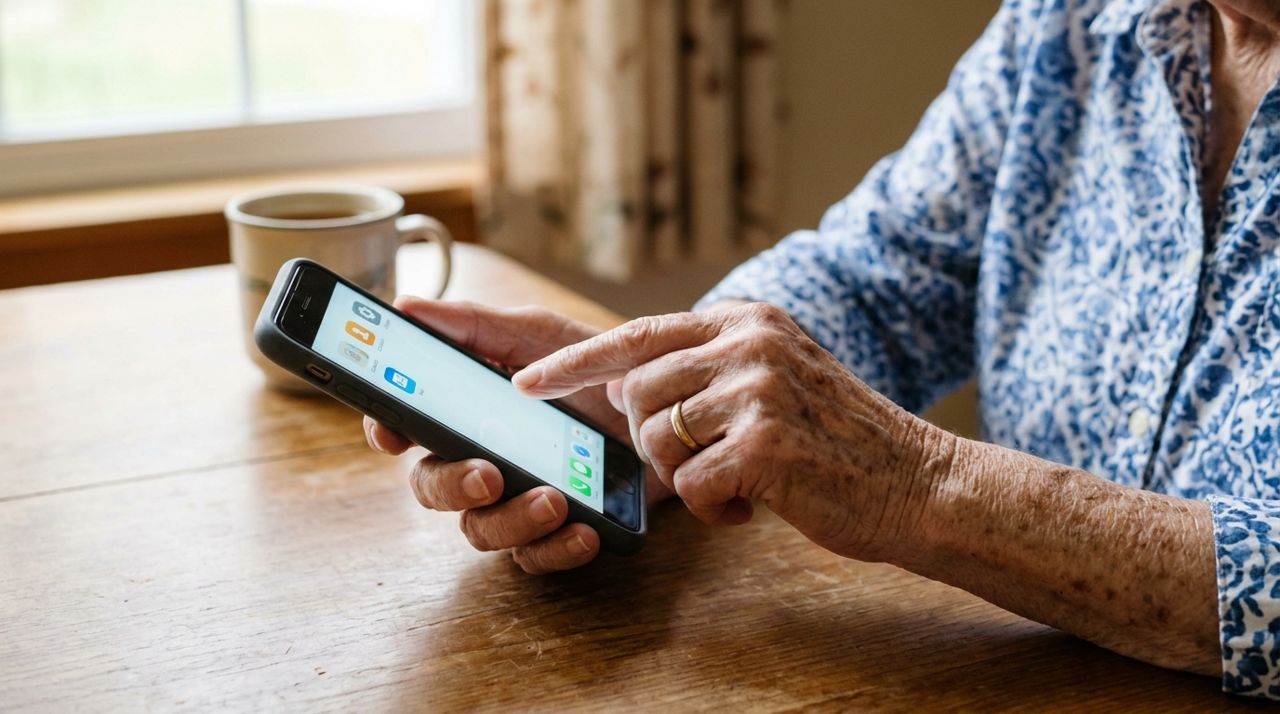
Close-up of senior hands holding a new smartphone while learning to use it Start by unboxing the phone with your grandparent present, even if you're tempted to do it ahead of time. Let them see what's in the box—the phone, charging cable, adapter, and any paperwork. Plug the phone in to charge while you work; most phones need at least 50% battery before the initial setup runs smoothly.
Show them the power button, volume buttons, and home button (if there is one). On newer iPhones without a home button, demonstrate the swipe-up gesture to go home. On Android phones, show them the three navigation buttons or gestures at the bottom. Write these down on a notecard they can keep nearby—'Power button: top right, hold 2 seconds to turn on/off' and similar. Physical notes beat memory every time.
- 02
Step 2: Run the initial setup and create accounts
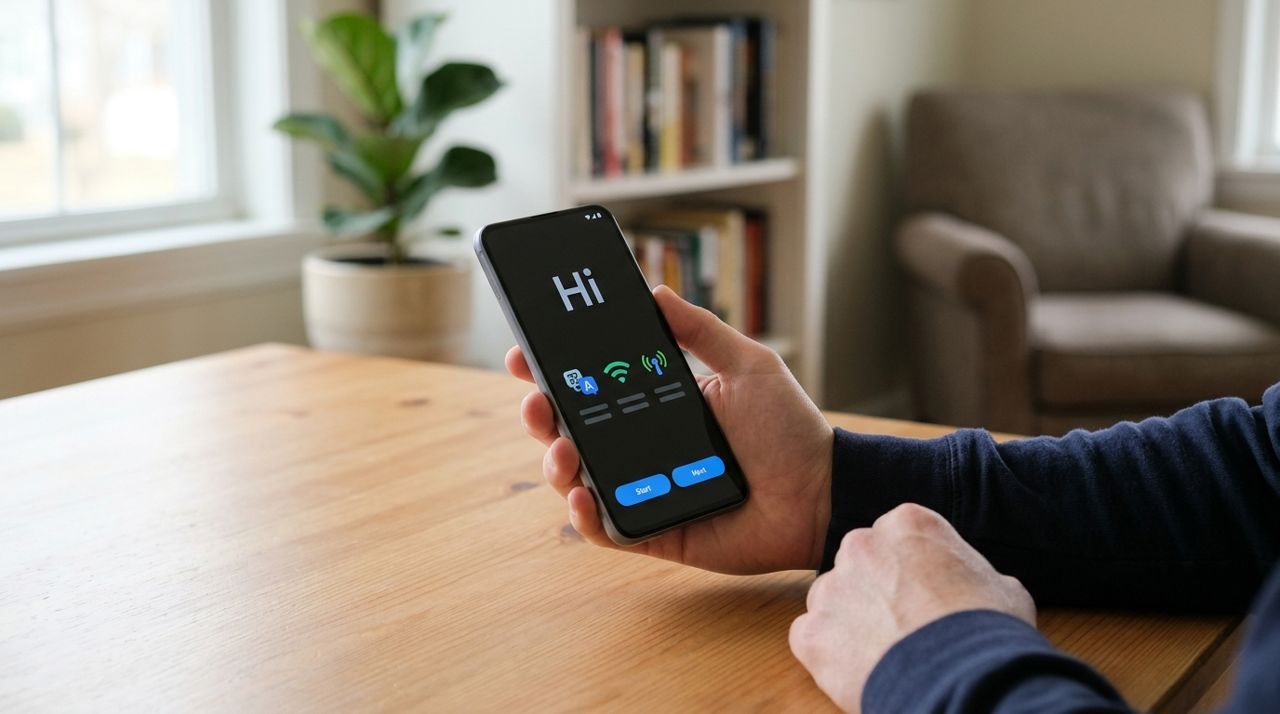
Smartphone displaying the welcome and setup screen during first-time configuration Turn on the phone and follow the setup wizard. Choose their language, connect to Wi-Fi (write down the network name and password for them), and set up Face ID or fingerprint unlock—this is much easier for them than remembering a six-digit passcode every time.
Create or sign in to an Apple ID (iPhone) or Google Account (Android). Use their existing email if they have one, or create a new Gmail address together. Write the email and password in a small notebook they keep in a safe spot—not in their phone. Set up two-factor authentication using their phone number. Enable automatic updates in Settings so security patches install without them needing to remember. This step takes 15–20 minutes but prevents most future headaches.
- 03
Step 3: Install and configure a video calling app

Elderly woman smiling during a video call on a smartphone or tablet screen Pick one video app and stick with it: FaceTime for iPhone users calling other iPhone users, or Google Meet, WhatsApp, or Zoom for cross-platform calls. Don't install multiple apps—it confuses things.
Open the App Store or Google Play, search for the app (if it's not already installed), and download it. Sign in with their account. Add your contact and one or two other family members to their contact list with clear labels: 'Sarah (Granddaughter)', not just 'Sarah'. Open the video app and make a test call to you right then. Let them press the buttons, hang up, and call again. Repetition now saves confusion later. Show them where the mute and camera flip buttons are, and where to tap to hang up—write it down.
- 04
Step 4: Simplify the home screen
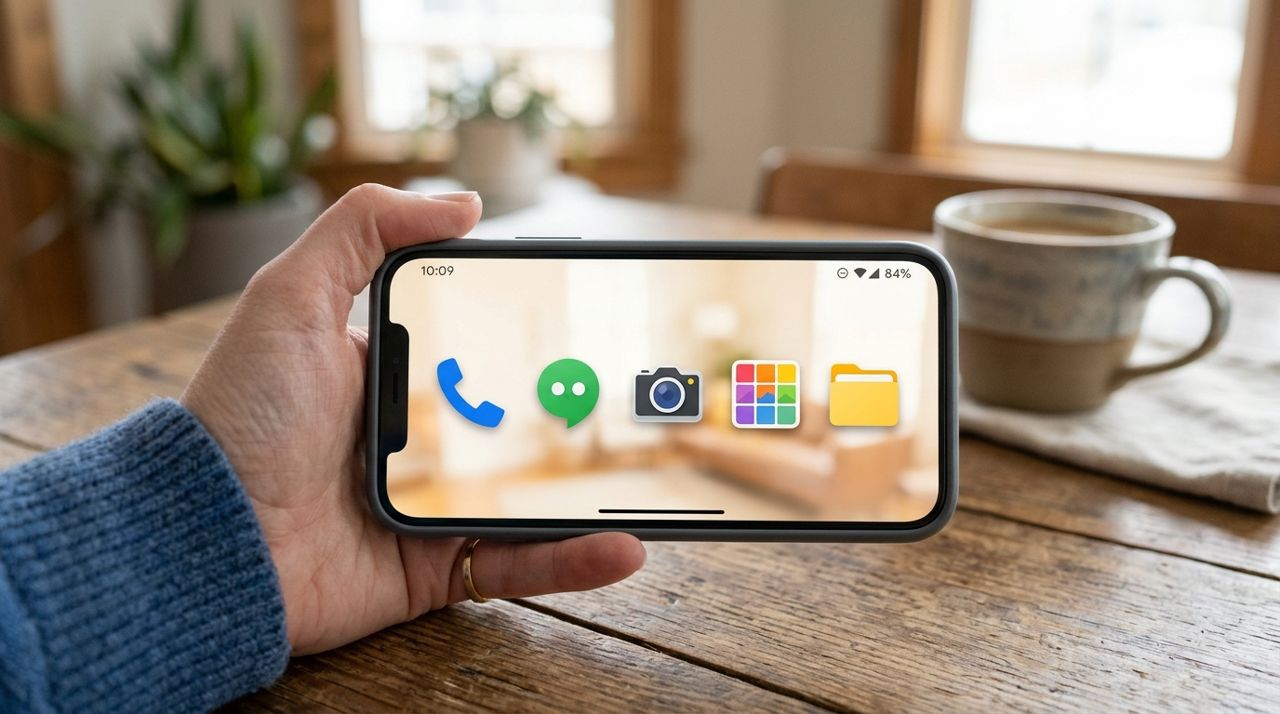
Clean smartphone home screen showing only essential apps in large, easy-to-tap icons Delete or hide apps they won't use. Most phones come with 30+ pre-installed apps that clutter the screen. On iPhone, press and hold an app, tap 'Remove App', then 'Delete' or 'Remove from Home Screen'. On Android, drag unwanted apps to 'Uninstall' or hide them in the app drawer.
Arrange the home screen with only the essentials: Phone, Messages, Camera, Photos, and their video calling app in the top row where they're easy to reach. Add a few more if needed—email, weather, a news app they like. Use large widgets if available (iPhone: press and hold the home screen, tap '+', choose a widget). Bigger icons and less clutter reduce mistakes. Show them how to swipe between screens if you add a second page, but one screen is better.
- 05
Step 5: Teach basic gestures and navigation
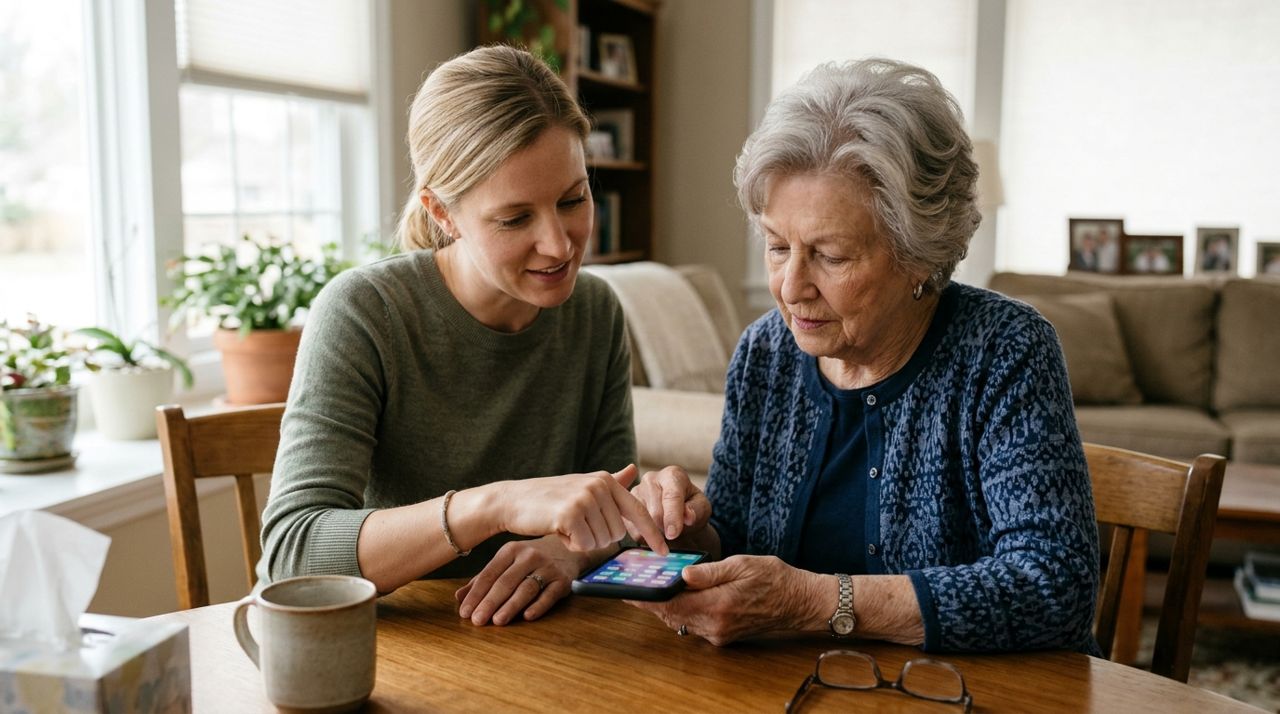
Young hand guiding an elderly person's finger in a swipe gesture on a smartphone Sit down for 10 minutes and practice the core actions: tap to open, swipe up to go home, swipe down for notifications (or settings), and pinch to zoom in photos. Let them do it, not you.
Show them how to answer and end a phone call—the green button to answer, red to hang up. Practice sending a text message to you: open Messages, tap your name, type (or dictate) a message, hit send. Do this three times in a row. Demonstrate how to take a photo, view it in Photos, and delete a bad one. These five tasks—call, text, photo, video call, home—cover 90% of what they'll do. If they get lost, swiping up (or pressing the home button) resets everything.
- 06
Step 6: Set up tech help when you're not there
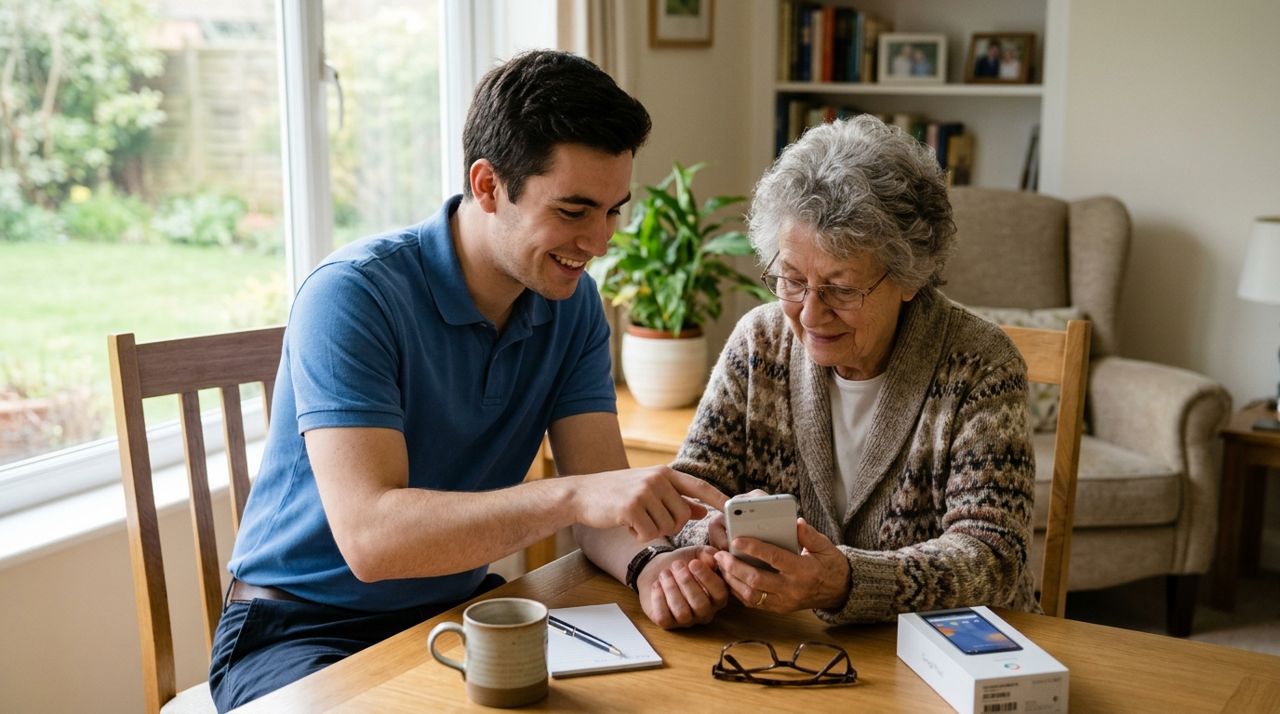
Friendly tech support worker assisting an elderly person with a smartphone at home Your grandparent will have questions when you leave. Give them three backup options. First, write down your phone number on a card and tape it to the back of their phone case—if the phone isn't working, they need a way to reach you from a landline. Second, show them how to use voice assistants: 'Hey Siri' or 'OK Google' can make calls, send texts, and answer simple questions hands-free. Third, consider booking a local tech helper for follow-up lessons.
Many cities have tech tutors who specialize in teaching older adults; typical rates run $30–$60 per hour. If your grandparent needs ongoing help and you're not nearby, platforms like Lumo let you book local tech help pros who can come to their home, answer questions, and troubleshoot in person. Search for 'tech help' in the Customer mode, describe what they need, and book someone with good ratings. It's faster than another family Zoom call where you can't see what they're tapping.
Pro tips
- Enable 'Raise to Wake' so the screen turns on when they pick up the phone—one less button to remember.
- Set text size to Large or Extra Large in Settings > Display (Android) or Settings > Display & Brightness > Text Size (iPhone).
- Add your number to their Favorites or pin your contact to the top of Messages so they can reach you in one tap.
- Turn off in-app purchase passwords in Screen Time settings to prevent accidental subscriptions.
- Schedule a follow-up call in three days to answer new questions—they'll have them.
Frequently asked questions
- Should I set up their phone remotely or in person?
- In person is far better if possible. You can hand them the phone, watch what they do, and correct mistakes in real time. Remote setup over a call works only if they already know the basics or you have exceptional patience.
- Which video calling app is easiest for seniors?
- FaceTime is simplest if everyone in the family uses iPhones—it's built in and syncs with contacts automatically. For mixed iPhone and Android families, WhatsApp or Google Meet work well and don't require separate accounts beyond what they already have.
- How do I stop them from accidentally buying apps or subscriptions?
- On iPhone, go to Settings > Screen Time > Content & Privacy Restrictions > iTunes & App Store Purchases, and set 'In-App Purchases' to 'Don't Allow'. On Android, open Play Store > Settings > Require authentication for purchases, and choose 'For all purchases'. This forces a password every time.
Setting up a phone and teaching video calls takes patience, but it's worth it. Go slow, repeat the important steps, and leave them with written instructions and a clear way to reach you. In a week or two, those video calls with grandkids will feel routine. And if they need help when you're not available, don't hesitate to bring in a local tech helper—sometimes a patient stranger is exactly what works.
Photos are illustrative. Service prices are typical ranges and vary by city. How we write our guides.
More guides like this

How to Get a Local Tech Pro to Set Up Your Home Wi-Fi and Devices
Setting up home Wi-Fi, routers, smart speakers and security cameras can be frustrating if you're not tech-savvy. Hiring a local tech pro means everything works right the first time.

How Food Delivery Works: From Browsing Menus to Getting Dinner
Ordering dinner for delivery is simple once you know the process. This guide walks through every step from browsing restaurants to getting your meal at the door.

How to Order Lunch for Your Office Team Without the Chaos
Ordering lunch for eight coworkers shouldn't feel like herding cats. Here's how to coordinate a group order, keep everyone happy, and get food delivered on time without juggling twenty phone calls.