
How to Keep Your Account Safe and Delete It If You Need To
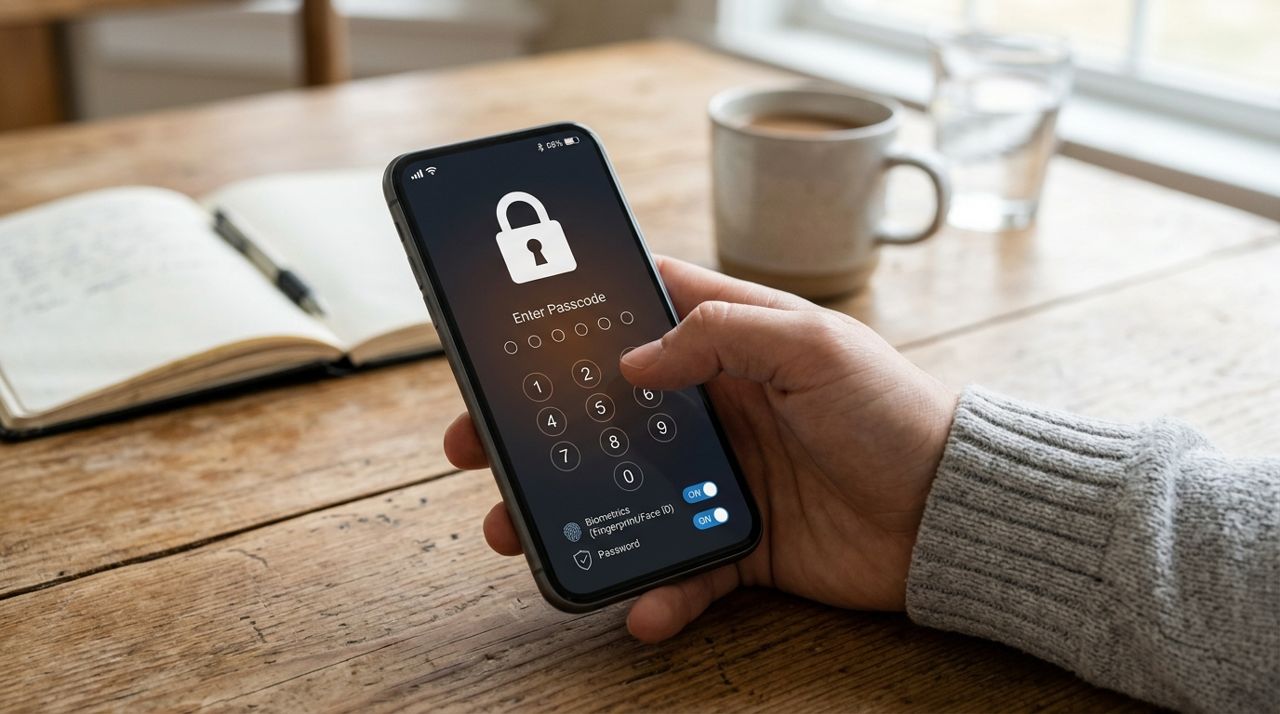
Whether you're ordering lunch, booking a handyman, or browsing homes for rent, your account stores sensitive information: saved payment cards, addresses, order history, and messages with service providers. A compromised account can lead to unauthorized purchases, identity theft, or privacy headaches.
This guide walks you through practical steps to secure your account from day one—strong passwords, payment safeguards, privacy settings—and shows you how to permanently delete your account if your needs change. These steps work for any service, but we'll show you exactly where to find them in Lumo.
- 01
Step 1: Start with a strong, unique password
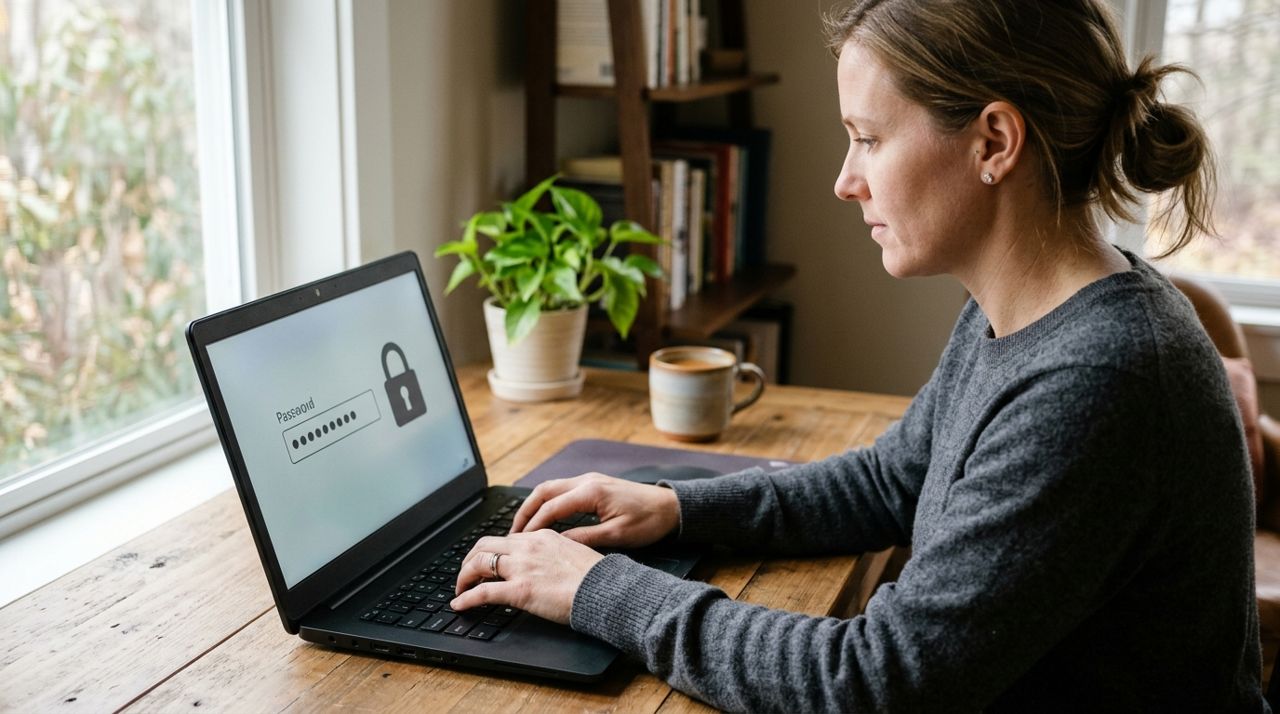
Person entering a password on a laptop keyboard with secure lock icon displayed on screen If you signed up with email and password, make sure it's at least 12 characters long and mixes uppercase, lowercase, numbers, and symbols. Never reuse a password from another site—if one service gets breached, attackers try those credentials everywhere.
Use a password manager (1Password, Bitwarden, Dashlane) to generate and store a random password you'll never need to remember. If you signed in with Google or Apple, you're already using their secure authentication; just make sure those accounts themselves have strong passwords and two-factor authentication turned on.
- 02
Step 2: Enable two-factor authentication wherever possible
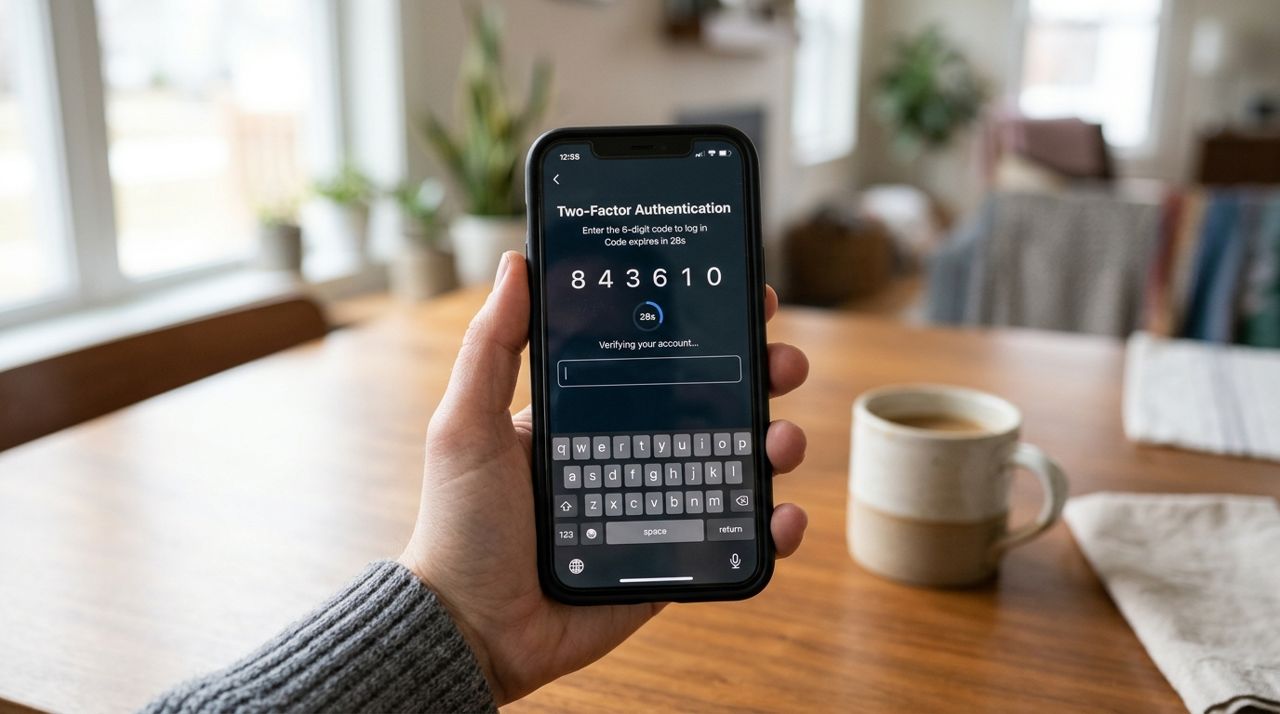
Smartphone displaying a two-factor authentication code on the screen for account login verification Two-factor authentication (2FA) adds a second step after your password—usually a six-digit code from an app like Google Authenticator, Authy, or your phone's built-in authenticator. Even if someone steals your password, they can't log in without that code.
Check your account's security settings to see if 2FA is available. If you signed in with Google or Apple, enable 2FA on those accounts through their security settings. For email sign-ins, see if the service offers SMS codes or app-based authentication. SMS is less secure than an app, but still far better than password-only.
- 03
Step 3: Review saved payment methods and addresses
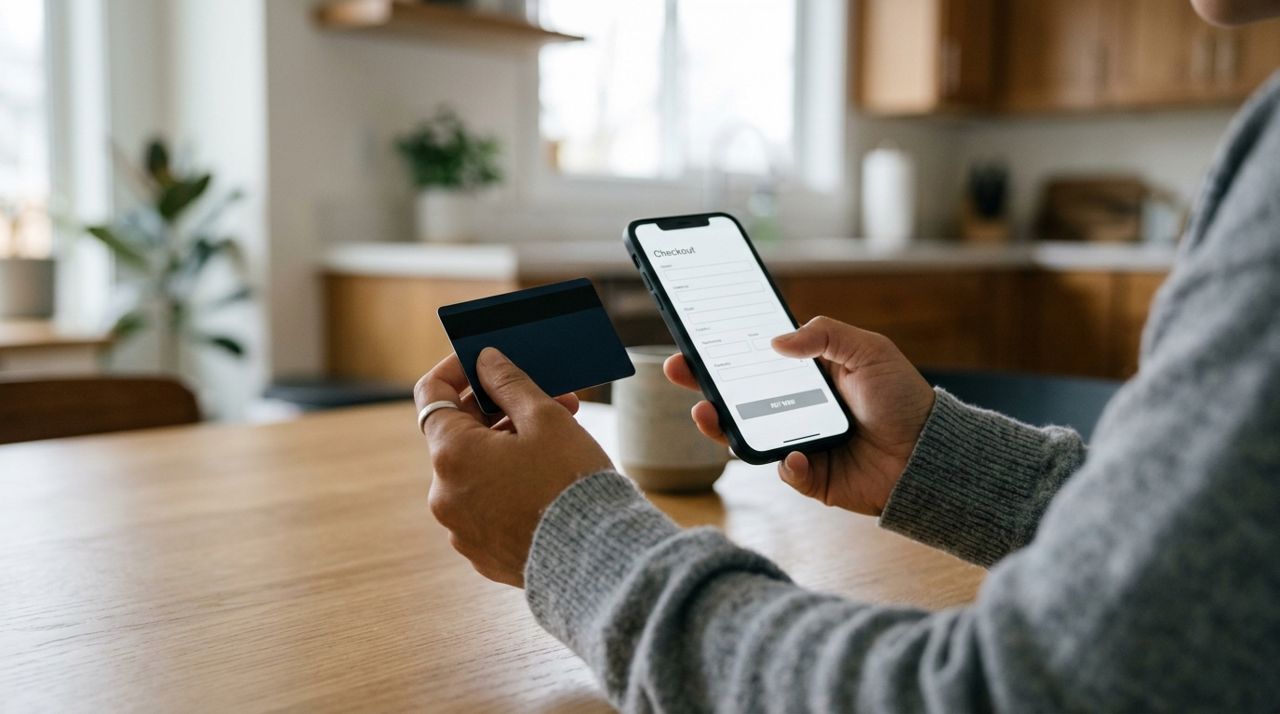
Person holding a credit card next to a smartphone ready to enter payment details Go to Settings in the app or web dashboard and check what's stored. Remove any old cards you no longer use and delete outdated addresses. The fewer saved details, the smaller the risk if your account is ever accessed.
When you make a purchase in Lumo, payments are processed securely and your full card number is never shown—you'll see only the last four digits. Still, it's smart to use a dedicated credit card (not debit) for online orders; credit cards offer better fraud protection, and you won't risk draining your checking account if something goes wrong.
- 04
Step 4: Watch for phishing attempts and suspicious messages
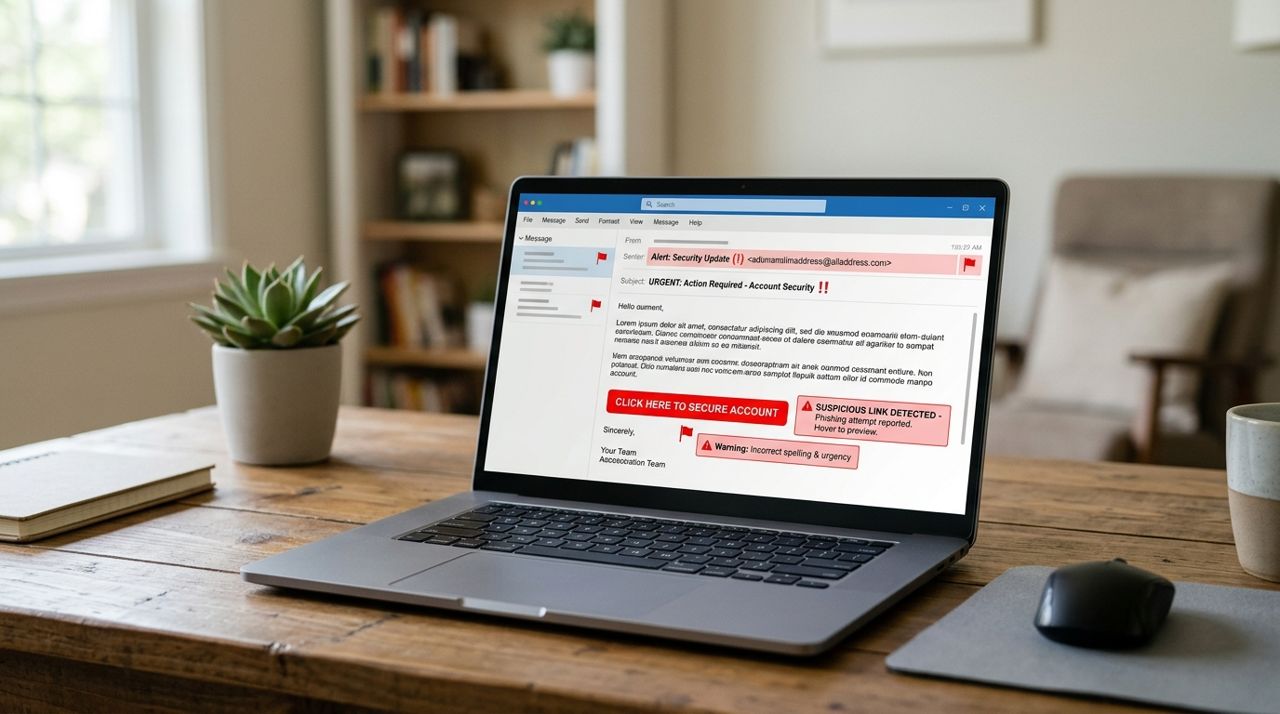
Laptop screen showing a suspicious phishing email with warning signs and red flags highlighted Scammers impersonate legitimate services to steal login credentials or payment details. Never click links in unexpected emails or texts asking you to 'verify your account' or 'update payment info.' Always open the app or type the website address yourself.
In-app messaging in Lumo lets you chat with service providers and sellers without sharing your phone number or email. Legitimate workers and sellers will never ask you to pay outside the app or send your password. If anyone does, report them through the app's support feature and don't comply.
- 05
Step 5: Set up alerts and check activity regularly
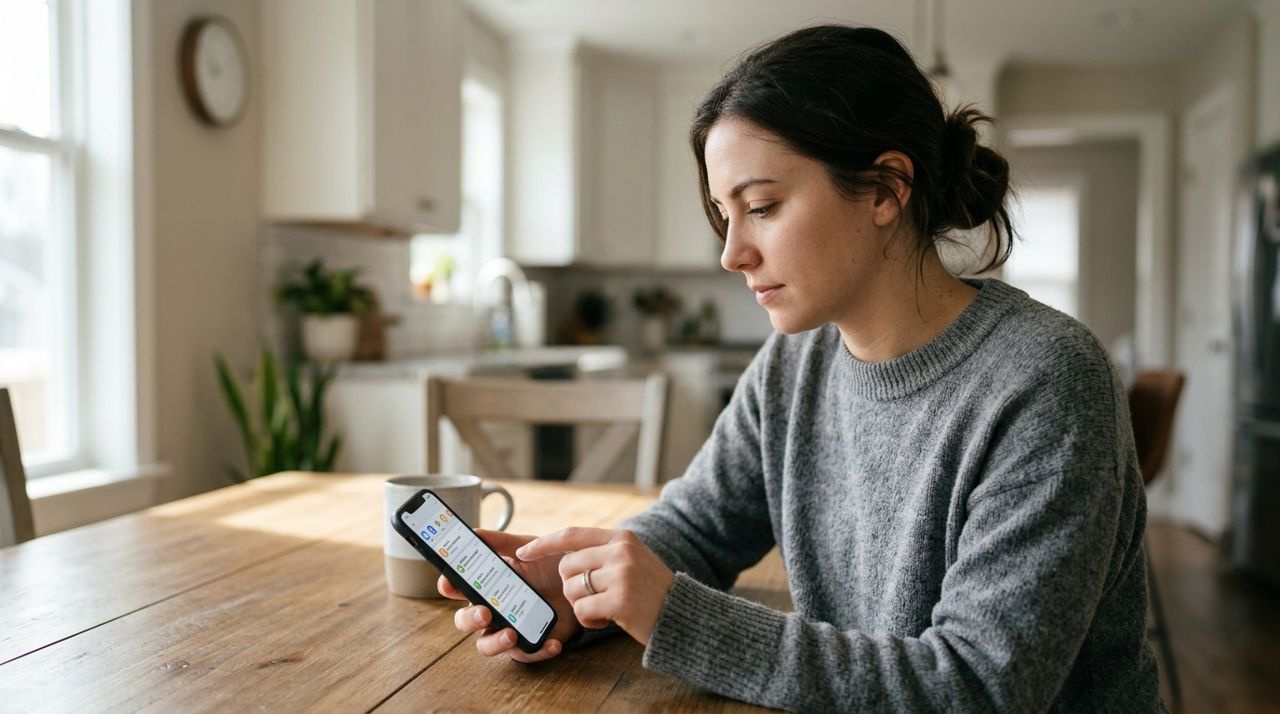
Person checking smartphone notifications and alerts for recent account activity and orders Turn on email or push notifications for every order, booking, and payment. That way you'll know immediately if something happens that you didn't authorize.
Once a month, open Settings and review your recent order history and payment activity. Look for anything you don't recognize—mystery charges, orders you didn't place, or bookings you didn't make. Catch fraud early and you can dispute charges and lock down your account before real damage is done. If you spot something wrong, contact support right away and change your password.
- 06
Step 6: Log out on shared devices
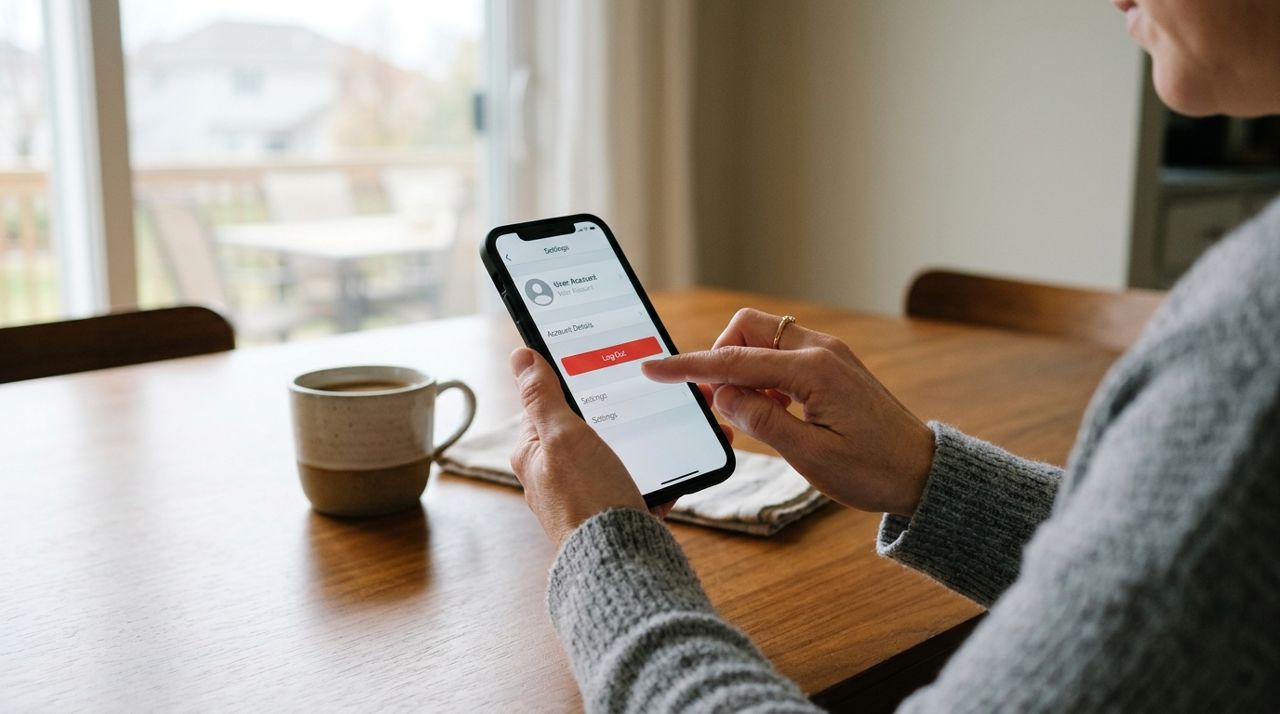
Person tapping the logout button on a smartphone app settings screen If you use a public computer, a friend's phone, or a family tablet, always log out when you're done. Apps and browsers often stay logged in by default, leaving your account wide open to the next user.
On the web version at golumo.app, click your profile icon and choose Log Out. On the mobile app, go to Settings and tap Log Out. If you forget, you can remotely log out from your own device by changing your password—that will boot any other sessions. Never check 'remember me' or save passwords on devices you don't own.
- 07
Step 7: Delete your account if you need to
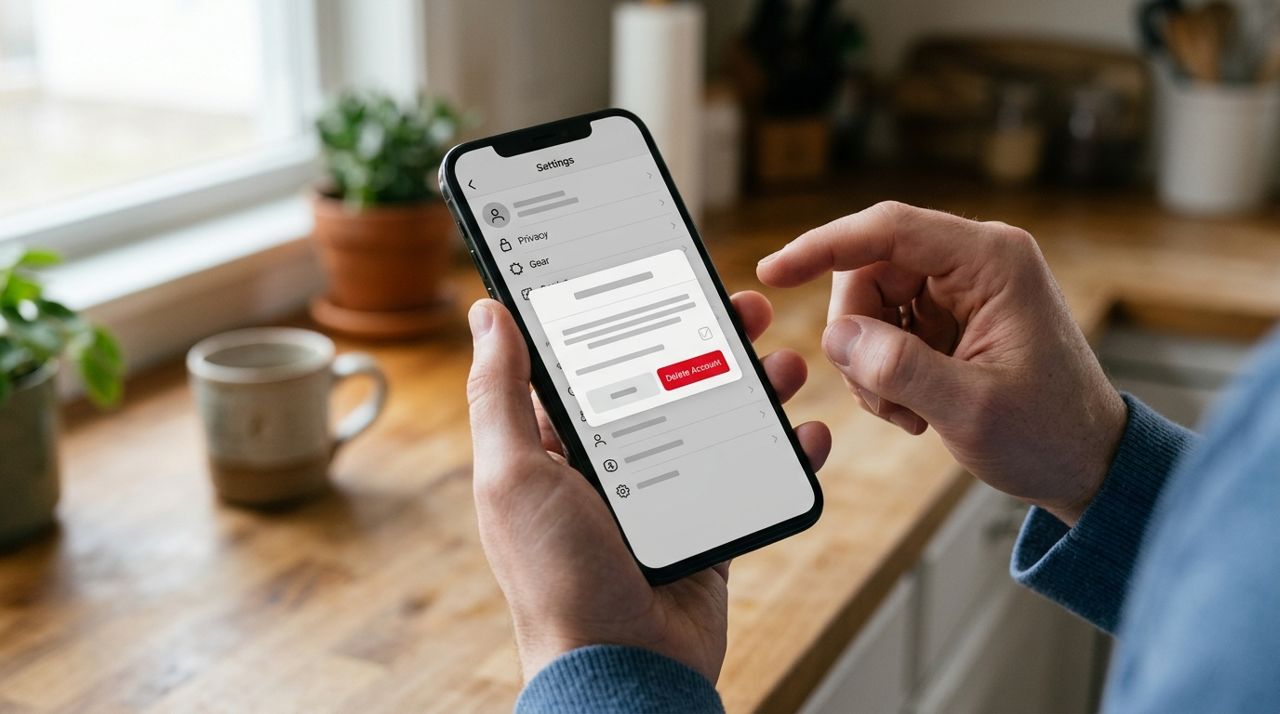
Smartphone screen showing a red delete account button in app settings with confirmation prompt Life changes—you move to a new city, switch to another service, or just want to reduce your digital footprint. In Lumo, you can permanently delete your account in Settings. Tap your profile, go to Settings, scroll to the bottom, and choose 'Delete Account.' You'll be asked to confirm.
Deletion is permanent. Your order history, saved addresses, payment methods, messages, and any in-app wallet balance will be erased and cannot be recovered. If you're a worker or seller, make sure you've withdrawn your earnings first. If you think you might come back, consider just logging out instead—you can always delete later.
Pro tips
- Change your password every six to twelve months, especially if you hear about a data breach at any service you use.
- Never share your password, even with customer support—legitimate companies will never ask for it.
- If you lose your phone, change your password immediately from another device to lock out whoever finds it.
- Before deleting your account, download or screenshot any receipts or records you might need for taxes or warranty claims.
- Use your phone's biometric lock (fingerprint or Face ID) so nobody can open the app even if they have your device.
Frequently asked questions
- What happens to my payment methods when I delete my account?
- All saved cards and billing information are permanently deleted from the system. No trace of your payment details remains after deletion. If you ever sign up again, you'll need to re-enter everything from scratch.
- Can I recover my account after deleting it?
- No. Deletion is permanent and cannot be undone. Your order history, messages, ratings, and wallet balance are gone for good. If you think you might want to come back, just log out and leave the account inactive instead.
- Will service providers still have my messages after I delete my account?
- In-app messages are tied to your account, so once you delete it, your side of the conversation disappears. Providers may retain records for their own business purposes, but your personal profile and contact details are removed from the platform.
A secure account starts with simple habits—strong passwords, regular check-ins, and saying no to sketchy requests. And if you ever decide to move on, you can delete everything cleanly and completely. Take ten minutes today to lock down your settings, and you'll save yourself hours of headache down the road.
Photos are illustrative. Service prices are typical ranges and vary by city. How we write our guides.
More guides like this

Which Lumo Mode Is Right for You? Customer, Worker, Seller or Real Estate
Lumo's welcome screen offers four modes—Customer, Worker, Seller and Real Estate—so one app handles ordering, earning, selling and finding homes. Here's how to choose the right one.
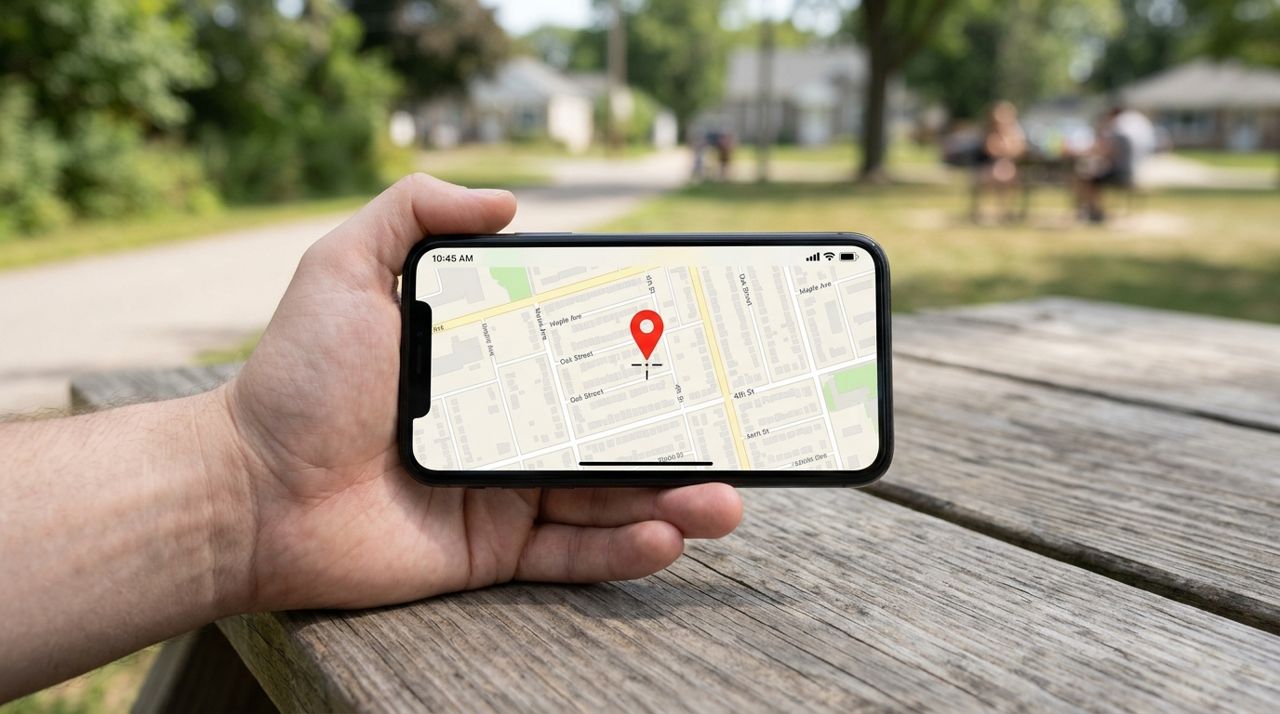
How to Set Your Address on Lumo for Accurate Nearby Results
Your address determines which restaurants, shops and service providers you'll see on Lumo. Setting it correctly means you only browse options that actually deliver or work in your area.
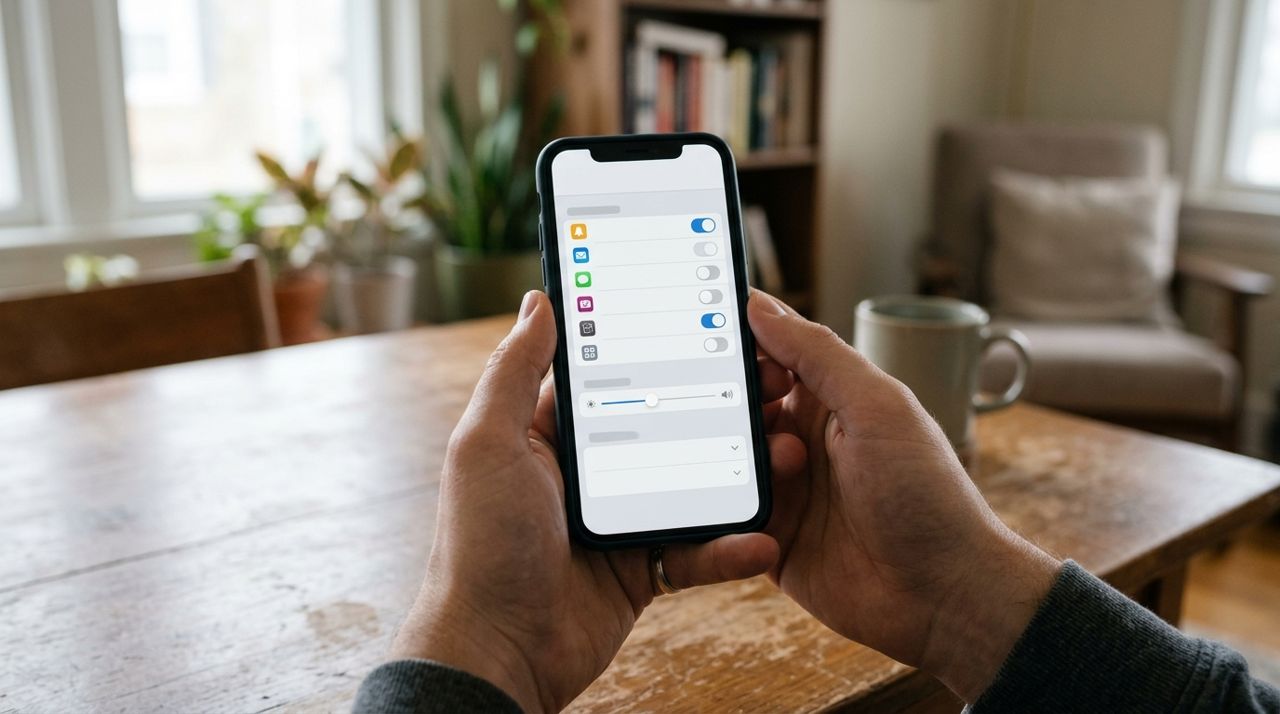
How to Manage Notifications So You Only Get Alerts That Matter
Getting pinged every few minutes by apps is draining. Here's how to dial back the noise and only receive notifications that actually help you—like order updates and delivery arrivals—without missing what matters.