
How to Manage Notifications So You Only Get Alerts That Matter
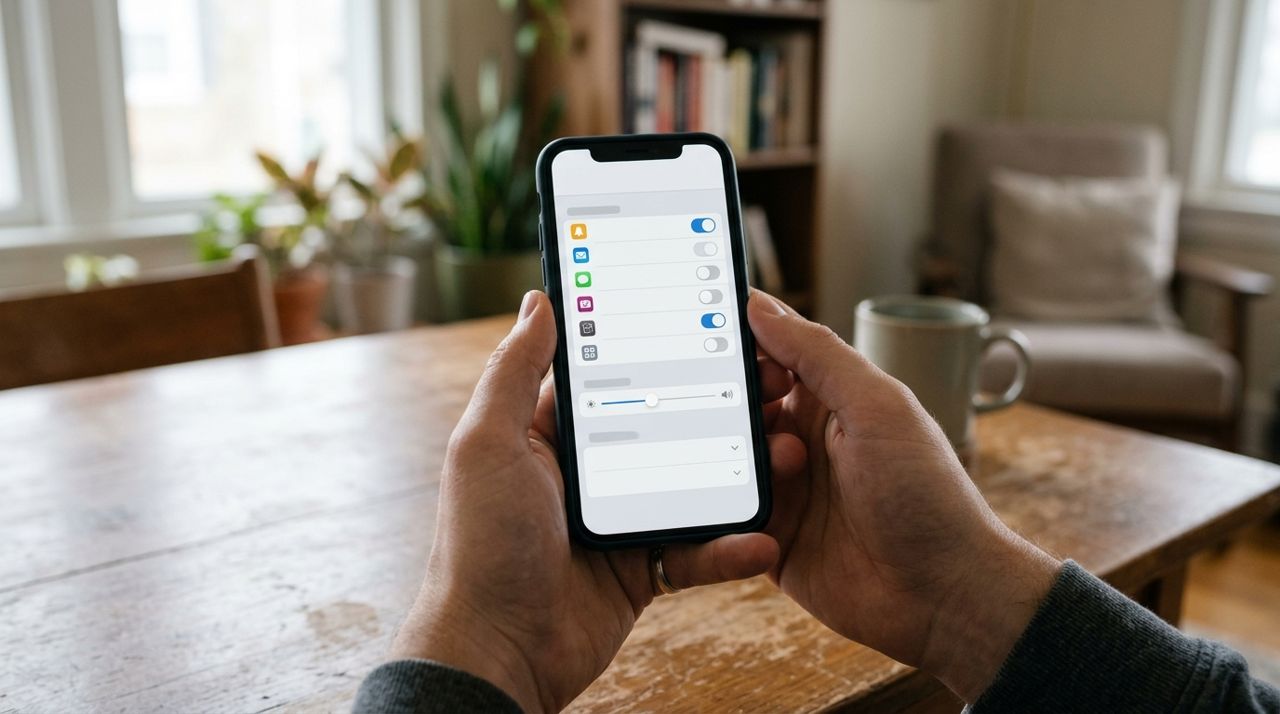
Most people get 50 to 100 app notifications every day. A chunk of those are useful—your driver is five minutes away, your order is ready—but many are just noise: promotions, feature announcements, reminders you didn't ask for. The result is notification fatigue: you ignore everything, including the alerts you actually need.
This guide walks you through how to take control. You'll learn which notifications are worth keeping, how to turn off the rest in your phone's settings and inside apps like Lumo, and how to set up Do Not Disturb schedules so alerts don't interrupt your evenings or weekends. By the end, you'll only hear from apps when it truly matters.
- 01
Step 1: Decide which notifications you actually need
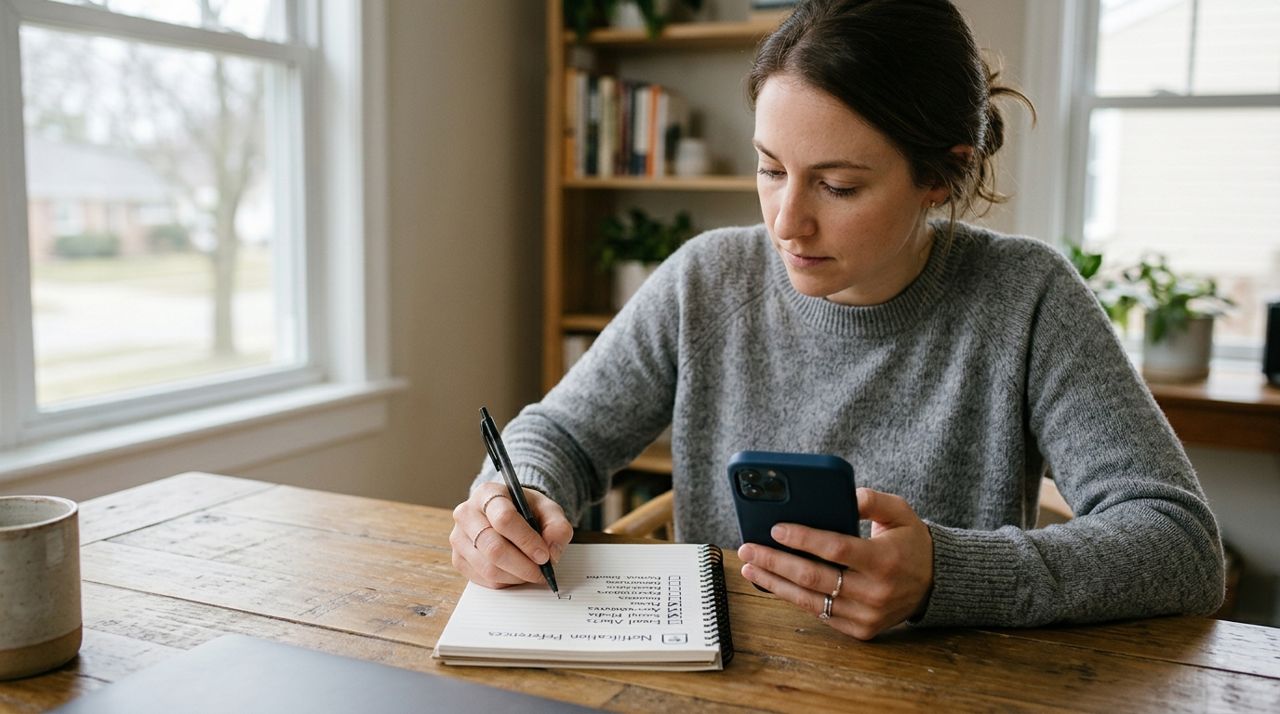
Person holding smartphone while writing a checklist on paper to decide notification preferences - Order confirmation and driver on the way
- Arrival and drop-off photo
- Job messages from pros (cleaning, handyman, etc.)
- Payment receipts
You probably don't need promotional offers, feature updates, or 'we miss you' reminders. Write down your must-haves. This becomes your filter as you go through settings.
- 02
Step 2: Turn off promotional and marketing notifications in each app
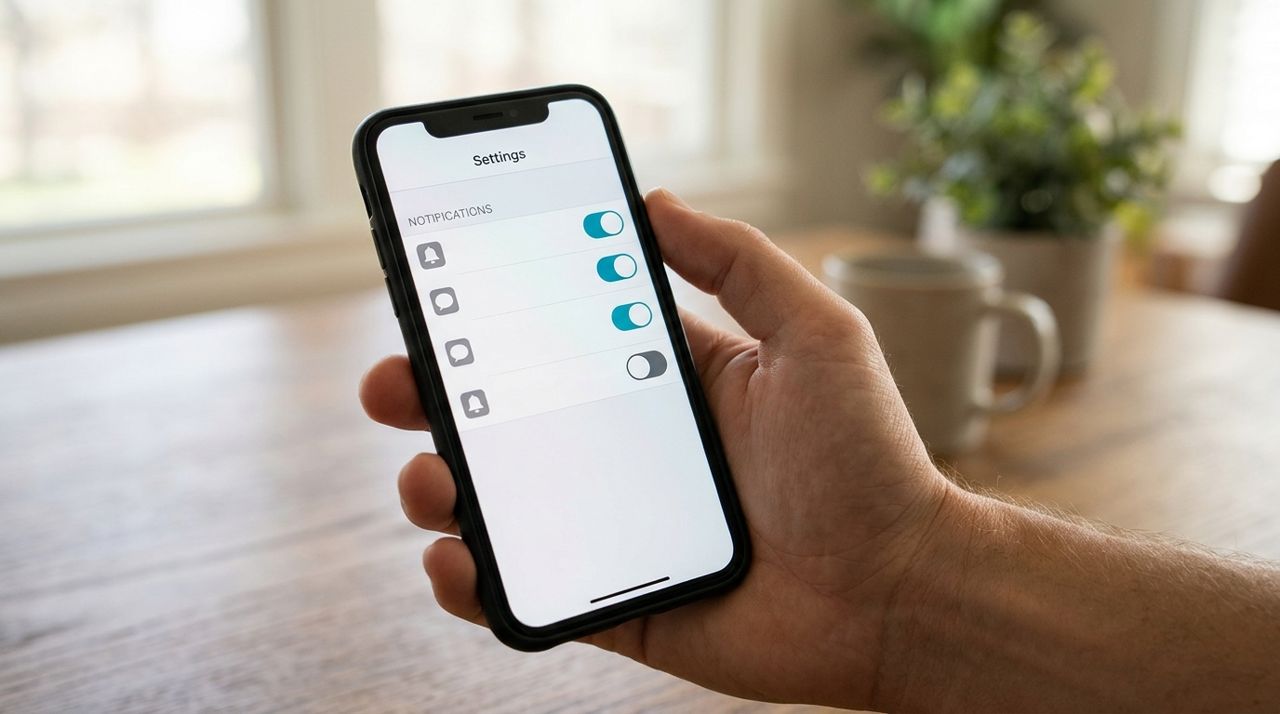
Close-up of smartphone screen showing notification toggle switches in app settings menu Open the app (Lumo, your banking app, retail apps) and go to Settings or Account. Look for a Notifications or Communication section. Most apps separate transactional alerts (order updates) from marketing (deals, new features). Turn off marketing. Leave transactional on.
In Lumo, tap your profile, then Settings, then Notifications. You'll see toggles for order updates, job messages, delivery alerts, and promotional messages. Turn off promotions; keep the rest unless you have a specific reason not to. Do this for every app that sends you offers you ignore.
- 03
Step 3: Use your phone's system settings to silence low-priority apps
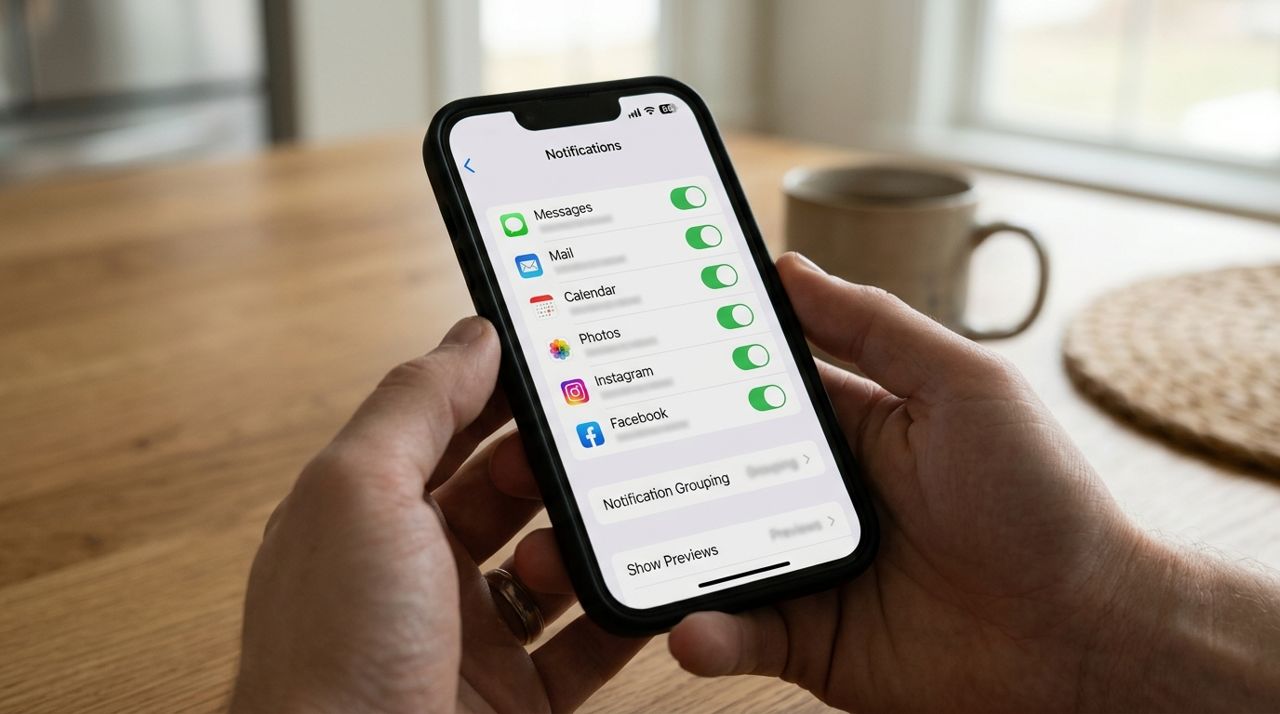
iPhone settings screen displaying list of apps with notification toggles and delivery options On iPhone, go to Settings > Notifications. You'll see a list of every app. Tap one, and you can turn off Allow Notifications entirely, or choose Lock Screen only (so you see it later but it doesn't interrupt), or Banners without sound.
On Android, go to Settings > Apps & notifications > See all apps, pick the app, tap Notifications, and toggle categories off or set them to Silent. For apps you rarely need urgently—like shopping or social media—turn off sound and vibration but leave the badge on so you see a count when you open your phone.
- 04
Step 4: Set up delivery and service alerts the right way
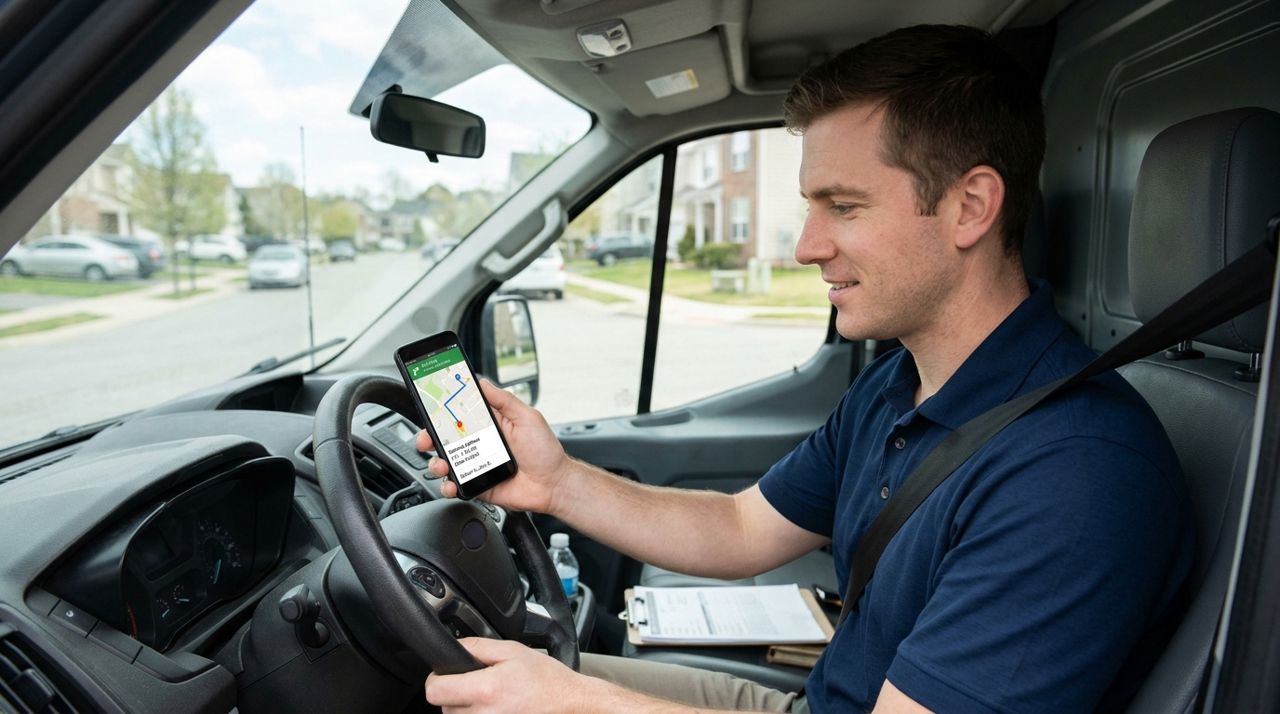
Delivery driver holding smartphone showing map navigation and order tracking interface in car For food delivery, grocery orders, and local services, you want real-time updates but not spam. Make sure 'Order Status' and 'Delivery Updates' are on. In Lumo, that means toggling on order confirmations, live tracking alerts (when your driver is close), and drop-off photos.
Turn off 'Suggested orders,' 'Reorder reminders,' and 'Rate your experience' notifications—you can do those tasks when you open the app. If you book pros through the app, keep job messages on so you get replies when a handyman or cleaner answers your request.
- 05
Step 5: Schedule Do Not Disturb so alerts don't wake you up
Peaceful bedroom scene with smartphone on nightstand in Do Not Disturb mode while person sleeps On iPhone, go to Settings > Focus > Do Not Disturb. Turn on Scheduled and set hours (say, 10 p.m. to 7 a.m.). You can allow calls from contacts and repeated calls in case of emergency.
On Android, Settings > Sound > Do Not Disturb, then Schedules. Set your quiet hours. During DND, notifications are silent but still appear when you unlock your phone. If you're expecting a late delivery, you can toggle DND off for that evening, or add delivery apps to your DND exception list under Calls and Apps.
- 06
Step 6: Review and prune notification settings every few months
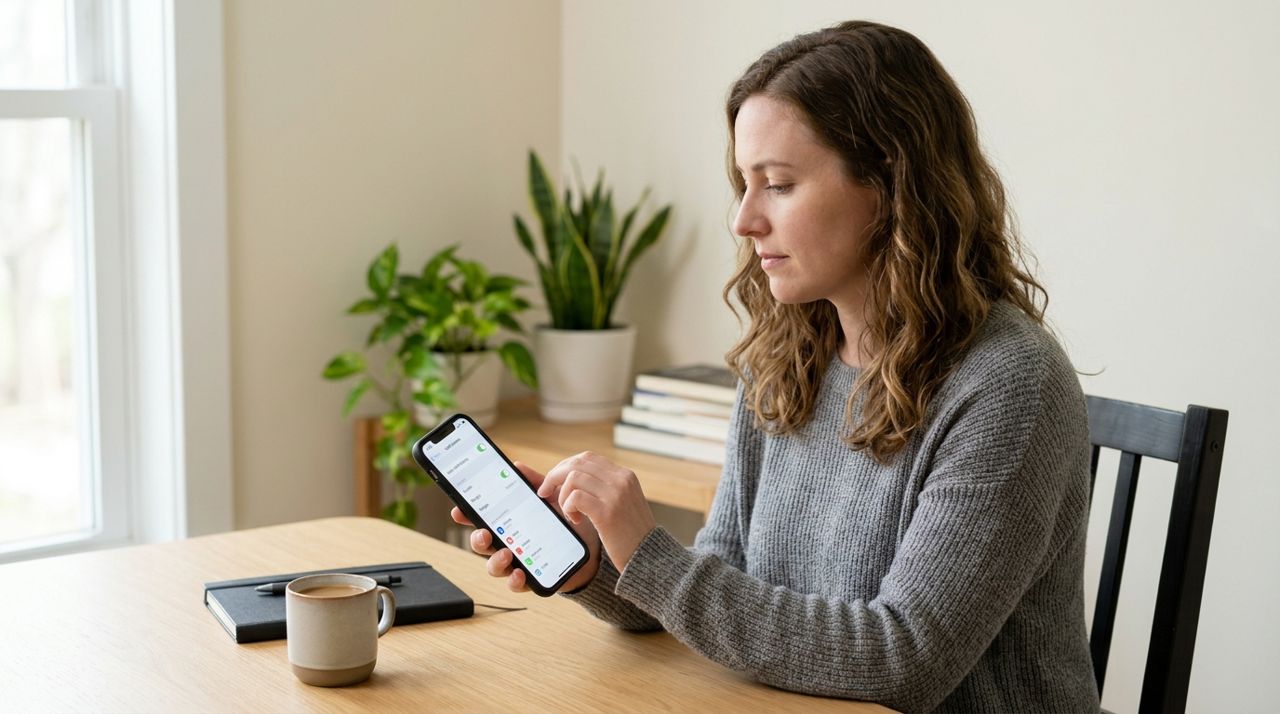
Person sitting at desk carefully reviewing and adjusting notification settings on their smartphone screen Apps change. A useful alert today becomes annoying next quarter when the company adds a new 'engagement' feature. Every three months, open your phone's notification settings and scroll through the list. If you see an app sending more than you remember, dive into its settings and trim.
In Lumo and similar apps, check if new notification categories appeared after an update. Turn off anything that isn't order status, delivery tracking, or direct messages. This five-minute review keeps notification creep from sneaking back in.
- 07
Step 7: Test your setup with a real order
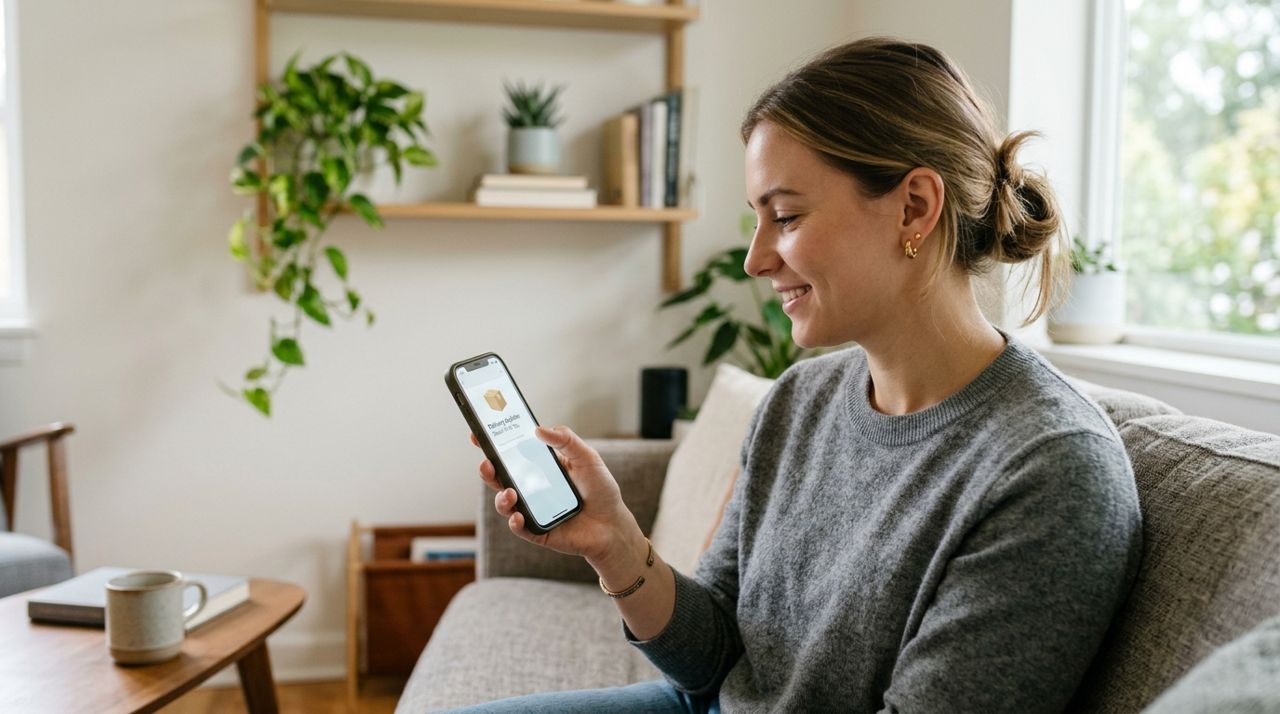
Person glancing at smartphone notification showing delivery update alert on screen in bright room Place a small order or book a simple service to see what alerts actually come through. Did you get the confirmation? The 'driver is on the way' ping? The drop-off photo? Did promotional messages stay silent?
If something you wanted didn't arrive, go back and double-check both the app's settings and your phone's system settings. Sometimes an app toggle is on but the phone's system toggle is off, or vice versa. Once you confirm you're getting exactly what you need and nothing more, you're done.
Pro tips
- Use notification badges (the red dots) for apps you check regularly but don't need instant alerts from.
- If you order delivery late at night, temporarily allow notifications from the app so you don't miss the driver; then turn them back to silent after.
- Group notifications by app on Android so five messages from one app don't take up your whole lock screen.
- For shared devices or family accounts, create separate profiles so each person controls their own alerts.
Frequently asked questions
- Will I miss my delivery if I turn off too many notifications?
- Not if you keep order status and delivery tracking alerts on. Those tell you when your driver is close and when they drop off your order. You can safely turn off promotions, reorder suggestions, and rating reminders without missing real updates.
- Can I get notifications for some services but not others in the same app?
- It depends on the app. Lumo groups notifications by type (order updates, job messages, promotions), not by service category. Most apps work the same way, so you can't get alerts for food orders but not grocery orders unless you turn notifications off entirely and check the app manually.
- How do I stop getting duplicate notifications from email and the app?
- Go into the app and turn off email notifications for order updates, or set up an email filter to skip your inbox and archive them automatically. Keep the app's push notifications on so you still get real-time alerts on your phone.
You don't have to live with notification overload. Spend fifteen minutes now to turn off marketing alerts, set up Do Not Disturb hours, and keep only the updates that help you track orders and communicate with service pros. Your phone will interrupt you less, and when it does buzz, it'll actually be something you care about. Try this system for a week and see how much quieter—and more useful—your notifications become.
Photos are illustrative. Service prices are typical ranges and vary by city. How we write our guides.
More guides like this
Which Lumo Mode Is Right for You? Customer, Worker, Seller or Real Estate
Lumo's welcome screen offers four modes—Customer, Worker, Seller and Real Estate—so one app handles ordering, earning, selling and finding homes. Here's how to choose the right one.
How to Set Your Address on Lumo for Accurate Nearby Results
Your address determines which restaurants, shops and service providers you'll see on Lumo. Setting it correctly means you only browse options that actually deliver or work in your area.
How to Keep Your Account Safe and Delete It If You Need To
Your account holds payment information, order history, and personal details. Here's how to lock it down and what to do if you ever want to delete it.