
How to Set Your Address on Lumo for Accurate Nearby Results
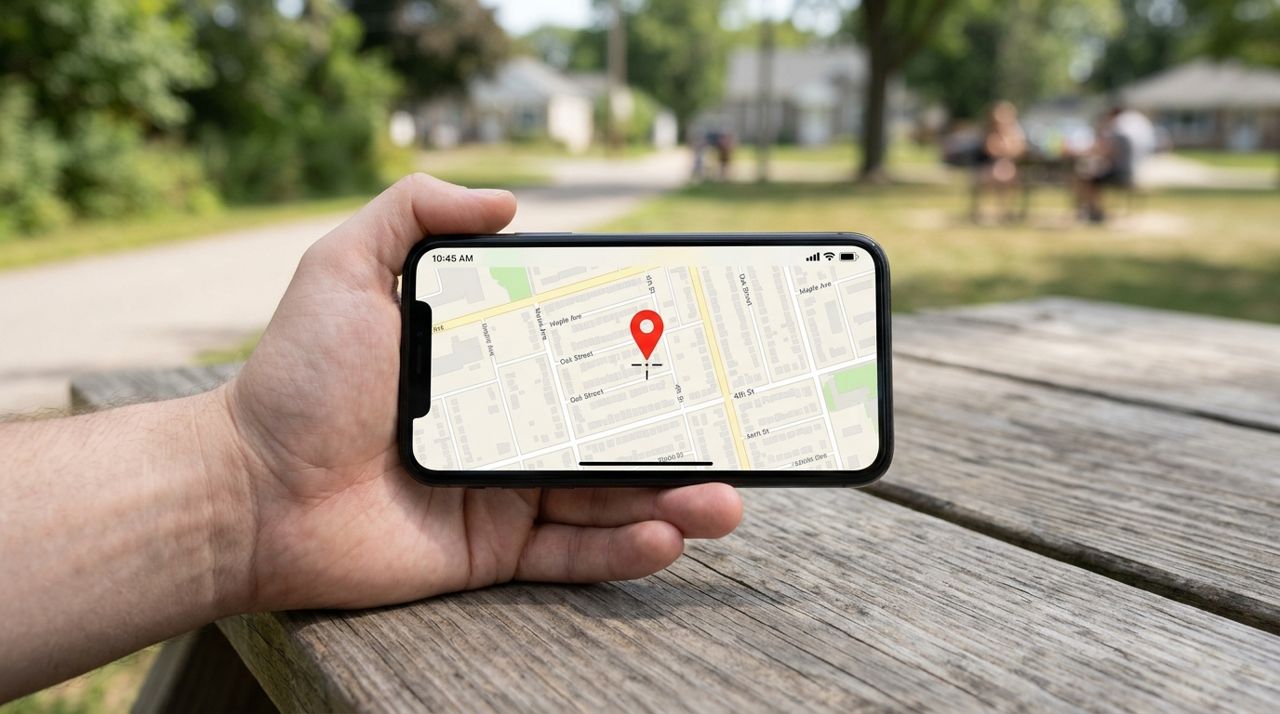
When you open Lumo to order dinner or book a handyman, the app needs to know where you are. Your location determines which restaurants will deliver to you, which local shops are nearby, and which pros work in your neighborhood. Set it wrong and you'll waste time browsing menus from places that can't reach you or booking workers who don't serve your area.
This guide walks you through setting your address when you first sign up, changing it when you move or travel, and understanding how location affects delivery fees and service availability. You'll also learn how to manage multiple addresses if you split time between home and work or want to order for someone else.
- 01
Step 1: Allow location access when prompted
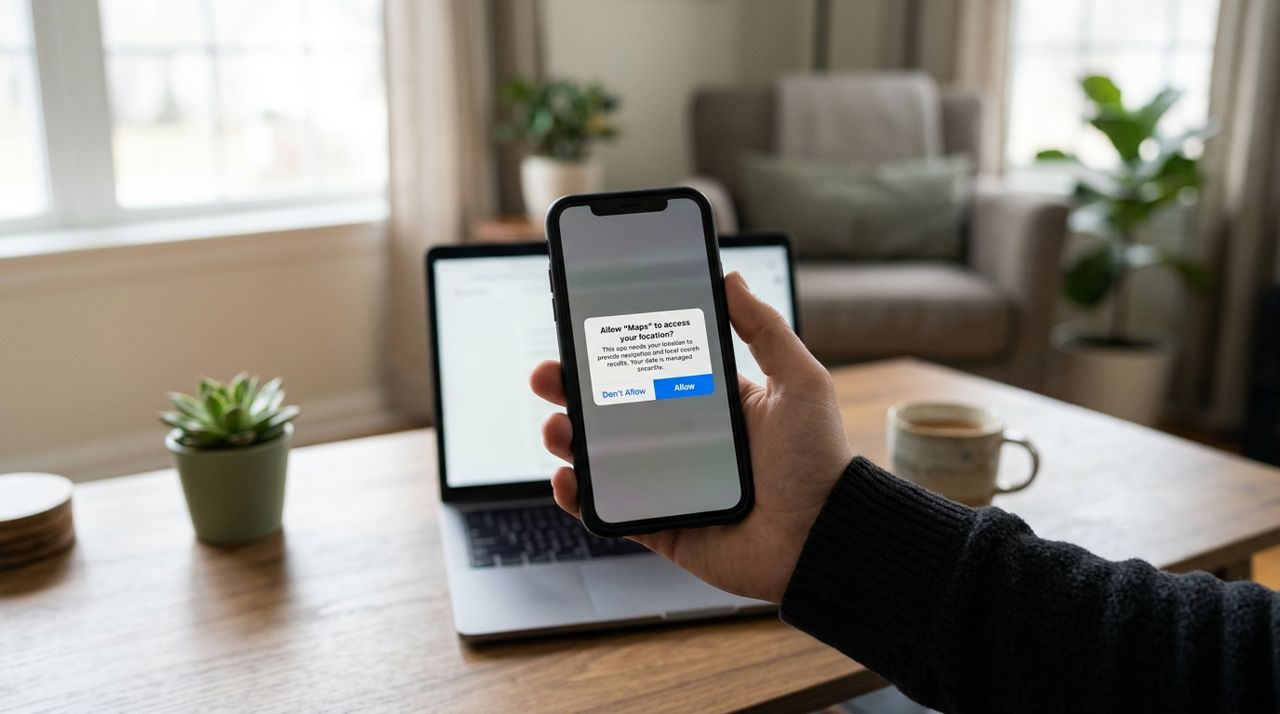
Phone screen showing location permission prompt with allow and deny options When you first open Lumo on iPhone, Android or at golumo.app, you'll see a permission prompt asking to use your location. Tap 'Allow While Using App' (iPhone) or 'While using the app' (Android). This lets Lumo show you nearby restaurants, shops and pros without you typing anything. If you skip this step, you'll need to enter your address manually every time. You can always change location permissions later in your phone's Settings under Privacy or Apps.
- 02
Step 2: Enter your full street address
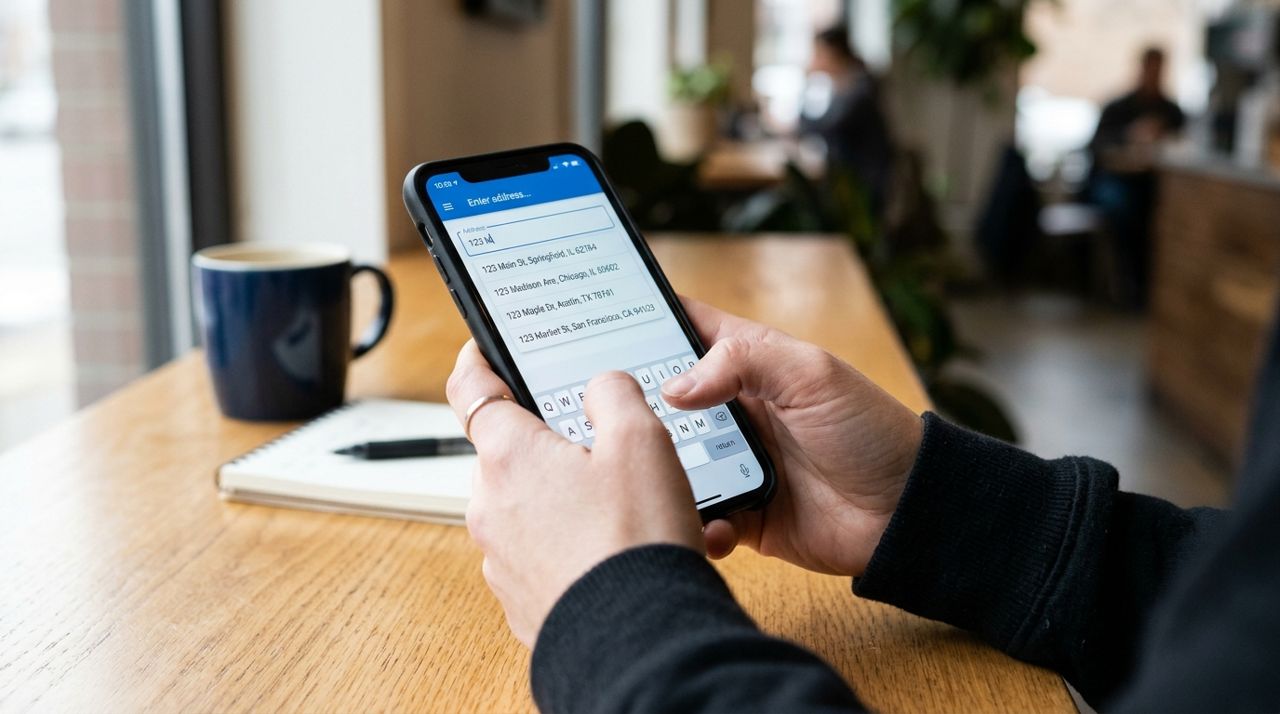
Hands typing street address into phone app with autocomplete suggestions visible On the Lumo welcome screen, choose your mode (Customer, Worker, Seller or Real Estate). As a customer, you'll see a location field at the top. Tap it and start typing your street address. Lumo will suggest matching addresses as you type. Pick the correct one from the dropdown. Include your apartment or unit number if you have one—this helps drivers find you for delivery. The more precise your address, the more accurate your delivery fee estimate will be, since fees are calculated based on distance from the restaurant or shop to your door.
- 03
Step 3: Confirm your delivery instructions
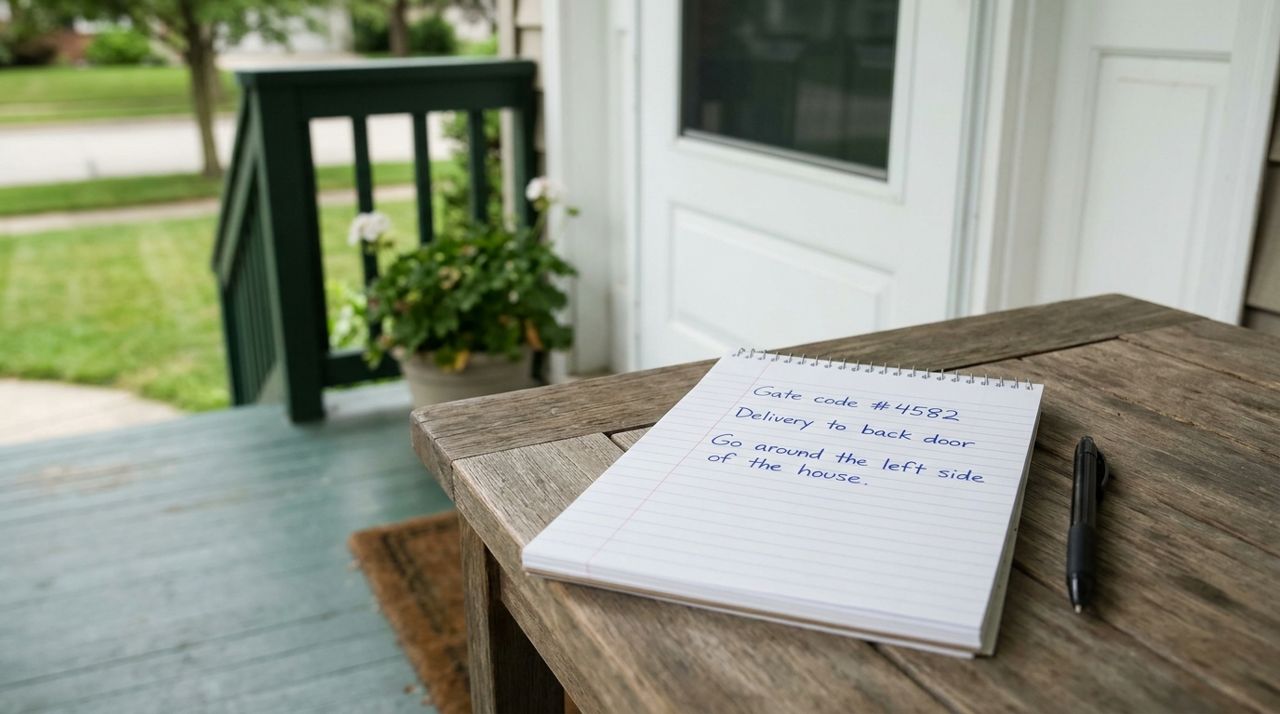
Notepad showing delivery instructions with gate code and door location details After selecting your address, you'll see a field for delivery instructions. This is optional but helpful. Add notes like 'Leave at front door,' 'Ring doorbell twice,' 'Gate code is 1234,' or 'Use side entrance.' These instructions stay with your address, so you don't have to retype them every order. Drivers see these notes when they're heading your way, and they can also message you through the app if they need clarification. Good instructions mean fewer missed deliveries and less time waiting at the door.
- 04
Step 4: Check the delivery radius
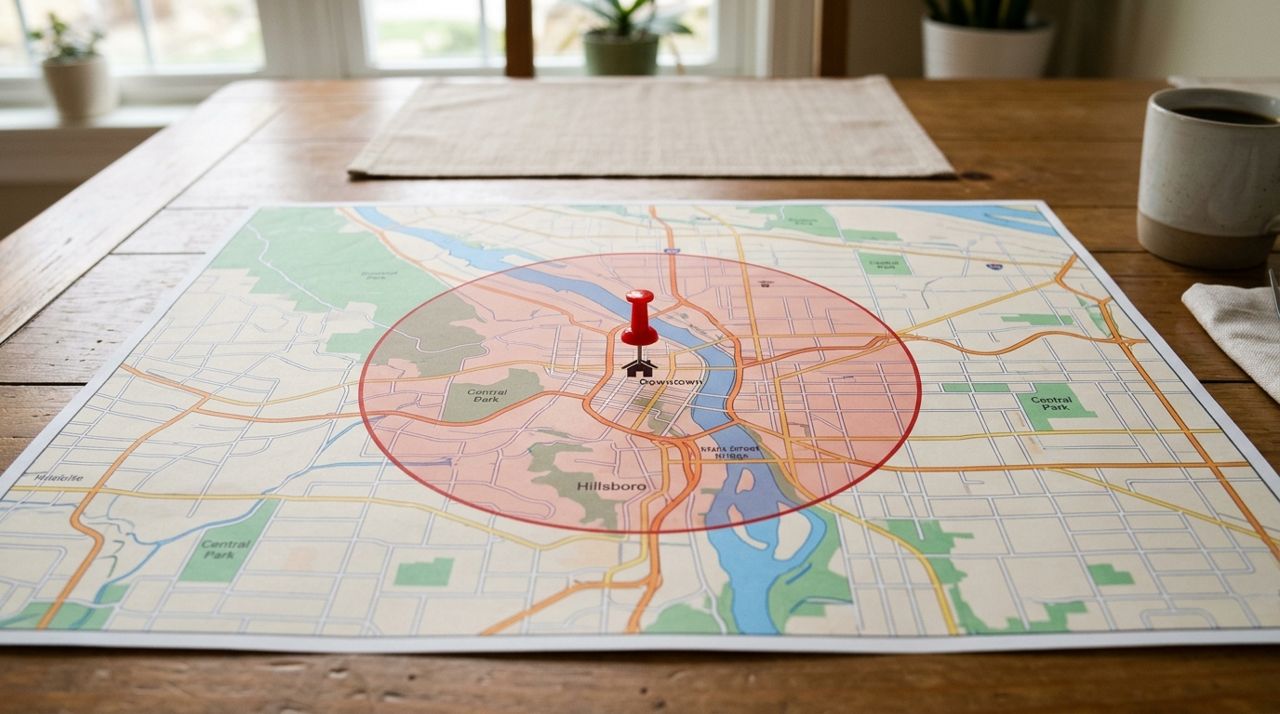
City map showing delivery radius circle around customer address marker Once your address is set, browse the Customer mode to see what's nearby. You'll only see restaurants, food trucks, shops and sellers that deliver to your location. If a place is too far away, it won't appear in your feed. Delivery fees increase with distance, so you'll see the exact fee before checkout—it's based on a base amount plus distance and order size. For pickup orders, there's no delivery fee at all. If you're in a rural area or new neighborhood, you might see fewer options than someone downtown. That's normal and reflects actual service areas.
- 05
Step 5: Save multiple addresses
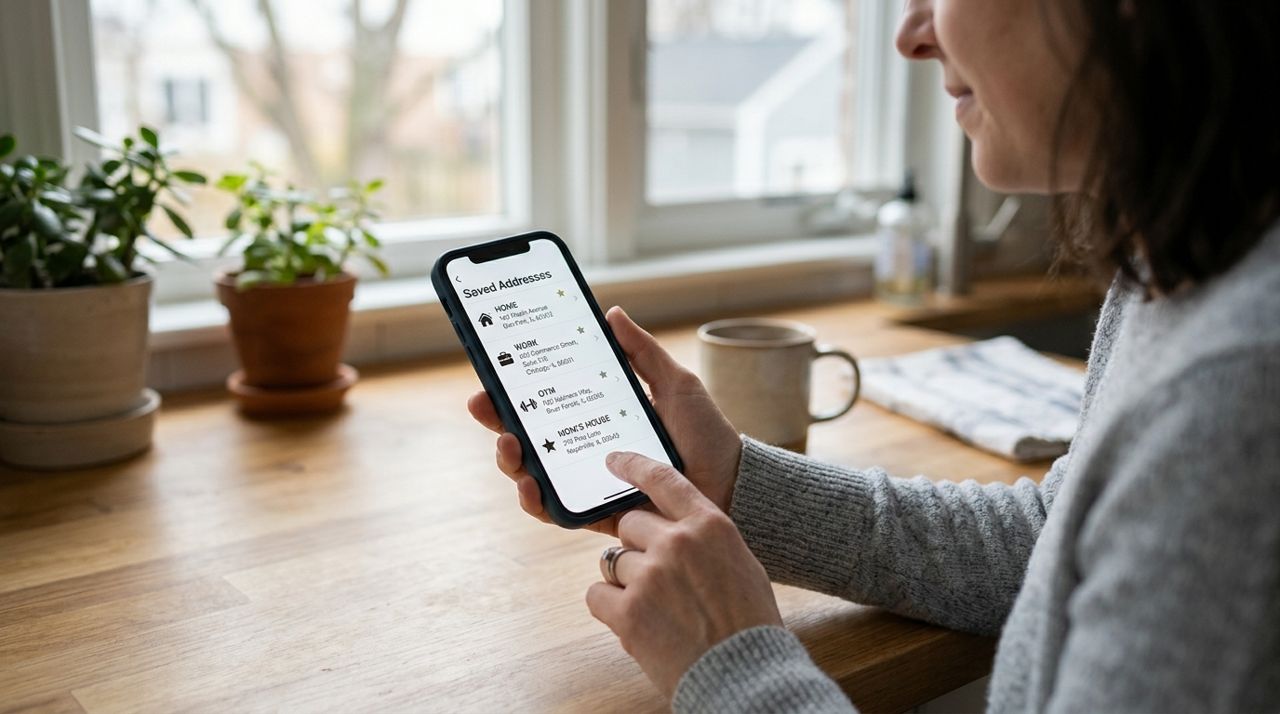
Phone screen displaying list of saved addresses labeled home, work, and other If you order from work, home, or a friend's place regularly, save all those addresses. In the Lumo app, go to your profile or settings and look for 'Saved Addresses' or 'My Addresses.' Add each location with a label like 'Home,' 'Office,' or 'Mom's House.' When you place an order, tap the location field at the top and switch to a different saved address. This also updates which restaurants and pros you see—your office might be near a great taco truck that doesn't reach your house. Switching addresses takes two seconds and saves you from retyping every time.
- 06
Step 6: Update your address when you move
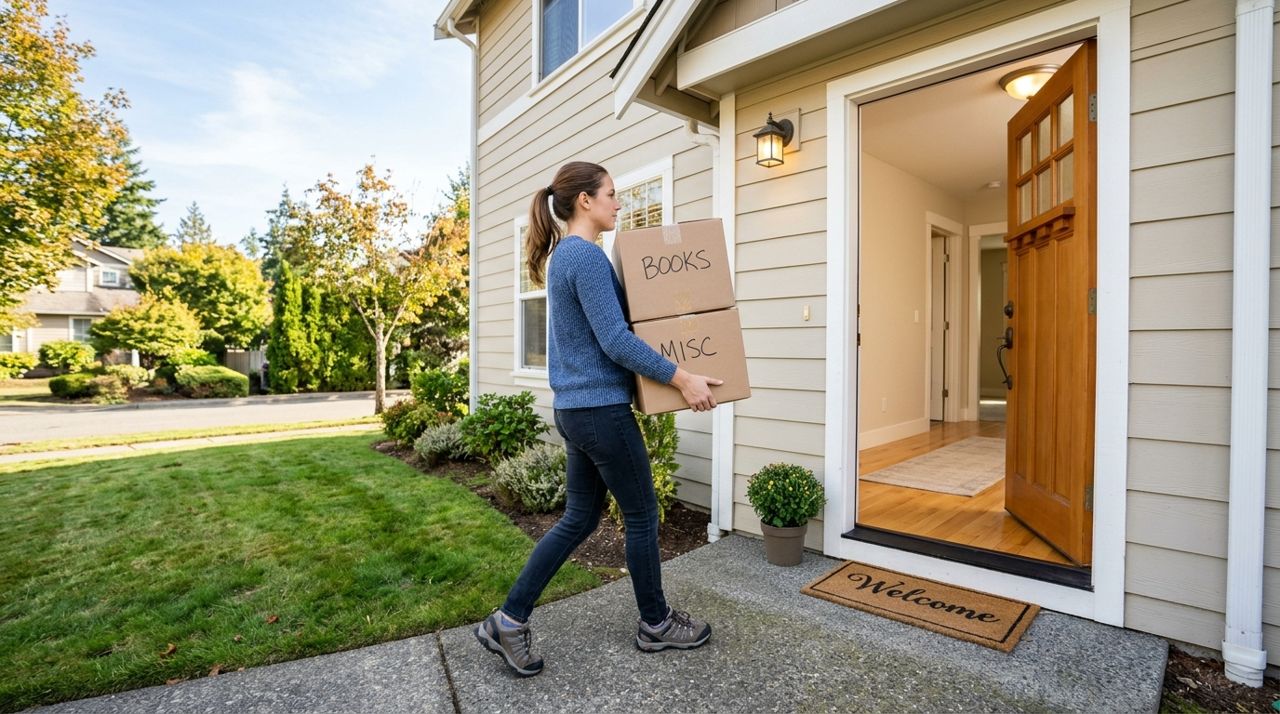
Person carrying cardboard moving boxes into new home with door open When you move or travel, update your address right away. Open the location field at the top of the Customer screen, type your new address, and select it. Your feed will instantly refresh to show restaurants, shops and pros that serve the new location. If you're traveling, you can set a temporary address and switch back to your home address when you return. Your saved addresses stay in your account, so you never lose them. Keeping your location current means you're always seeing delivery fees and service options that actually apply to you.
- 07
Step 7: Use your location for booking local pros
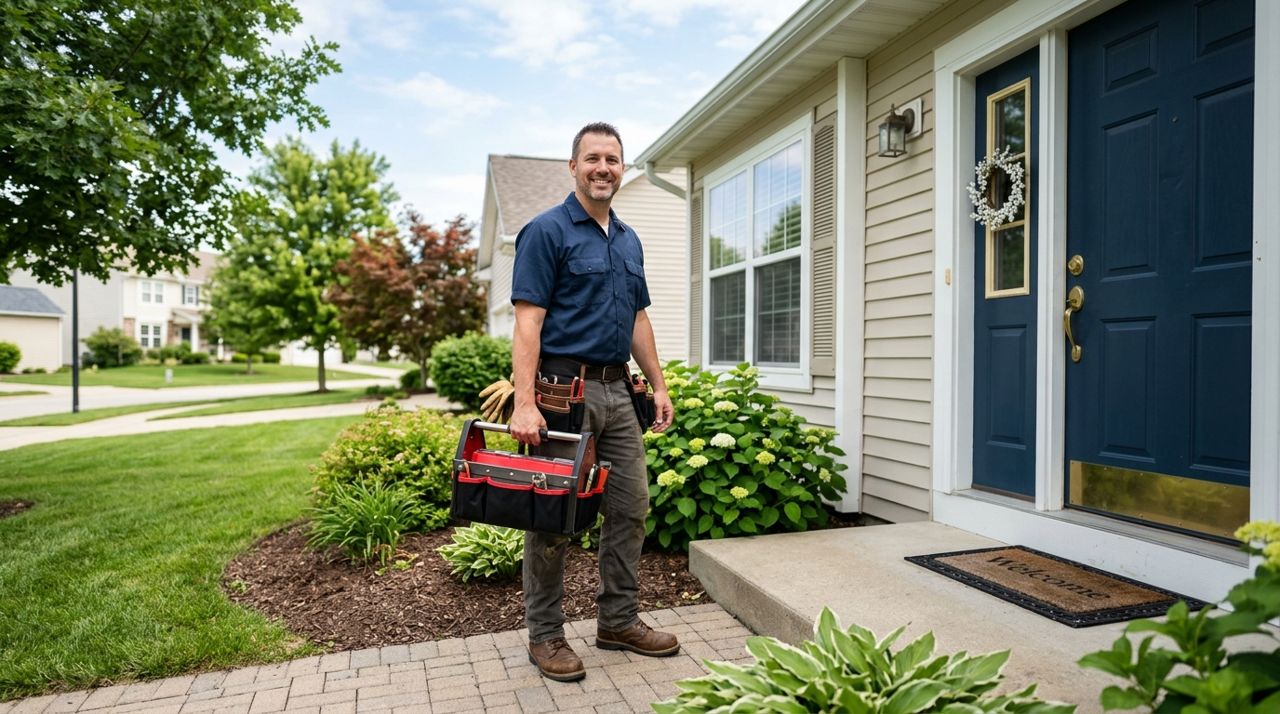
Handyman with toolbox standing at customer home front door ready to work Your address matters just as much when booking services like cleaning, handyman work, moving help, yard work, pet care, errands, tech support, car care, tutoring, beauty services, event help or notary. Workers on Lumo set a job-alert radius—they only see requests in areas they're willing to travel to. If your address is outside a worker's range, they won't get your request. Setting your location accurately means the pros you see can actually reach you, and you'll get faster responses. Typical rates for these services range from $25–50 per hour for general tasks and $50–100+ per hour for specialized work, depending on your city.
Pro tips
- Turn on location services for faster browsing—Lumo will auto-detect your address each time you open the app.
- Double-check your apartment or unit number before your first delivery to avoid delays or missed orders.
- If you're ordering for someone else, enter their address instead of yours so you see the right delivery fee and options.
- Save your most-used addresses with clear labels like 'Home' and 'Work' so you can switch quickly without retyping.
- Update your location immediately when you travel—restaurants and pros vary hugely by neighborhood.
Frequently asked questions
- Can I change my address after I place an order?
- Once an order is placed, you can't change the delivery address in the app. If you need to update it, message the driver or seller immediately through in-app chat and explain the situation. They may be able to accommodate a nearby change, but there's no guarantee. It's always best to double-check your address before hitting 'Place Order.'
- Why don't I see certain restaurants or pros?
- If a restaurant, shop or service provider doesn't appear, they either don't deliver or work in your area, or they're outside their operating hours. Workers set their own service radius and working hours, and sellers choose their delivery zones. Try switching to a different saved address or checking back later if you think someone should be available.
- Does my address affect delivery fees?
- Yes. Delivery fees on Lumo are calculated using a base fee plus the distance from the seller or restaurant to your address, plus order size. The exact fee is shown before you check out, so there are no surprises. Pickup orders have no delivery fee at all, which can save you money if you're willing to drive.
Setting your address correctly on Lumo takes thirty seconds and makes everything else work better. You'll see accurate delivery fees, browse only the places that actually serve you, and get faster responses from local pros. Update your location whenever you move or travel, save your常用 addresses for quick switching, and you'll never waste time on options that can't reach you. Open Lumo, set your address, and start exploring what's nearby.
Photos are illustrative. Service prices are typical ranges and vary by city. How we write our guides.
More guides like this
Which Lumo Mode Is Right for You? Customer, Worker, Seller or Real Estate
Lumo's welcome screen offers four modes—Customer, Worker, Seller and Real Estate—so one app handles ordering, earning, selling and finding homes. Here's how to choose the right one.
How to Manage Notifications So You Only Get Alerts That Matter
Getting pinged every few minutes by apps is draining. Here's how to dial back the noise and only receive notifications that actually help you—like order updates and delivery arrivals—without missing what matters.
How to Keep Your Account Safe and Delete It If You Need To
Your account holds payment information, order history, and personal details. Here's how to lock it down and what to do if you ever want to delete it.