
Which Lumo Mode Is Right for You? Customer, Worker, Seller or Real Estate

When you open Lumo for the first time, you'll see a welcome screen with four options: Customer, Worker, Seller and Real Estate. This isn't a trick question or a permanent decision—it's simply asking what you want to do right now. Pick Customer if you need food, groceries or a service like cleaning or handyman work. Pick Worker if you want to earn money doing jobs. Pick Seller if you have products or meals to sell. Pick Real Estate if you're browsing homes for sale, rentals or short stays.
You're not locked in. You can switch modes anytime in Settings, and many people use two or three modes depending on the day. A restaurant owner might use Seller mode during business hours, then switch to Customer mode to order dinner at home. A handyman might work in Worker mode all morning, then switch to Real Estate mode to browse rental listings. This guide walks through what each mode does and how to choose the one you need right now.
- 01
Step 1: Customer Mode: Order Food, Groceries and Local Services
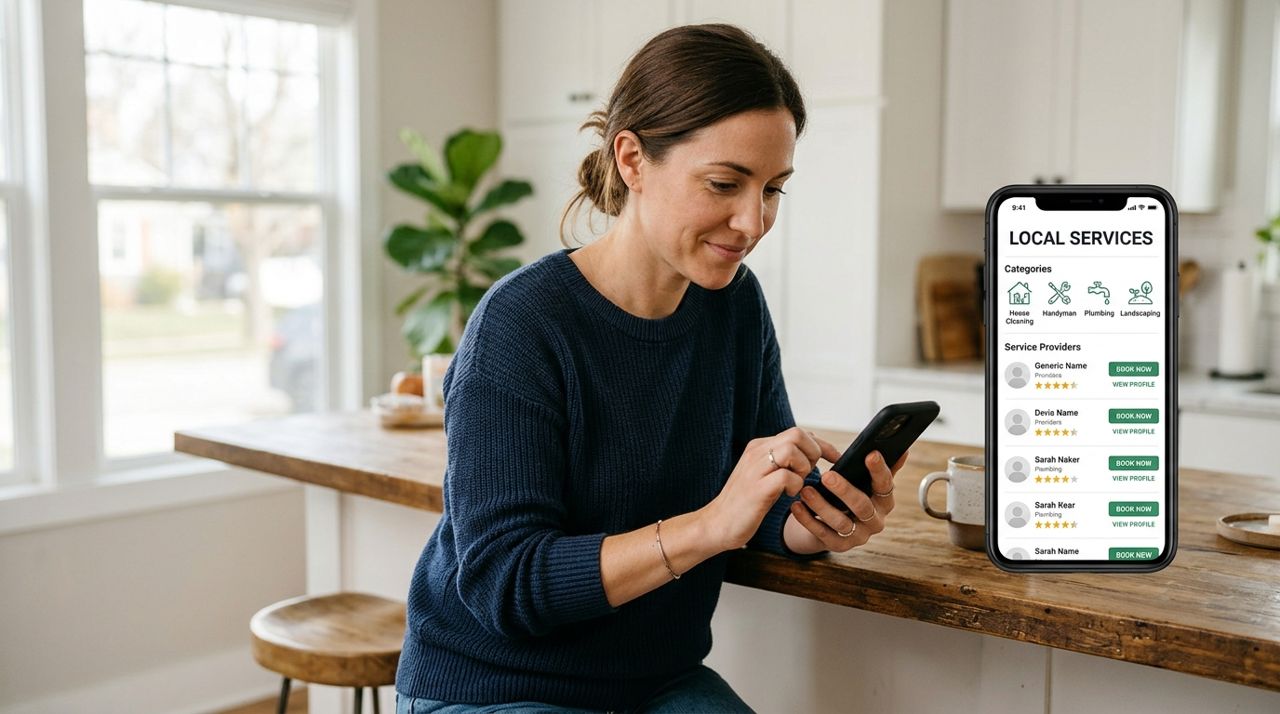
Woman holding smartphone reviewing local service options on mobile app screen Pick Customer mode when you want something done for you. This mode lets you order meals from restaurants and food trucks for pickup or delivery, shop from local stores and individuals selling everyday items, and book local pros for services like house cleaning, moving help, handyman repairs, yard work, pet care, tech help, car detailing, tutoring, beauty services, event planning and notary work.
You'll see the delivery fee before checkout (it's based on distance and order size; pickup has no fee). You can follow your driver live on a map, and after delivery the driver takes a drop-off photo. You can tip 10%, 15%, 20% or a custom amount—100% goes to the driver. Payments are secure and handled in-app by card. Use in-app messaging to agree on job details with pros, and leave a rating and review after each job.
- 02
Step 2: Worker Mode: Earn Money Doing Jobs You Choose

Professional worker wearing tool belt ready to start local service job Switch to Worker mode if you want to earn. You'll keep 90% of every job price. Set your job-alert radius (how far you're willing to travel) and pick which types of jobs you want to accept—cleaning, moving, handyman, yard work, deliveries, pet sitting, errands, tech help, car care, tutoring, beauty, events, notary and more.
You can pause alerts, go on or off duty, and set working hours so you only get pinged when you're available. The 'busy map' shows you where orders are coming in around the city, so you can position yourself in hot zones. Your earnings land in the in-app wallet and you can pay them out whenever you're ready. You'll see job details before you accept, and customers can message you to clarify what they need.
- 03
Step 3: Seller Mode: Open a Shop and Sell Products or Meals

Local shop owner standing in storefront ready to fulfill customer orders Pick Seller mode if you have something to sell. You can be a restaurant, a food truck, a local shop, someone selling handmade goods from home, or an individual clearing out items you no longer need. Opening a shop is free. Add your products or menu items with photos, prices and stock levels. You get instant order alerts when someone buys.
Lumo charges a 5% service fee only when you make a sale—there are no monthly fees, no listing fees, no upfront costs. Customers can order for pickup or delivery. If they choose delivery, a driver picks up from you and drops off to them. You control your hours, your inventory and your prices. Payments go straight to your in-app wallet.
- 04
Step 4: Real Estate Mode: Browse Homes for Sale, Rentals and Short Stays

Residential home exterior with for sale sign in front yard Switch to Real Estate mode when you're looking for a place to live or stay. You can browse homes for sale, long-term rentals and short-term stays all in one feed. Save the homes you like for later, filter by price, bedrooms, location and other criteria, and contact the listing agent or owner directly through in-app messaging.
If you're listing a home, it's free to post homes for sale and long-term rentals. Short-term rentals (vacation stays) pay a 5% fee per booking. You upload photos, set your price and availability, and respond to inquiries. Real Estate mode is available on iPhone, Android and the web at golumo.app, so you can browse on your laptop and save favorites on your phone.
- 05
Step 5: You Can Switch Modes Anytime
Mobile phone displaying app settings screen with mode switching options The mode you pick on the welcome screen isn't permanent. Open Settings, tap 'Switch Mode', and choose a different one. Many users switch modes multiple times a week. A tutor might work in Worker mode during the day, then switch to Customer mode to order dinner. A home baker might sell cakes in Seller mode on weekends, then browse rentals in Real Estate mode when planning a move.
Your account, payment methods, wallet balance and message history stay the same across modes—you're just changing what the app shows you. If you recruit others to Lumo using your invite link (found in Settings), the Recruiter Hub at golumo.app tracks everyone you brought in, the jobs they completed, and your earnings. The top three recruiters each month win $100, $50 or $25.
- 06
Step 6: Start with What You Need Right Now

Hand holding smartphone selecting between multiple app options on welcome screen Don't overthink the welcome screen. Pick the mode that matches what you want to do in the next five minutes. Need lunch delivered? Pick Customer. Want to earn $30 mowing a lawn this afternoon? Pick Worker. Have homemade salsa to sell? Pick Seller. Looking for an apartment? Pick Real Estate.
You can always come back and try another mode later. The app works on iPhone, Android and the web (golumo.app), so you can switch devices too. Sign in with email, phone, Google or Apple, and your account follows you. If you ever want to delete your account, the option is in Settings.
Pro tips
- Many people use two or three modes regularly—there's no rule against switching.
- The busy map in Worker mode shows you where demand is highest so you can park nearby.
- In Seller mode, good photos and accurate stock levels mean fewer cancellations.
- Real Estate mode works on the web at golumo.app, which is easier for browsing dozens of listings.
Frequently asked questions
- Can I use more than one mode?
- Yes. Switch modes anytime in Settings. Your account, payment methods and message history stay the same. A lot of people work in one mode and order in another.
- Do I pay a fee to sign up as a Worker or Seller?
- No. Opening a Seller shop is free, and becoming a Worker is free. Workers keep 90% of job earnings. Sellers pay 5% only when they make a sale.
- What if I pick the wrong mode by accident?
- Just go to Settings and tap 'Switch Mode'. You can change it as many times as you want. Nothing is locked or lost when you switch.
The four-mode welcome screen isn't a test—it's just asking what you need right now. Pick Customer to get something done, Worker to earn, Seller to sell, or Real Estate to find a home. You can switch modes anytime in Settings, and your account stays the same. Start with what you need today and explore the other modes when you're ready.
Photos are illustrative. Service prices are typical ranges and vary by city. How we write our guides.
More guides like this
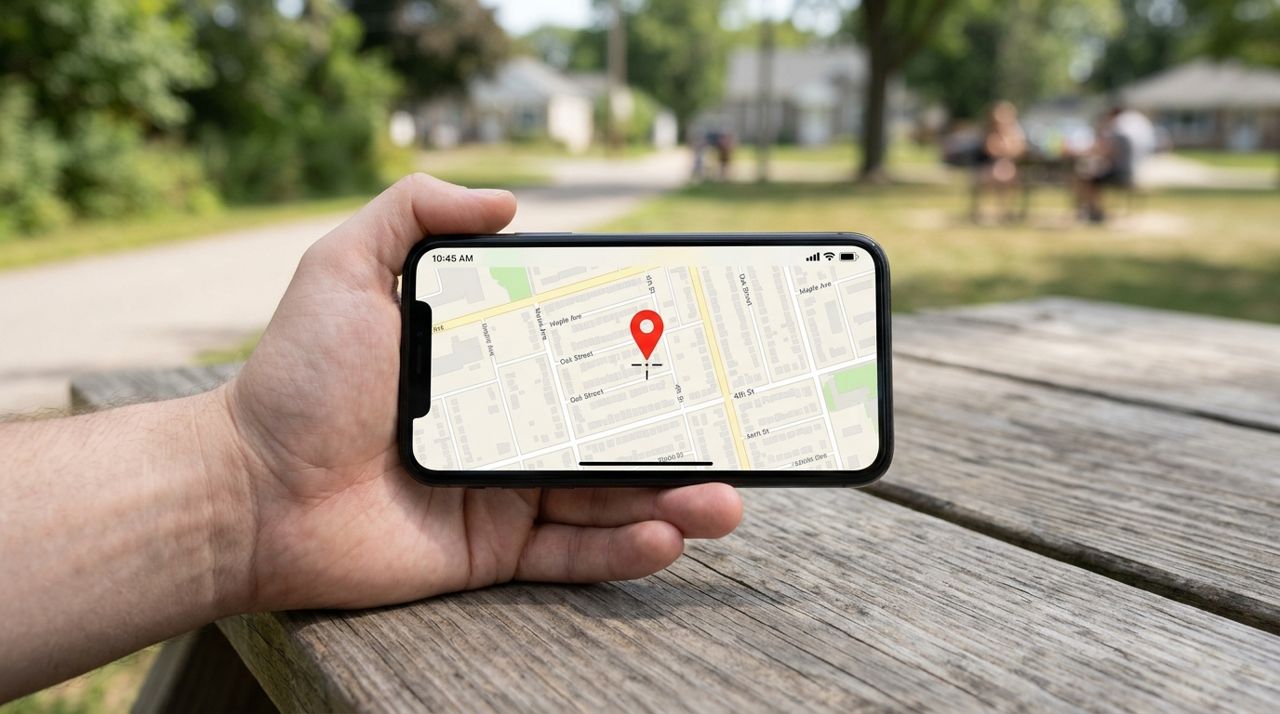
How to Set Your Address on Lumo for Accurate Nearby Results
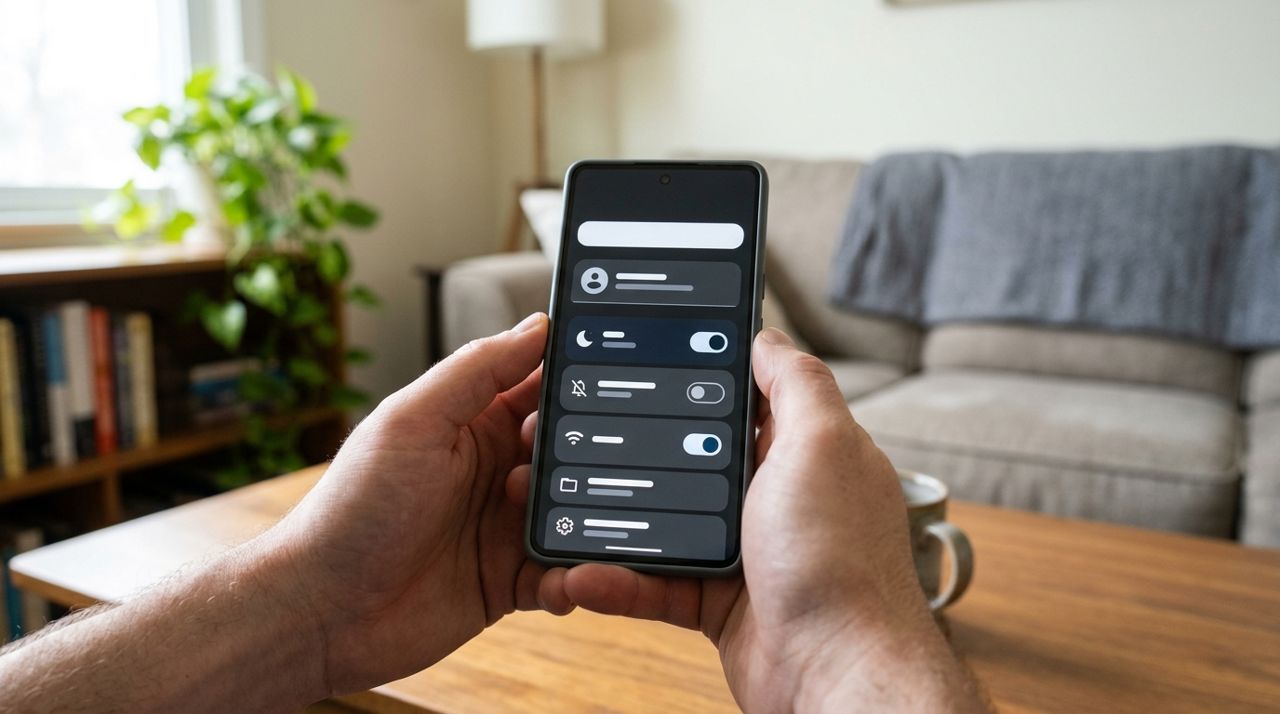
Your address determines which restaurants, shops and service providers you'll see on Lumo. Setting it correctly means you only browse options that actually deliver or work in your area.
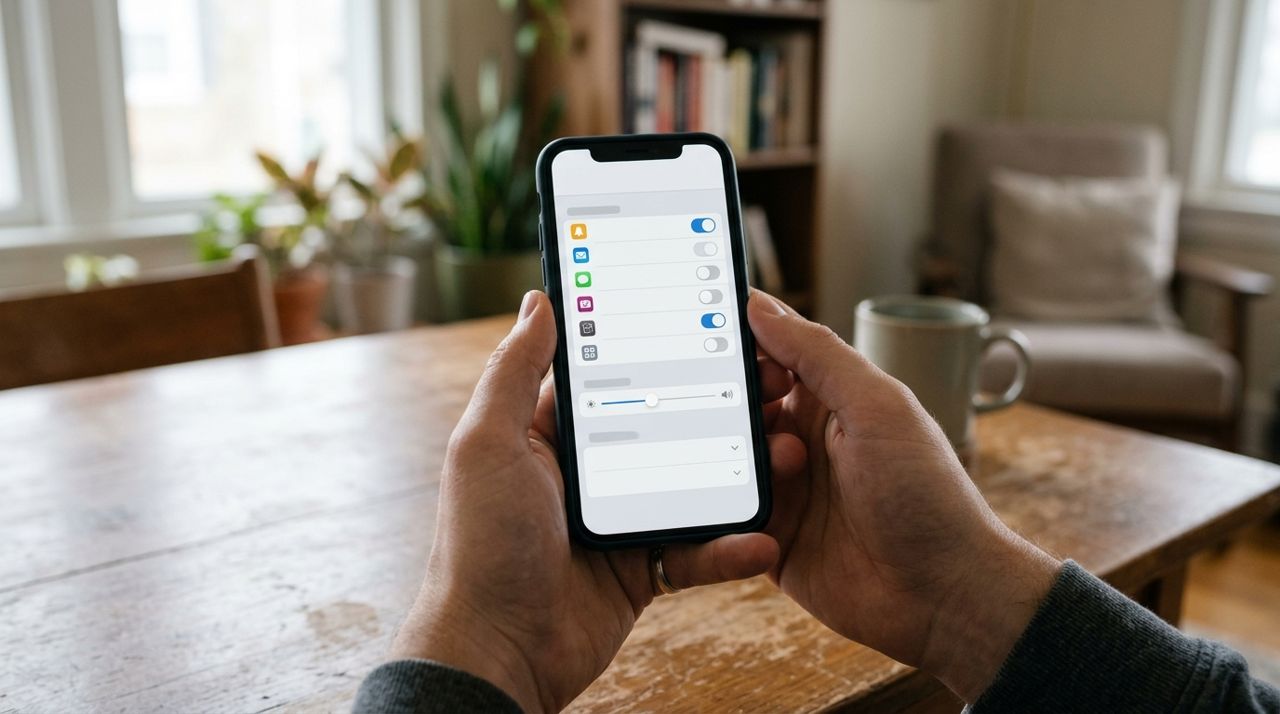
How to Manage Notifications So You Only Get Alerts That Matter
Getting pinged every few minutes by apps is draining. Here's how to dial back the noise and only receive notifications that actually help you—like order updates and delivery arrivals—without missing what matters.

How to Keep Your Account Safe and Delete It If You Need To
Your account holds payment information, order history, and personal details. Here's how to lock it down and what to do if you ever want to delete it.