
How to Open a Free Online Shop for Your Neighborhood Boutique

You run a neighborhood boutique—clothing, gifts, home goods, specialty items—and you've watched foot traffic shift. Some days are busy, others are quiet, and you know people in your area want what you sell but can't always make it in during your hours. Meanwhile, every marketplace you've looked at charges monthly fees, takes 15-25% of each sale, or forces you into complicated shipping logistics.
The solution is simpler than you think: open a free online shop that reaches local customers for pickup or delivery, charges no monthly fees, and takes only a small cut when you actually make a sale. This guide walks you through the entire process, from creating your shop to getting your first order, with real numbers and no technical jargon.
- 01
Step 1: Download the app and choose Seller mode
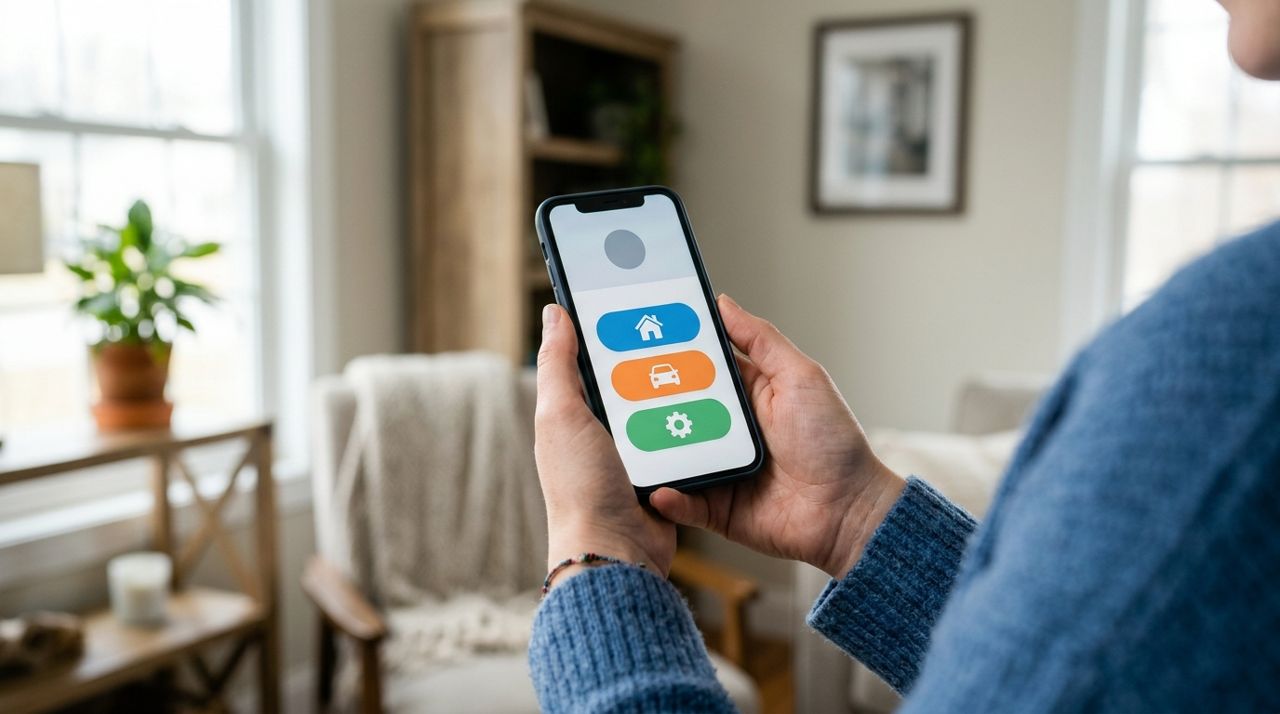
Person holding smartphone showing app welcome screen with mode selection options Visit golumo.app on your phone or computer. Download the app if you're on iPhone or Android, or use the web version from any browser. When you open it for the first time, you'll see four options on the welcome screen: Customer, Worker, Seller, and Real Estate. Tap or click Seller. You'll create an account using your email, phone number, Google, or Apple sign-in. The whole process takes about two minutes. You're not signing a contract or entering credit card details—just creating a login so you can manage your shop.
- 02
Step 2: Set up your shop profile
Small neighborhood boutique storefront with window display and welcoming entrance Now you'll fill in your shop details. Enter your boutique's name, upload a logo or storefront photo, write a short description (what you sell, what makes your shop special), and add your address. Choose your shop category—if you sell clothing, pick Clothing; if you sell gifts and home decor, pick Retail or the category that fits best. Set your business hours so customers know when they can pick up orders. You can also specify if you offer delivery, and if so, how far you're willing to deliver (one mile, three miles, five miles). All of this can be edited later, so don't stress about perfection. Your goal is to go live today.
- 03
Step 3: Add your first products
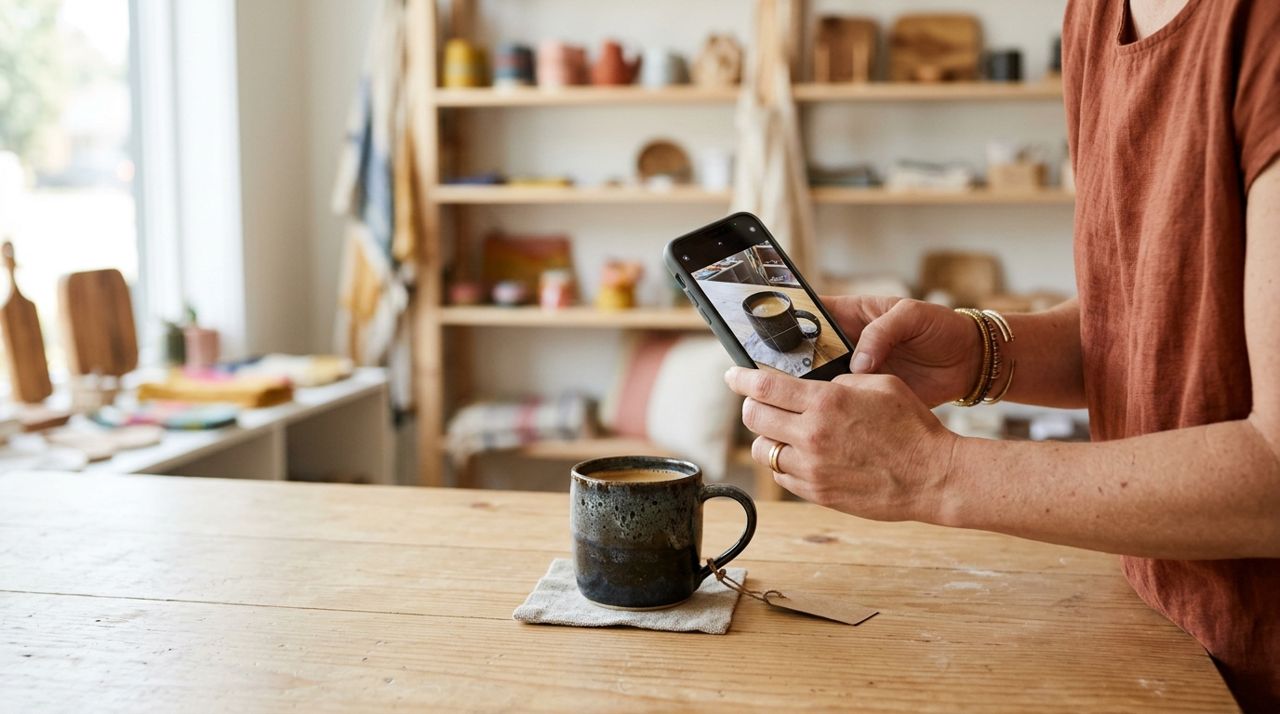
Shop owner photographing handmade product on table with smartphone for online listing Tap 'Add Product' and start listing items from your inventory. For each product, you'll upload at least one photo (use your phone—natural light works best), write a title and brief description, set the price, and note how many you have in stock. If you sell clothing, include sizes; if you sell candles or ceramics, mention dimensions or scent. You don't need to list your entire inventory on day one. Start with 10-20 of your bestsellers or items you want to move. Each listing takes about two minutes. You can add, edit, or remove products anytime, and you can mark items as out of stock without deleting them.
- 04
Step 4: Turn on order notifications
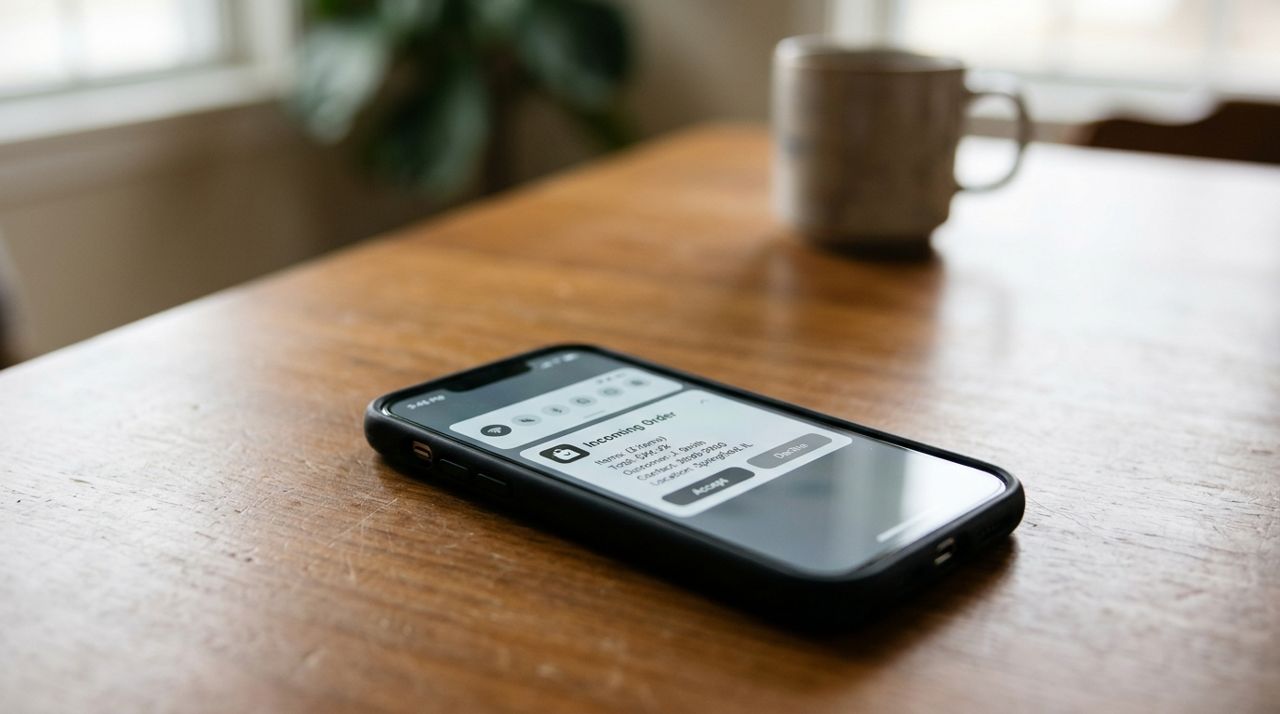
Smartphone screen displaying incoming order notification with product details and customer information In your seller dashboard, make sure push notifications are enabled. When a customer places an order, you'll get an instant alert on your phone with the order details: what they bought, whether it's pickup or delivery, and their contact information. You'll also see the order in your app dashboard. If notifications are off, you might miss orders, so double-check this setting. You can also set 'shop hours' so you only receive orders when you're open, or pause your shop temporarily if you're closed for vacation or restocking.
- 05
Step 5: Confirm and fulfill your first order
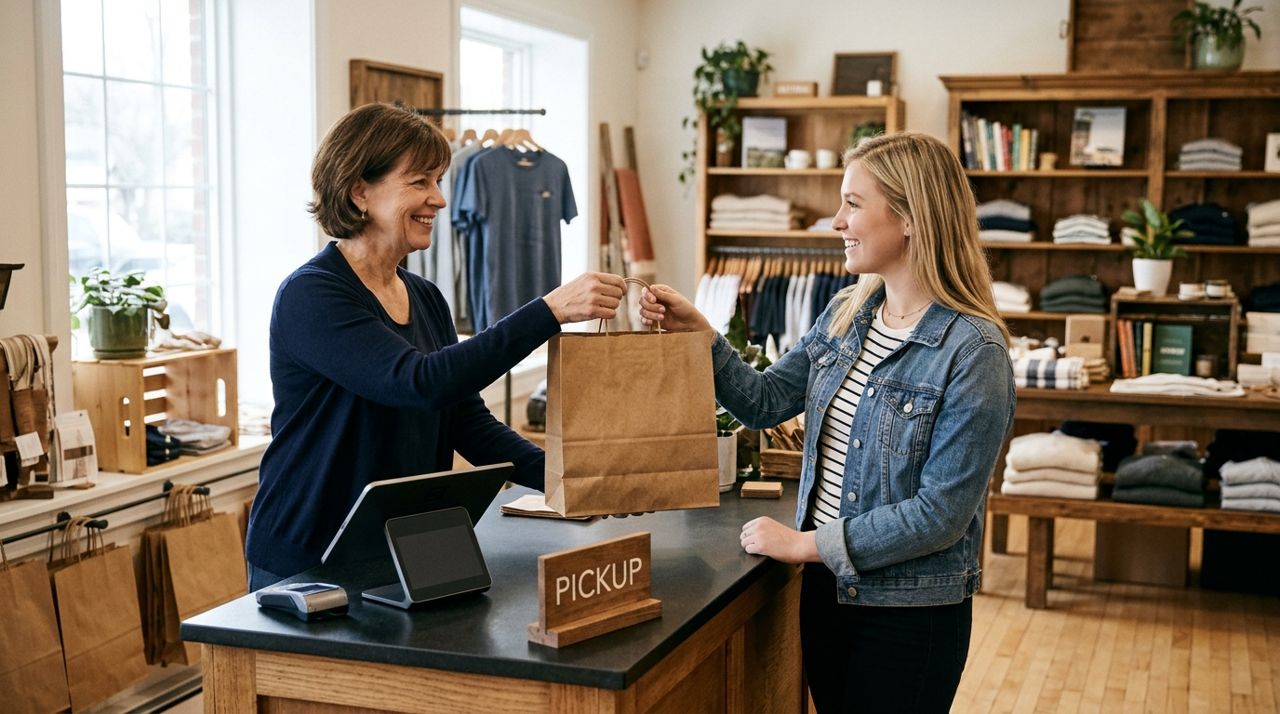
Retail shop owner handing shopping bag to customer at boutique checkout counter When an order comes in, open the app and review it. If the item is in stock and the details look good, confirm the order. If it's a pickup order, the customer will come to your shop during the pickup window they selected. Have the item ready and check their name when they arrive. If it's a delivery order, you can either deliver it yourself or let the app connect the order with a local driver. Once the item is picked up or delivered, mark the order complete in your app. The customer can rate and review the experience, which builds your shop's reputation.
- 06
Step 6: Manage payments and track sales
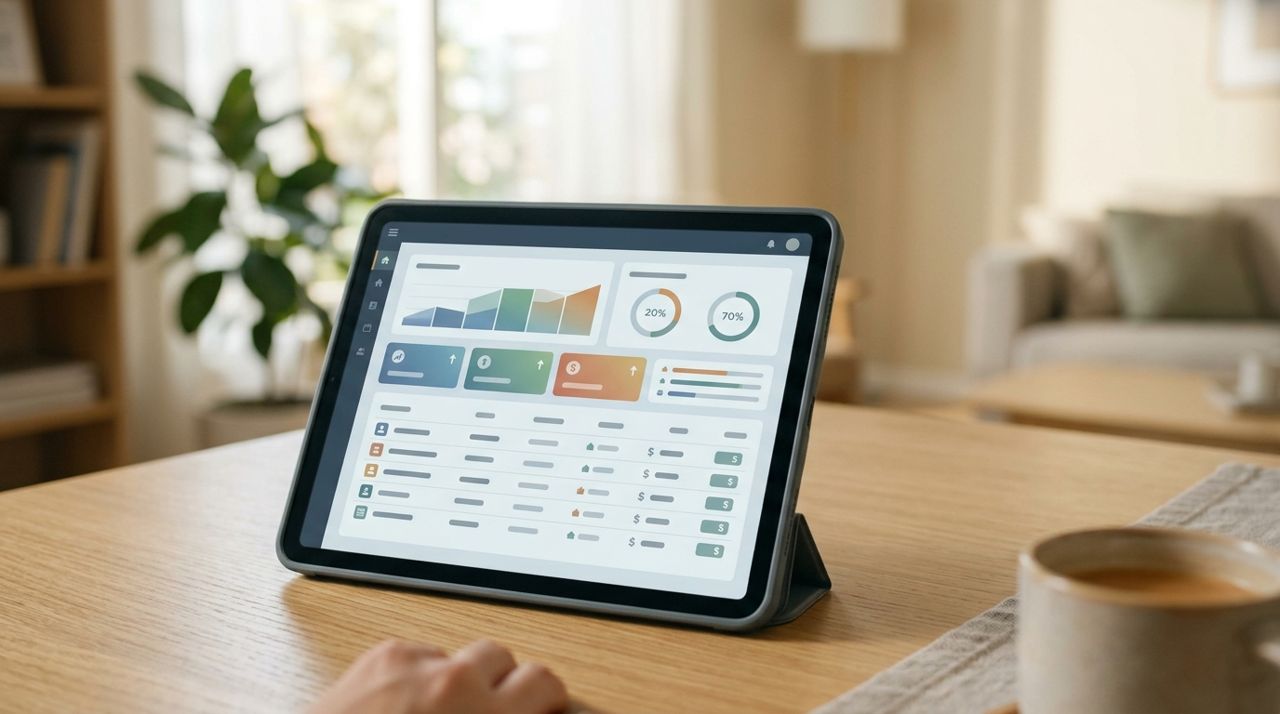
Digital sales dashboard showing earnings summary and recent transaction list on tablet Customers pay securely in the app by card—you never handle cash or card details for online orders. Your earnings go into your in-app wallet. The platform takes a 5% service fee from each sale, so if you sell a $40 item, you keep $38. There are no monthly fees, listing fees, or surprise charges. You can request a payout from your wallet whenever you want, and the money transfers to your bank account. Your dashboard shows total sales, popular items, and order history, so you can see what's working and adjust your inventory or pricing accordingly.
- 07
Step 7: Promote your shop and build repeat customers
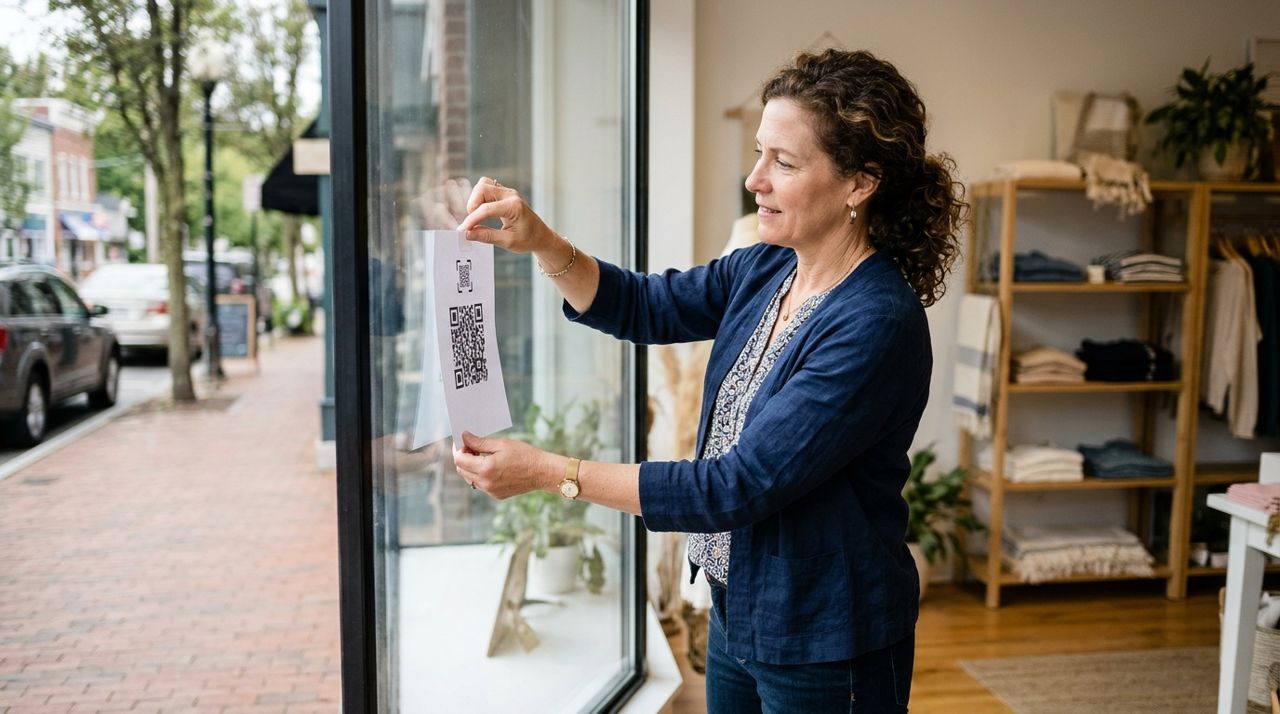
Small business owner posting QR code sign in boutique window for online shopping Once your shop is live, tell your existing customers. Put a sign in your physical store with a QR code linking to your online shop. Post on your social media—Instagram, Facebook, neighborhood groups—and let people know they can now order from you for pickup or delivery. Respond quickly to messages in the app; customers appreciate fast communication. After you've completed a few orders, ask happy customers to leave a review. High ratings make your shop more visible to new customers browsing the app. Consider running occasional promotions—10% off a slow-moving item, or free delivery over $50—to drive traffic.
Pro tips
- Start with your bestsellers—don't try to photograph your entire inventory on day one.
- Use clear, well-lit photos; customers buy with their eyes, especially for clothing and home goods.
- Check your notifications twice a day minimum so you don't miss orders.
- Respond to in-app messages quickly; fast replies build trust and lead to more sales.
- Update stock levels regularly to avoid selling items you've already sold in-store.
Frequently asked questions
- Do I have to pay monthly fees or upfront costs?
- No. Opening a shop is completely free. You only pay a 5% service fee when you make a sale—no monthly charges, no listing fees, no credit card required to start.
- Can I run both my physical shop and my online shop at the same time?
- Absolutely. Most sellers do exactly that. Update your stock levels in the app when you sell an item in-store to avoid double-selling. Your online shop runs 24/7, even when your physical door is closed.
- What if I don't want to deliver orders myself?
- You don't have to. Customers can choose pickup, or if they select delivery, the app can connect the order with a local driver. You just prepare the item and hand it off.
Opening a free online shop for your boutique takes about 30 minutes from start to finish, costs nothing upfront, and puts you in front of local customers who want what you sell but can't always visit in person. Start with a handful of products, confirm your first few orders, and adjust as you learn what works. Your neighborhood is already looking for you—make it easy for them to find you.
Photos are illustrative. Service prices are typical ranges and vary by city. How we write our guides.
More guides like this
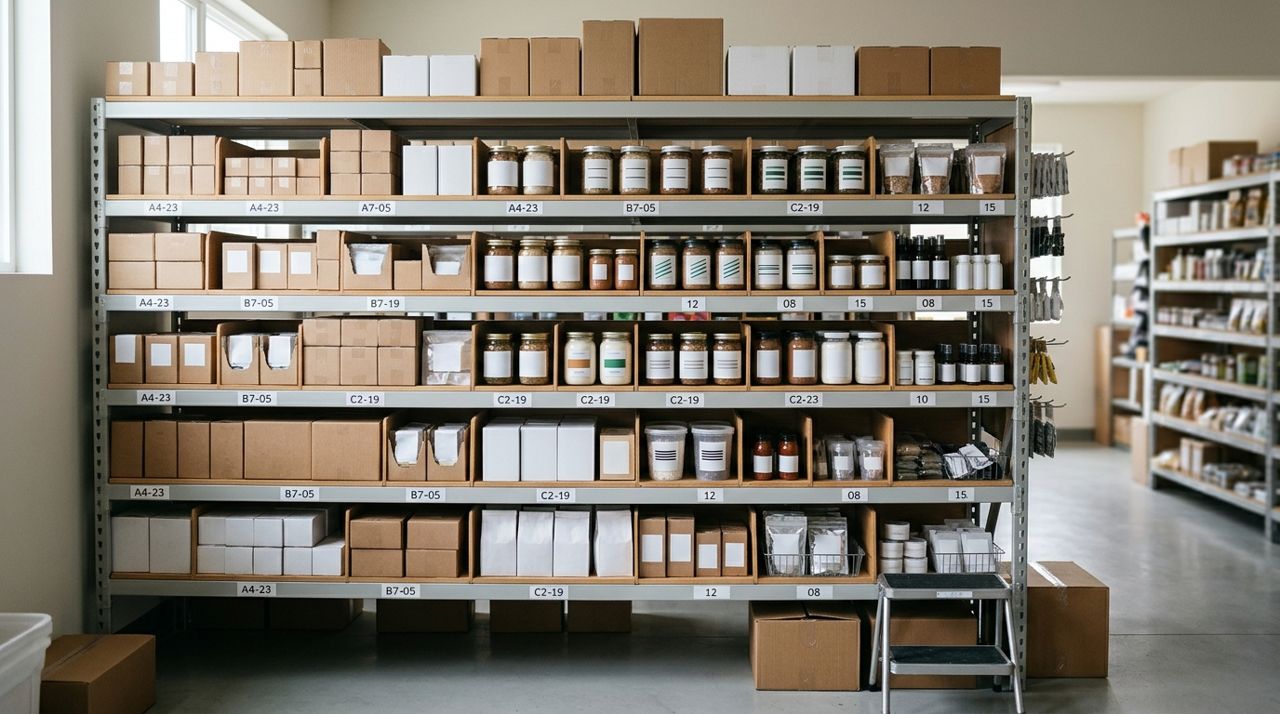
How to Manage Stock Levels for Your Retail Shop (And Never Oversell)
Selling out is great—selling something you don't have is a disaster. Here's how to keep your stock levels accurate and avoid disappointing customers.
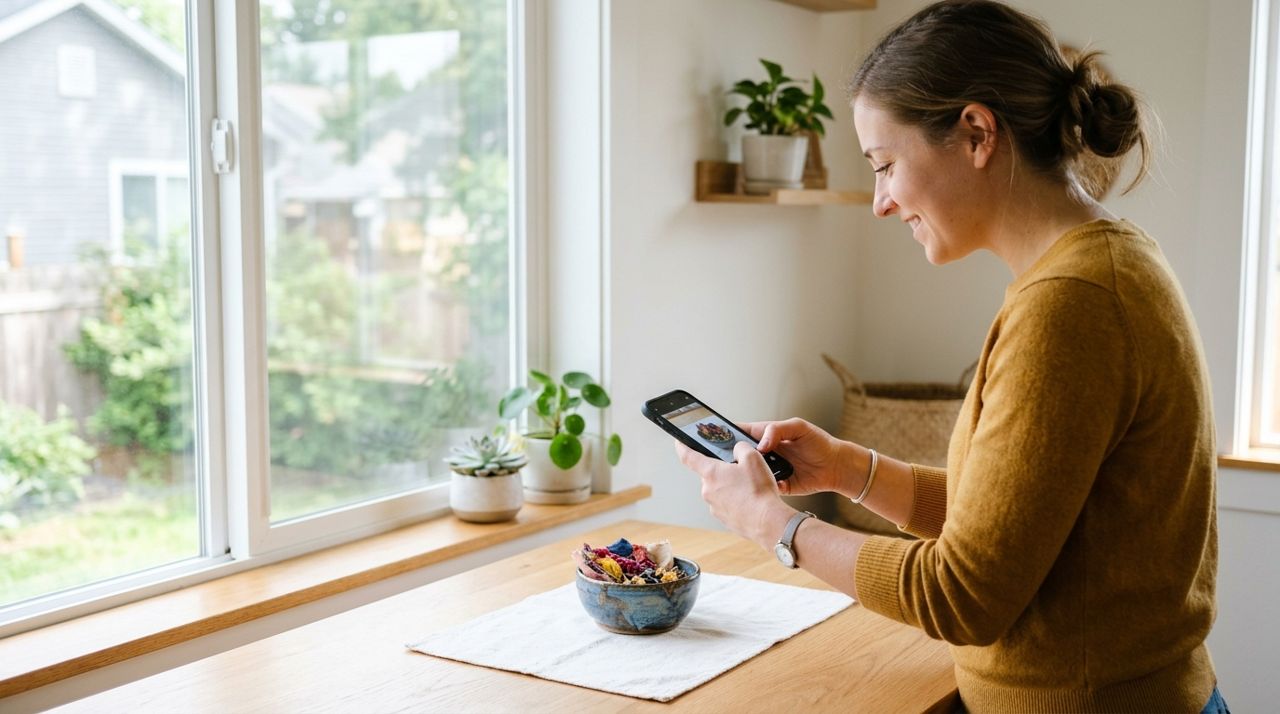
How to Take Professional Product Photos Using Only Your Phone
You don't need a fancy camera to take product photos that sell. With the phone in your pocket and a few simple techniques, you can shoot images that look professional and make customers want to buy.

How to Write Product Descriptions That Actually Sell Your Items
A good product description does more than list features—it answers questions, builds trust, and makes people want to buy. Here's how to write descriptions that turn views into sales.