
How to Order Hardware Supplies From Local Stores for Pickup
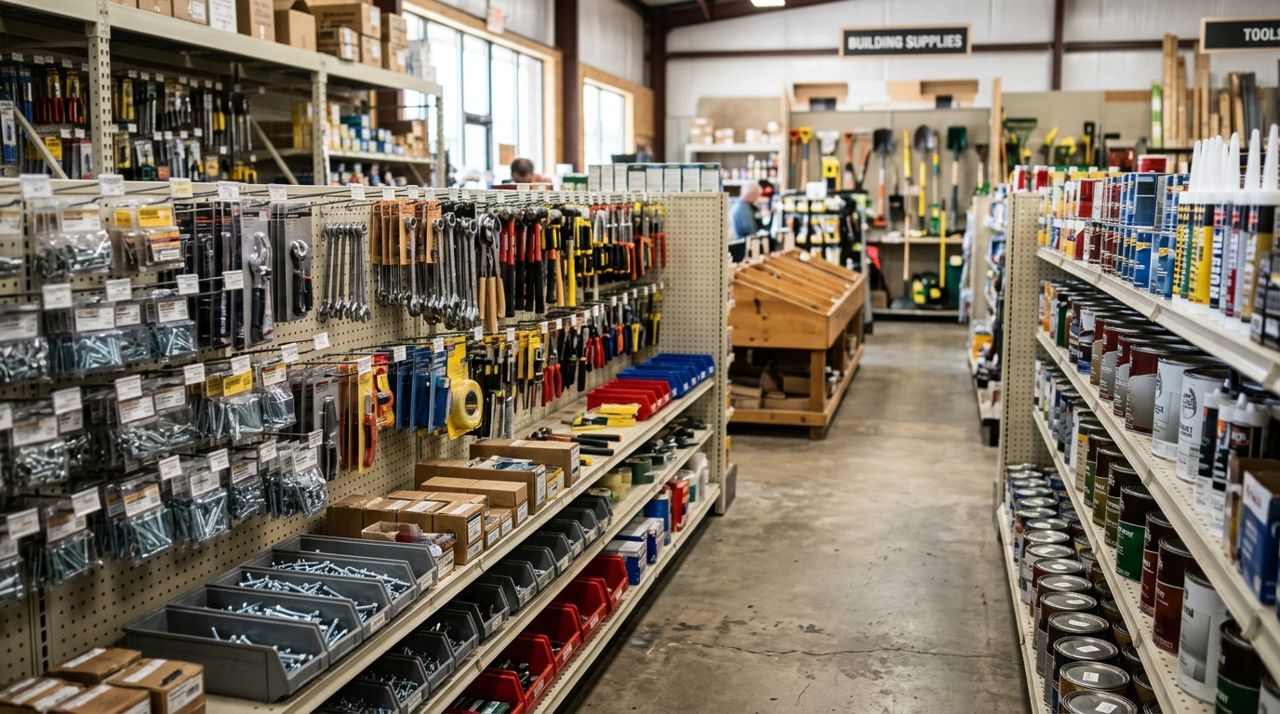
You have a weekend project lined up and need screws, sandpaper, paint or plumbing parts. The old way meant driving to a hardware store, hoping they had what you needed, wandering aisles, and waiting in line. If they were out of stock, you started over at another store.
Ordering from local hardware stores for pickup changes that. You browse inventory on your phone, compare prices across shops, place your order, and drive over only when it's packed and ready. This guide walks you through the process, from finding local suppliers to picking up your order at the counter.
- 01
Step 1: Open the app and select what you need

Person holding smartphone browsing products in a shopping app on screen Open the Lumo app (or visit golumo.app on your computer) and tap the Customer mode on the welcome screen. The home screen shows nearby shops, including hardware stores, paint suppliers, and general local retailers. Use the search bar to type in what you need—"deck screws," "exterior paint," "PVC fittings"—or browse by store name if you already know which shop you prefer. You'll see a list of stores that carry what you're looking for, along with photos, prices, and how far away each one is. Tap a store to see its full inventory and details.
- 02
Step 2: Browse the catalog and check stock
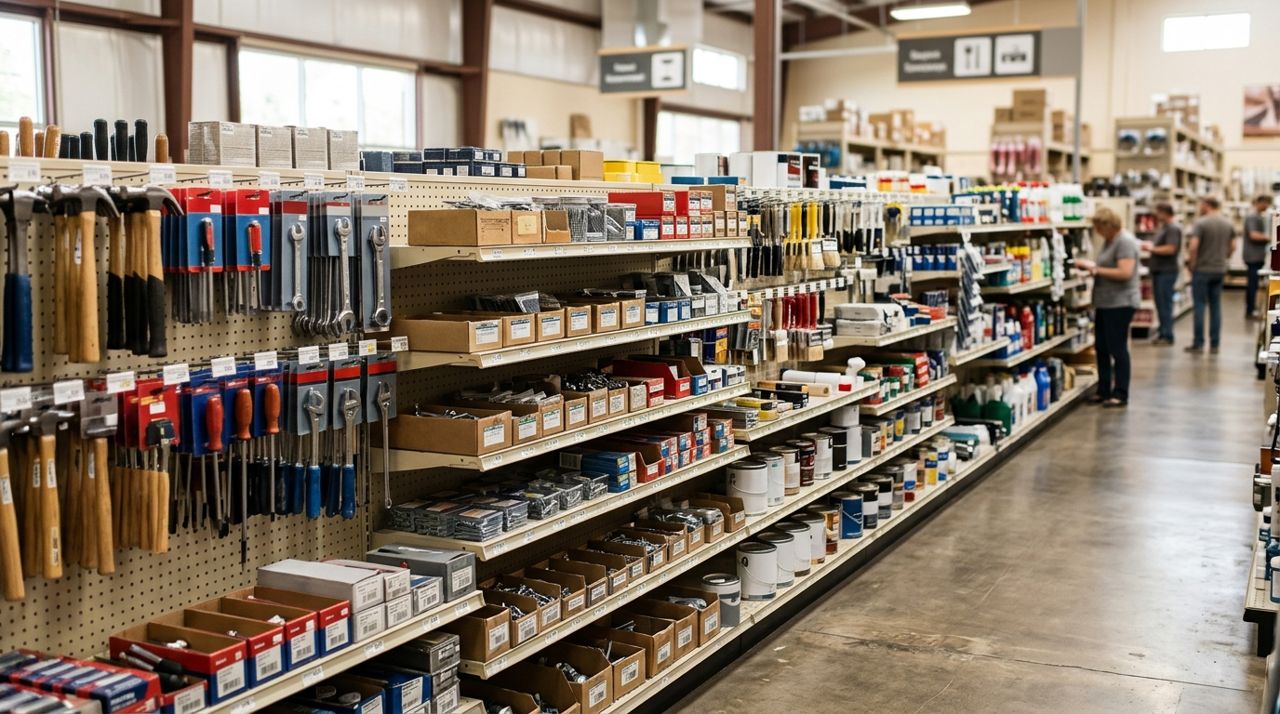
Well-stocked hardware store shelves with tools and supplies neatly organized Each store's page shows its full product catalog with photos, descriptions, prices, and whether items are in stock. For a hardware project, you might need multiple things—screws, primer, brushes, sandpaper. Add each item to your cart by tapping the plus button and adjusting the quantity. If you need a specific brand or size, use the filters or read the product details. Many stores list specifications like thread size, paint coverage per gallon, or grit number for sandpaper. If something isn't clear, use the in-app messaging to ask the shop directly. They usually reply within a few minutes during business hours.
- 03
Step 3: Compare prices and shops if needed
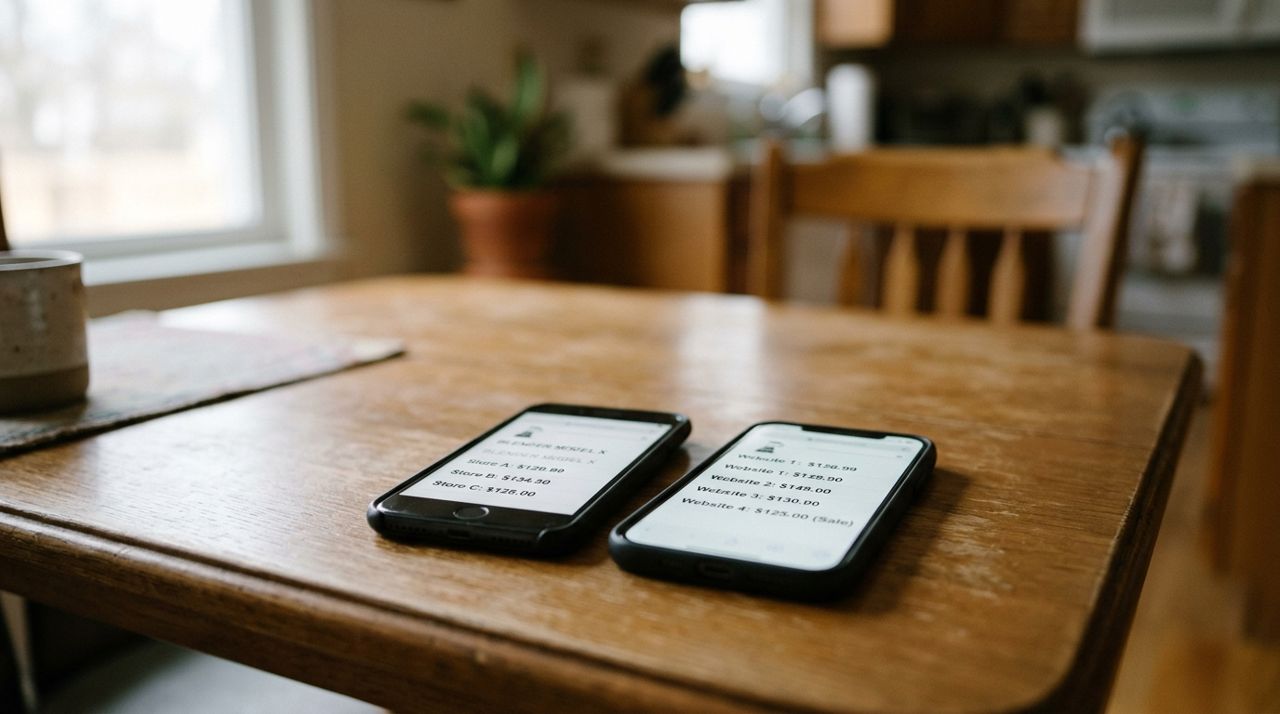
Two smartphones side by side displaying product prices for comparison shopping Before you commit, it's smart to compare. Go back to the search results and check the same items at other nearby stores. A box of screws might be $8 at one shop and $6 at another. A gallon of paint could vary by $5 or more. Distance matters too—if one store is ten minutes farther but saves you $15 on everything, that's worth it. If one store doesn't have everything you need, you can place two orders from different shops and pick them both up on the same trip. Just know that each order is separate, so you'll check out twice and make two stops.
- 04
Step 4: Review your cart and choose pickup
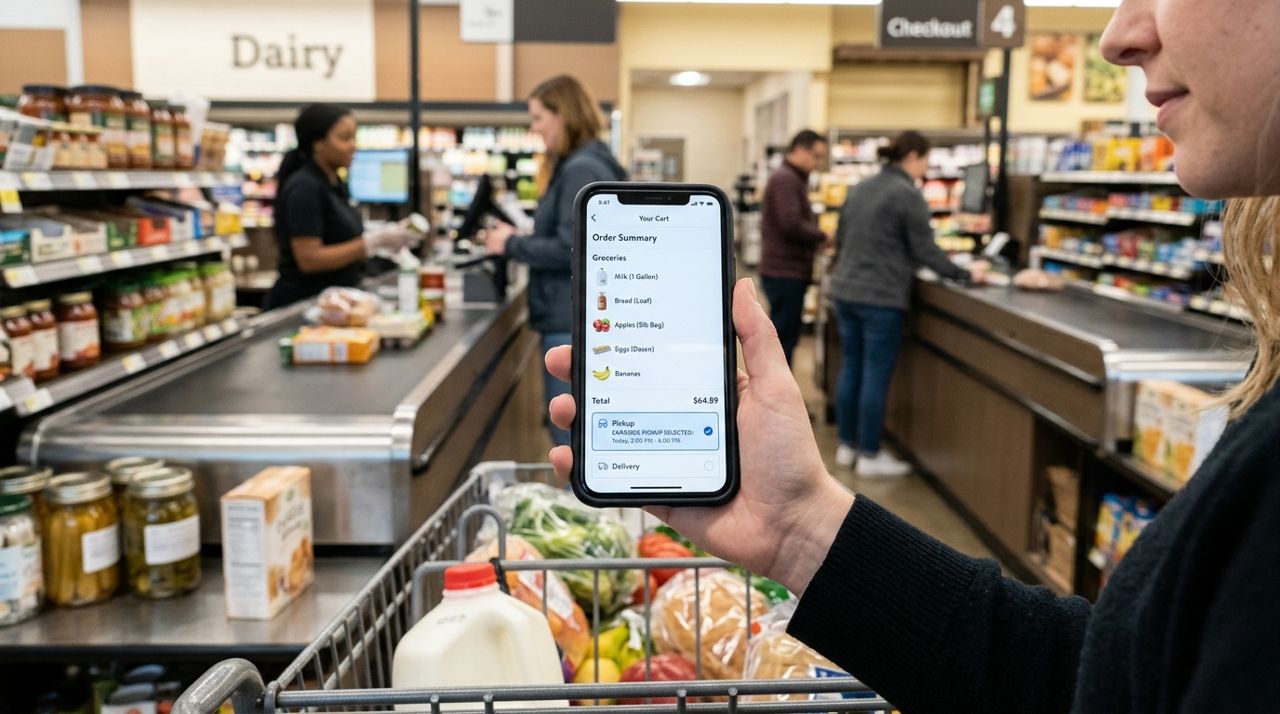
Close-up of phone screen showing shopping cart with pickup option selected Once you've added everything, tap the cart icon. Review your items and quantities—this is the time to catch mistakes. The default is usually delivery, so make sure you select Pickup before checking out. Pickup has no delivery fee, so you only pay for the products and any applicable tax. The store will show its address and typical prep time—usually 15 to 45 minutes depending on how busy they are and how many items you ordered. Some shops let you add a note during checkout if you have special requests, like "Please include extra paint stir sticks" or "Call when ready."
- 05
Step 5: Pay securely and wait for the ready alert
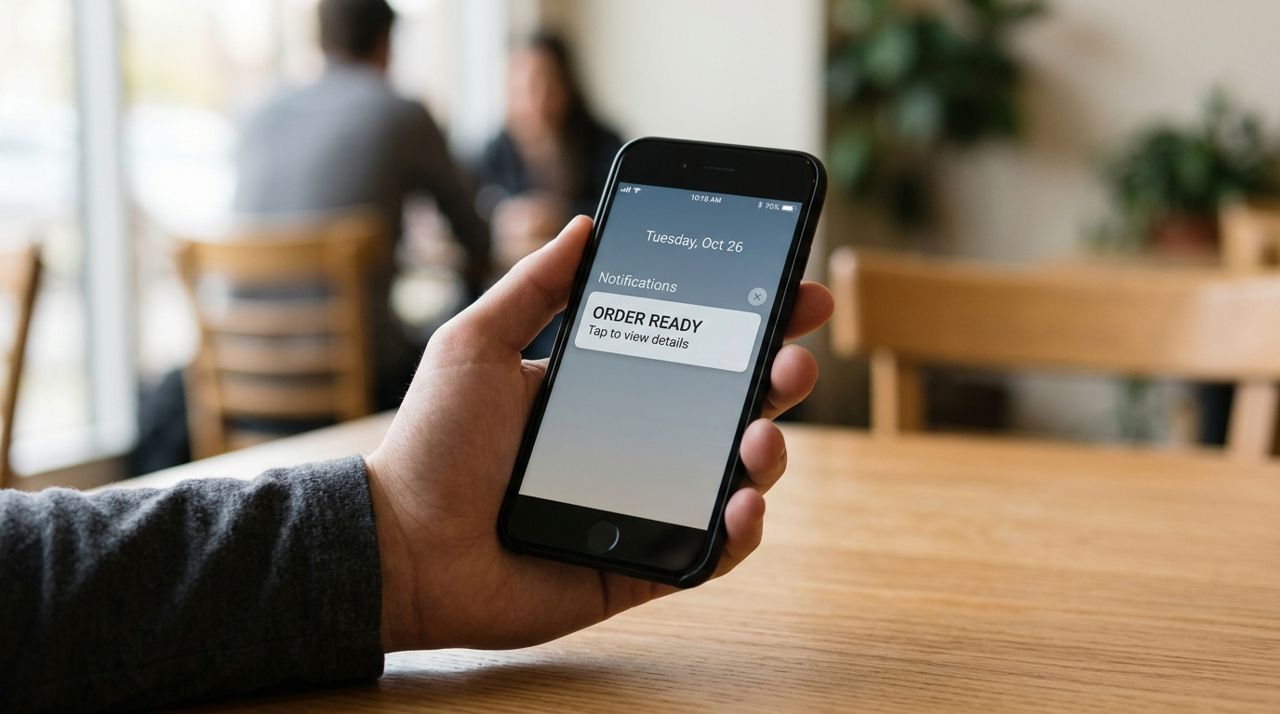
Hand holding smartphone displaying order ready notification on lock screen Enter your payment card (or use a saved one) and confirm the order. Payment is processed securely in the app. You'll get an immediate order confirmation with a summary and an estimated ready time. The store receives your order instantly and starts pulling your items. When everything is bagged and ready, you'll get a push notification and an in-app alert. Most stores text or call too if you provided a phone number. Don't leave home until you get the ready notice—it saves you from sitting in the parking lot waiting.
- 06
Step 6: Drive to the store and pick up your order
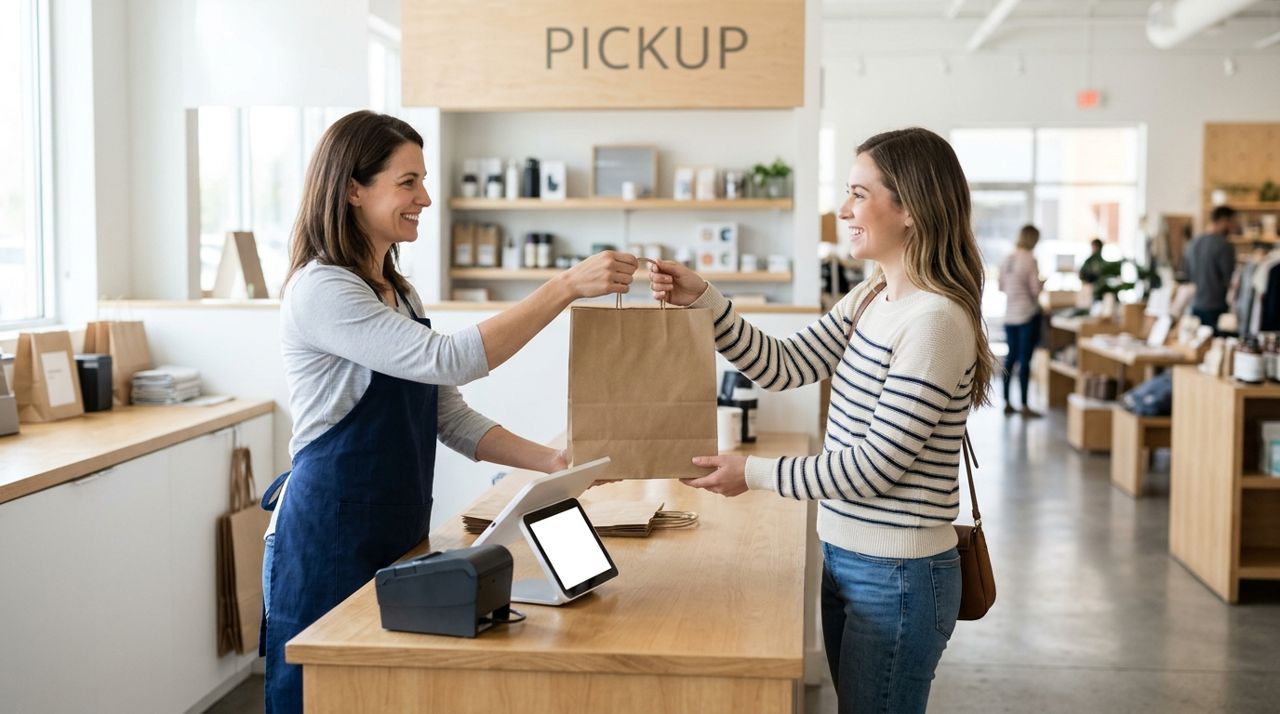
Store employee handing shopping bag to customer at retail pickup counter Head to the store once your order is ready. Some shops have a designated pickup counter or window; others ask you to go to the main register. Open the app and show your order confirmation screen—it has your order number and a barcode or QR code the staff can scan. They'll hand over your bag or box. Check that you got everything before you leave; it's easier to fix a missing item on the spot than to drive back. If something's wrong or substituted, the staff will explain and adjust the charge if needed. No signature is usually required for pickup orders.
- 07
Step 7: Rate the store and start your project
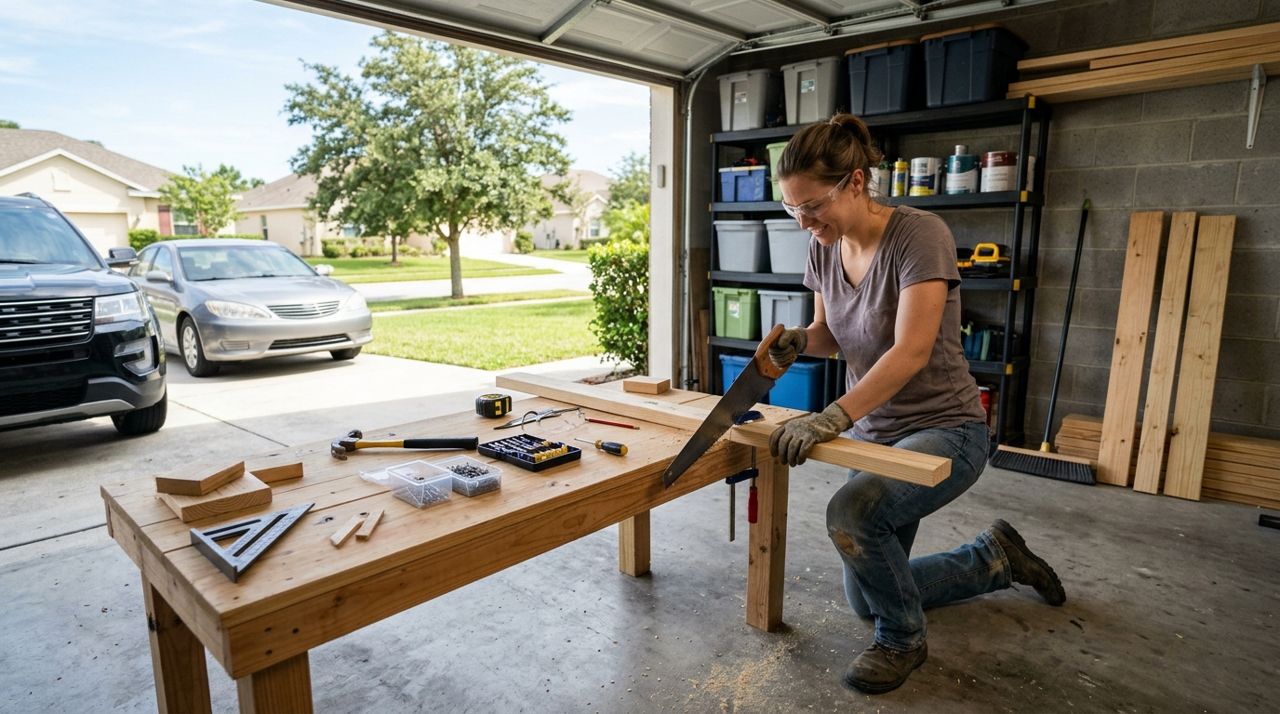
Person working on weekend DIY home improvement project with tools and materials After pickup, the app will prompt you to rate your experience and leave a review. This takes 30 seconds and helps other customers know which shops are reliable, well-stocked, and fast. Rate the accuracy of the order, the condition of the items, and how smooth the pickup was. Then get to work on your project. If you realize you forgot something or need more supplies mid-project, you can place another order the same way. Many weekend warriors keep a running list in the app so they can reorder common items quickly.
Pro tips
- Order the night before if you want to pick up first thing Saturday morning; most stores prep orders in the order they're received.
- Save your favorite hardware stores in the app so you can reorder quickly next time without searching.
- If you're buying paint, order a quart first to test the color at home before committing to gallons.
- Check the store's business hours in the app—some local shops close early on weekends or have reduced hours.
- Use in-app messaging to ask about special orders, bulk discounts, or whether they can cut lumber to size before you pick up.
Frequently asked questions
- What if the store is out of stock when I arrive?
- Inventory is updated in real time, so what you see should be available. If something is out of stock after you order, the store will message you to suggest a substitute or remove it and adjust your total. You're never charged for items you don't receive.
- Can I return items if I ordered the wrong size or too much?
- Return policies vary by store. Most local hardware shops accept returns within 30 days with a receipt, but check the store's policy in the app or ask at pickup. Unopened items in original packaging are usually easiest to return.
- How much does pickup cost compared to going into the store myself?
- Pickup has no delivery fee, and product prices are the same as in-store. You pay exactly what you'd pay walking in, but you save the time spent browsing aisles and waiting in line. Some stores offer pickup-only promotions, so you might even save money.
Ordering hardware supplies from local stores for pickup gives you the convenience of online shopping with the speed of local availability. You know exactly what you're getting, what it costs, and when it will be ready. Whether you're fixing a leaky faucet, building a deck, or painting a room, this approach saves time and eliminates the guesswork. Next time you have a project, try ordering your supplies ahead and picking them up on your way.
Photos are illustrative. Service prices are typical ranges and vary by city. How we write our guides.
More guides like this

How to Order a Last-Minute Gift from Local Shops for Same-Day Delivery
Forgot a birthday or need a host gift in three hours? Local shops can deliver gifts the same day—if you know how to order smart.

How to Order Flowers from a Local Florist for Delivery
Learn how to order fresh flowers from local florists for delivery, whether you need a last-minute birthday bouquet or a carefully planned anniversary arrangement.
How to Order Pet Food and Supplies from Local Pet Stores
Ordering pet food and supplies from local pet stores is faster and more personal than waiting for online shipments. Here's how to get exactly what your pet needs from stores you trust.