
How to Put Your Restaurant Menu Online with Photos and Prices
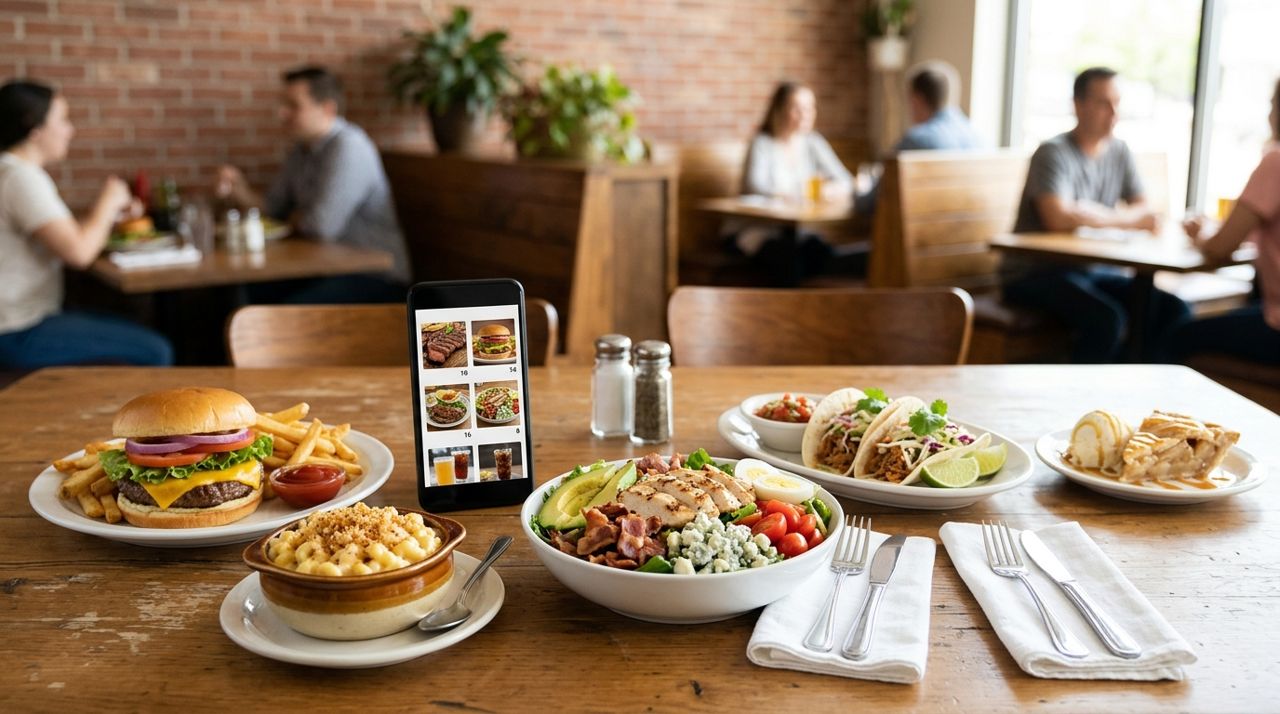
You've built a menu people love in person. Now you need to get it online so customers can browse, order, and pay without a phone call or a third-party taking 20–30% of every sale. An online menu isn't just a list of dishes anymore; it's your digital storefront, open 24/7, complete with photos that make people hungry and prices that let them decide without asking.
This guide walks you through putting your full menu online with high-quality photos, accurate pricing, and descriptions that sell. Whether you run a family restaurant, a food truck, or a café, these steps work for any kitchen that wants to reach more customers and take orders directly.
- 01
Step 1: Take clear, well-lit photos of every dish
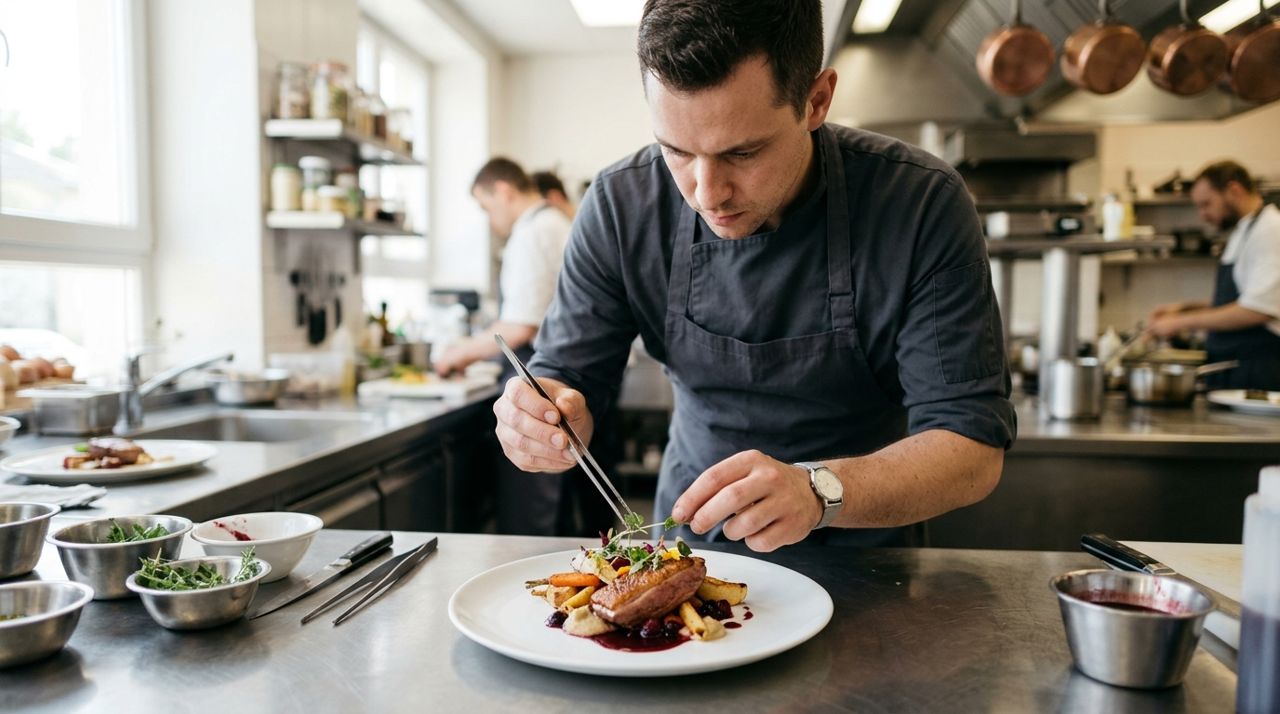
Chef plating a finished dish in a restaurant kitchen with natural light Use your smartphone in a well-lit spot near a window during the day. Natural light works better than overhead fluorescents. Plate each dish the way you'd serve it to a customer, wipe the edges clean, and shoot from a 45-degree angle about two feet away. Take three or four shots of each item so you can pick the best one later. You don't need a professional photographer; you need honest photos that show what the food actually looks like. Avoid heavy filters. If a dish looks dark or blurry, reshoot it. Clear photos increase orders by showing customers exactly what they'll get.
- 02
Step 2: Write short, specific descriptions for each item
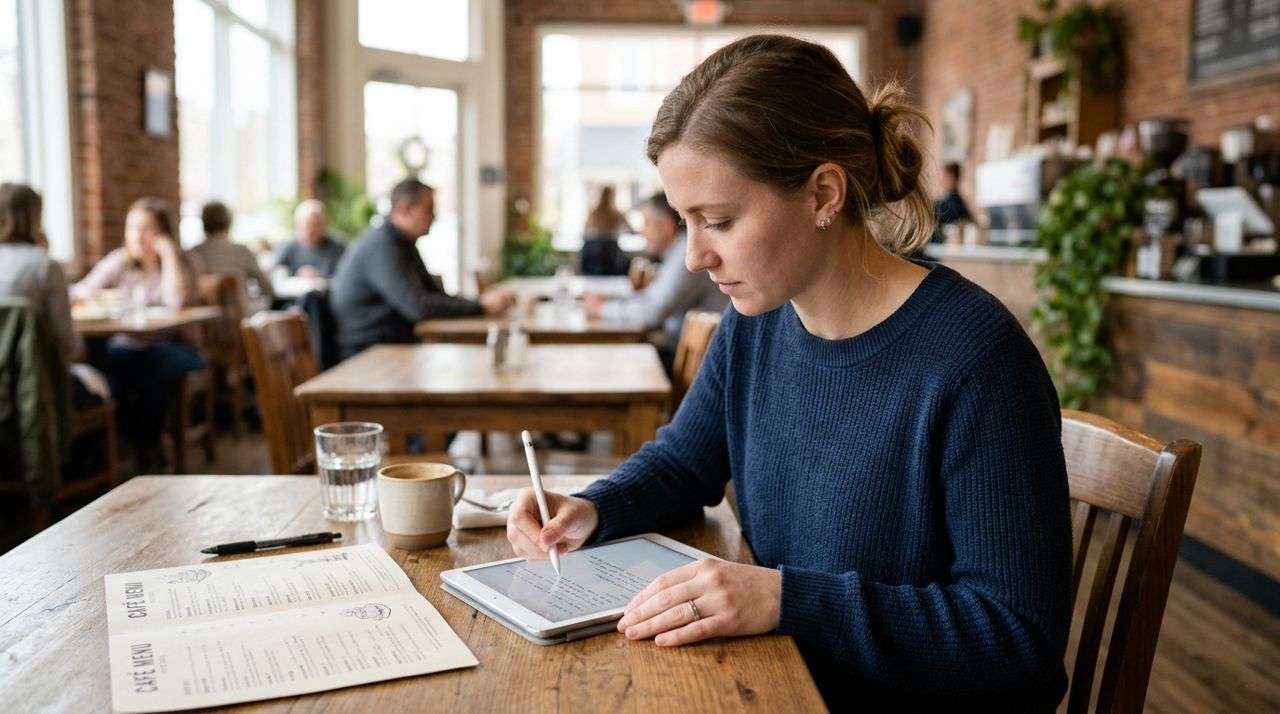
Person writing food descriptions on a tablet next to a restaurant menu Below each dish name, write two or three sentences that describe the ingredients, flavors, and size. Mention what's included: 'Served with fries and coleslaw' or 'Comes with rice, beans, and tortillas.' Call out anything people ask about often—spicy, vegetarian, gluten-free, dairy-free, nut-free. Use plain language: 'grilled chicken breast with garlic butter' beats 'succulent poultry with aromatic compound.' If a dish is popular, say so: 'Our most-ordered sandwich.' If it's big enough to share, mention that. Descriptions help customers decide and cut down on questions later.
- 03
Step 3: Set accurate prices and note any add-ons
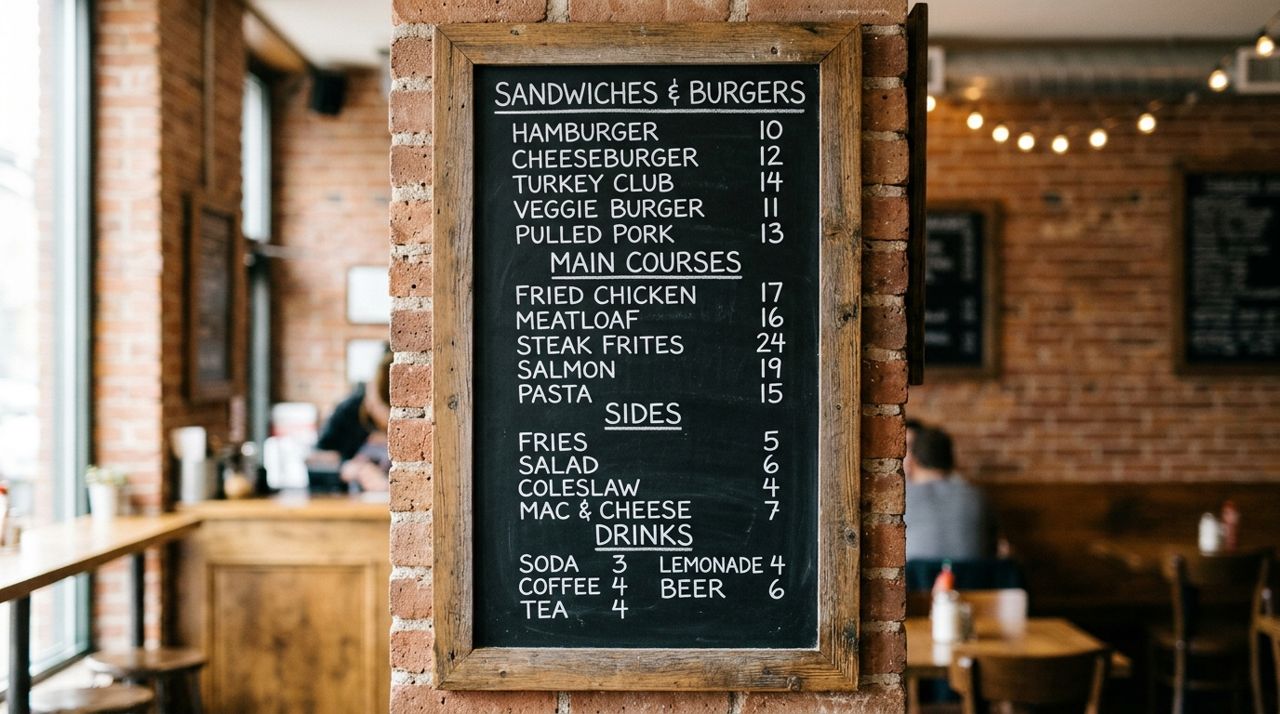
Close-up of a menu board showing dish names and prices in a restaurant List the base price for each item, then add any optional extras below it: extra protein, side substitutions, drink upgrades. If you offer small and large sizes, list both with separate prices. Include combo deals if you have them. Check your prices against your in-house menu and your actual food costs; online pricing should match or be close to what walk-in customers pay. Some restaurants add a dollar or two to cover packaging for delivery orders, which is fine as long as it's clear. Don't surprise customers at checkout with hidden fees—list everything upfront so they know the total before they order.
- 04
Step 4: Organize your menu into clear categories
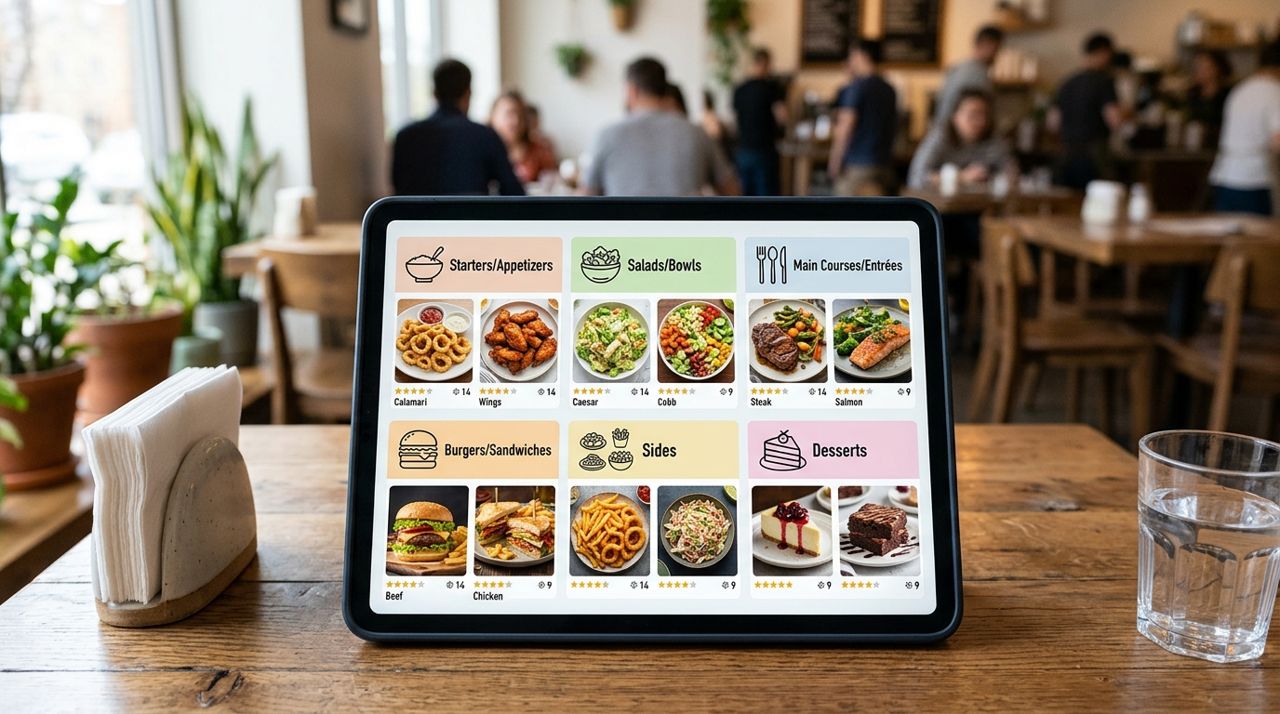
Restaurant menu divided into labeled sections on a tablet screen Group items the way customers think: Appetizers, Salads, Sandwiches, Entrees, Sides, Desserts, Drinks. If you have a big menu, break it down further—Burgers, Tacos, Pasta, Seafood. Put your best-sellers or signature dishes at the top of each section. If you serve breakfast, lunch, and dinner, separate those into different menus or mark the hours each is available. A clear structure makes it easy for first-time customers to find what they want and for regulars to reorder quickly. Avoid cluttering categories with too many items; 8–12 per section is a good target.
- 05
Step 5: Upload your menu to an online ordering platform
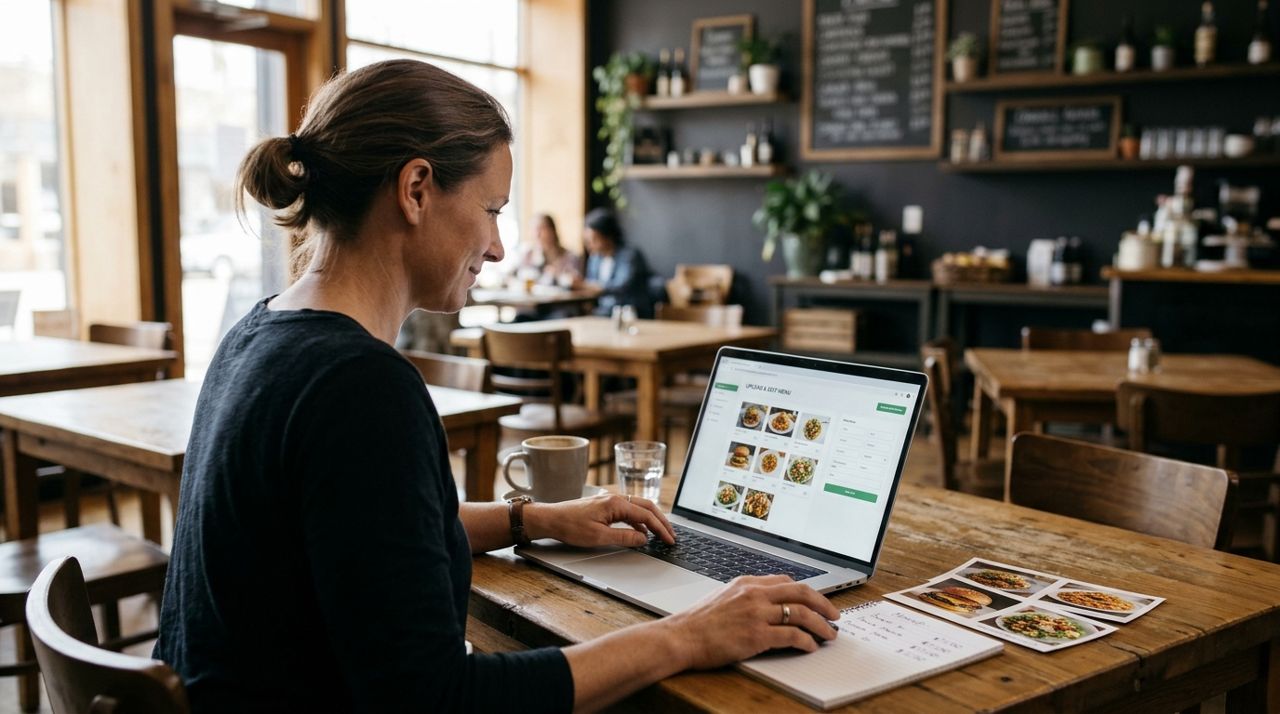
Restaurant owner uploading food photos and prices on a laptop Choose a platform that lets you add photos, prices, descriptions, and categories without charging a setup fee or taking a big cut of each order. Lumo, for example, lets restaurants open a free shop and pay just 5% when they make a sale—no monthly fees, no per-order delivery commission if customers pick up. Upload each photo, type in the name, description, and price, assign it to a category, and mark it in stock. If an item runs out, you can toggle it off so customers don't order it. Set your shop hours, pickup instructions, and whether you offer delivery. The whole process takes an hour or two for a typical menu.
- 06
Step 6: Test your menu by placing a practice order
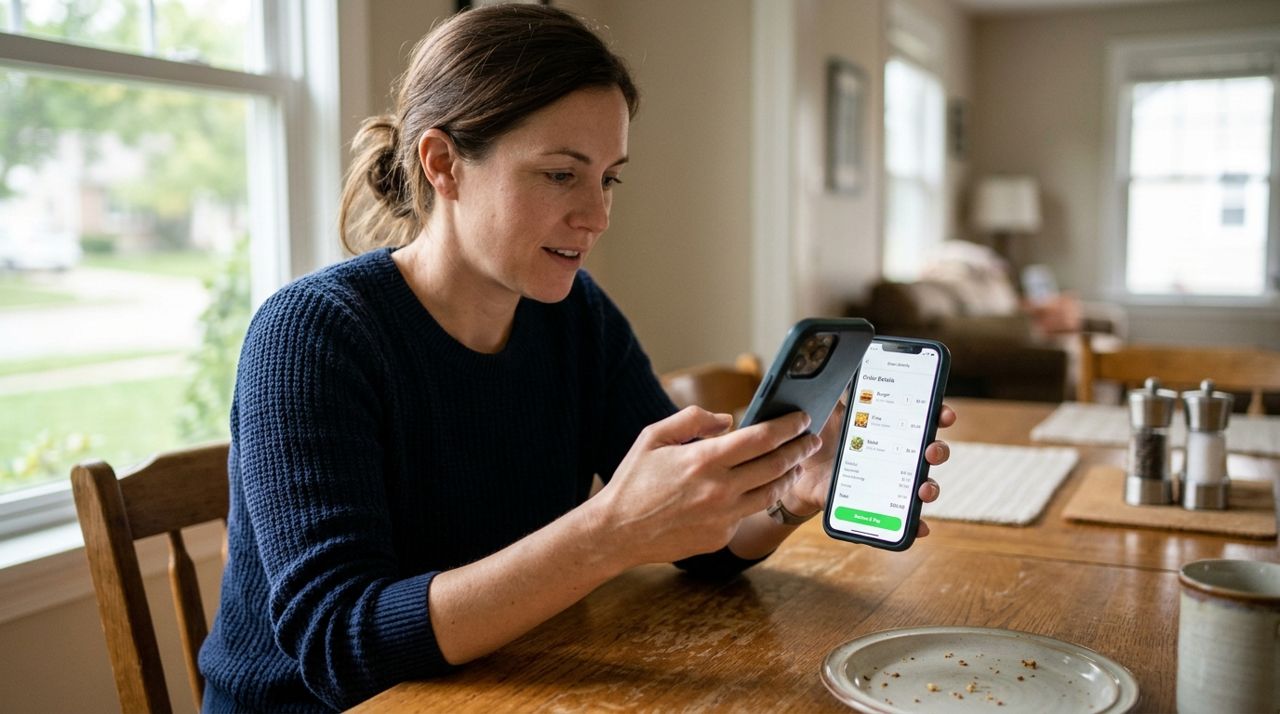
Person reviewing a restaurant order on a smartphone screen before checkout Before you go live, walk through the customer experience. Browse your menu, add a few items to the cart, go to checkout, and make sure prices, photos, and descriptions all look right. Check that your shop hours are correct and that pickup or delivery options appear as you intended. If something looks off—wrong photo, missing description, incorrect price—fix it now. Ask a friend or family member to try ordering on their phone so you see what customers will see. Testing catches mistakes before real orders come in and saves you from refunding confused customers or remaking wrong orders.
- 07
Step 7: Promote your online menu to your customers
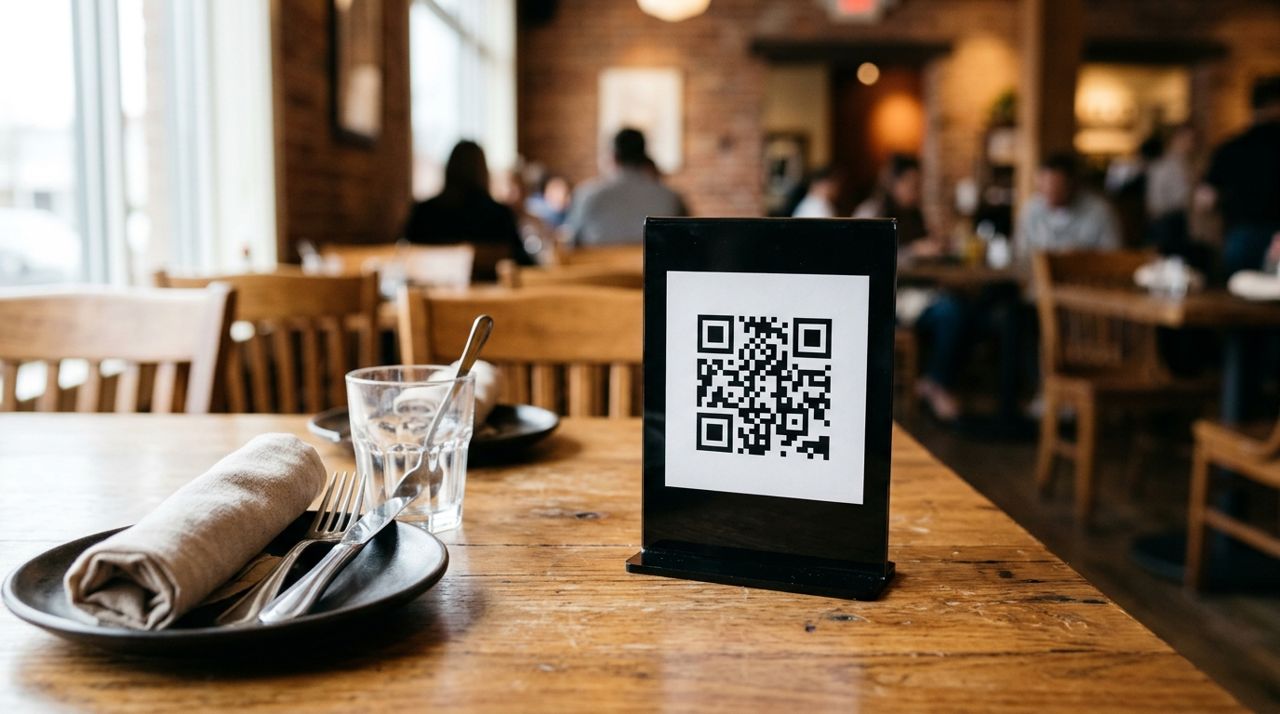
QR code on a restaurant table tent directing customers to online ordering Print your ordering link or QR code on receipts, table tents, and your front window. Post it on your social media, your Google Business profile, and your website if you have one. Tell customers in person: 'You can order ahead online for pickup.' Send a text or email to your regulars with the link. Update your voicemail greeting to mention online ordering. The more you remind people, the more orders you'll get. Track which items sell best online and consider featuring them in posts or photos. Once customers know they can order directly from you and skip the phone or the big delivery apps, many will.
Pro tips
- Update your menu online whenever you change prices, add specials, or run out of an item so customers always see what's available.
- Use the same dish names online and in-house so kitchen staff recognize orders instantly and don't get confused.
- Offer a small discount for pickup orders to encourage customers to skip delivery fees and come to you.
- Check your email and in-app messages at least twice a day in case customers have questions about allergies or special requests.
Frequently asked questions
- How much does it cost to put my menu online?
- Many platforms charge monthly fees or take 15–30% of each order. Lumo lets you open a free shop and charges just 5% when you make a sale, with no monthly fees or signup costs. You keep more of what you earn.
- What if I don't have professional photos of my food?
- You don't need a professional. Use your phone in good natural light, plate the food neatly, and shoot from a 45-degree angle. Clear, honest photos work better than no photos at all.
- Can I turn off items that are sold out or unavailable?
- Yes. Most online menu systems let you toggle items on and off so customers only see what you can actually make. Update your menu as soon as you run out to avoid disappointing orders.
Putting your menu online with photos and prices gives customers an easy way to browse, order, and pay without a phone call. It takes a few hours to set up, but once it's live, you'll reach more people, take more orders, and keep more of your revenue. Start with clear photos, accurate prices, and simple descriptions, and your menu will work for you around the clock.
Photos are illustrative. Service prices are typical ranges and vary by city. How we write our guides.
More guides like this
How to Handle a Dinner Rush: Managing High-Volume Orders Smoothly
The dinner rush can make or break your evening revenue. Here's how to set up systems that keep orders flowing smoothly when tickets pile up.
How to offer pickup and delivery from your family restaurant
If you run a small family restaurant and want to reach more customers with pickup and delivery, this guide walks you through exactly what you need to do.
How to Run a Food Truck Shop and Tell Customers Where You Are
Running a food truck means constantly updating customers on where to find you. Here's how to set up your mobile shop and make location updates easy so hungry customers always know where you're parked.