
How to Take a Perfect Drop-Off Photo Customers Trust
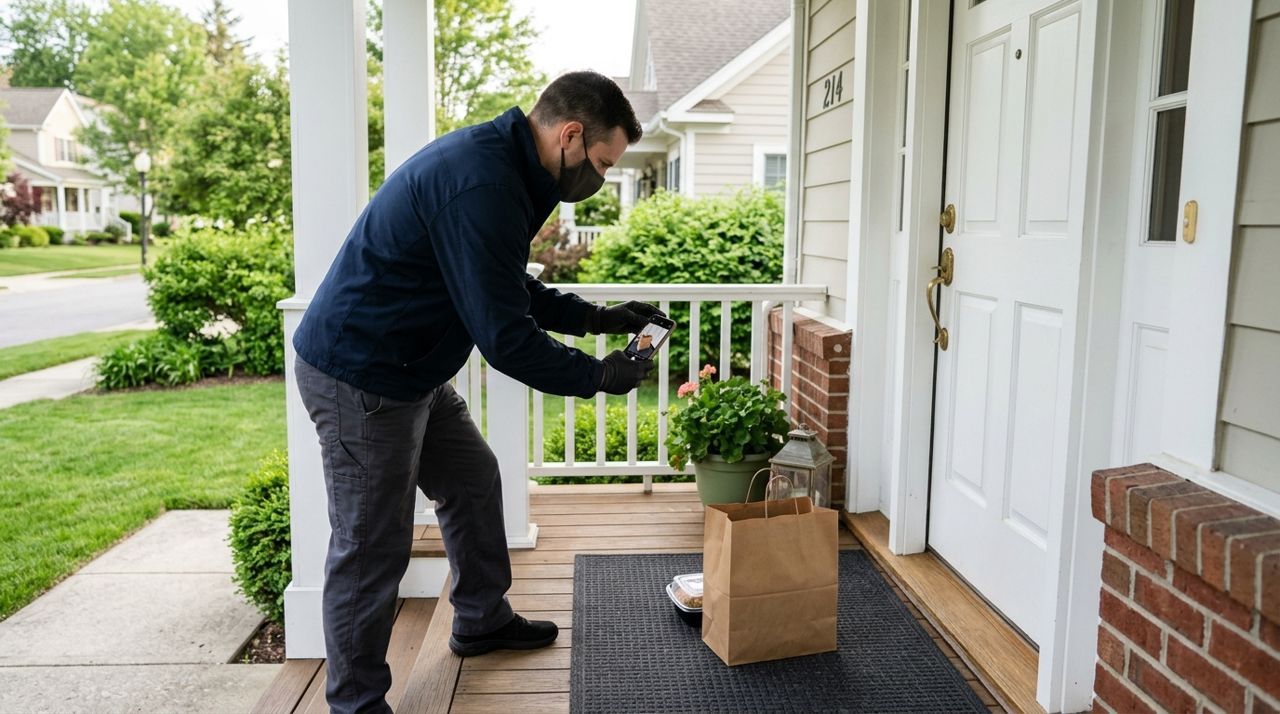
You knock, ring the bell, and set the order down. Now comes the photo—and this one picture is your only proof the delivery happened. A blurry shot of a sidewalk or a dark porch means nothing if a customer says their food never arrived. You need a photo that clearly shows the order at the right address, every time.
Good drop-off photos protect your earnings, build trust, and keep your ratings high. In this guide, you'll learn the exact steps to take photos that hold up under scrutiny, whether you're delivering on Lumo or any other platform.
- 01
Step 1: Check the lighting before you approach
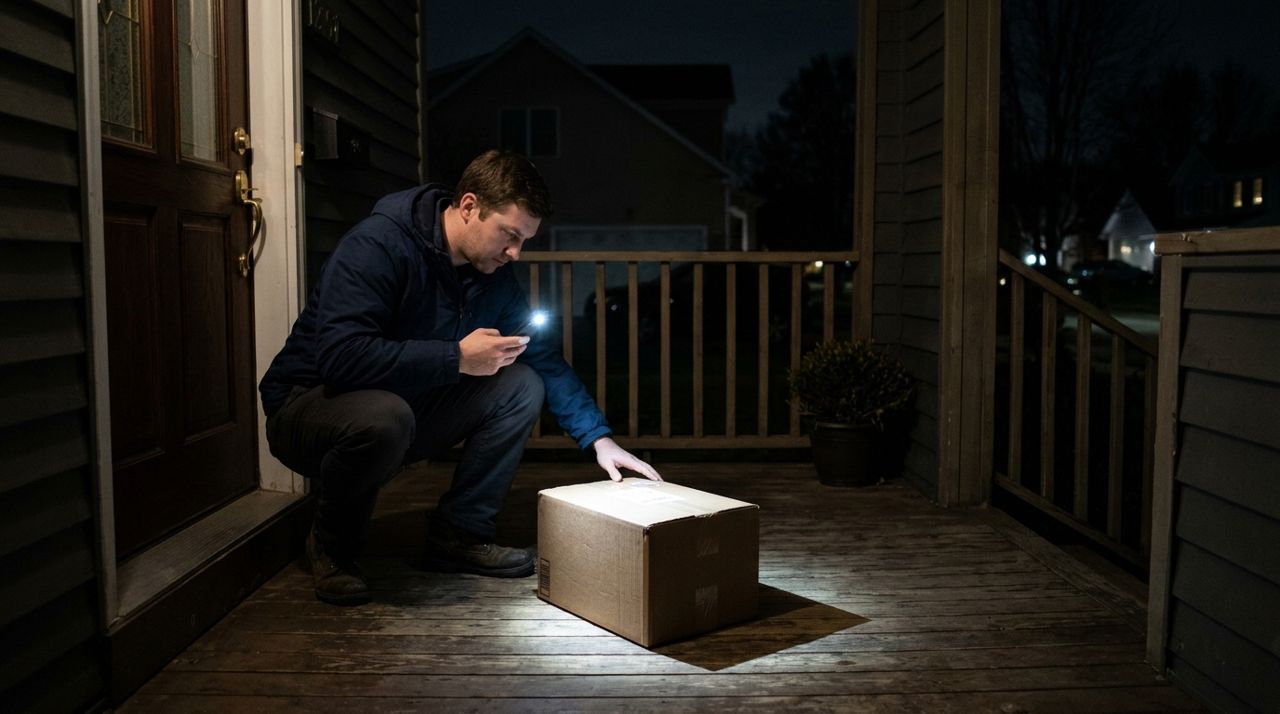
Driver using phone flashlight to illuminate a package on a dark porch at night Before you even leave your car, glance at the porch or delivery spot. If it's evening or the area is dim, turn on your phone's flashlight or use your car headlights to light the area. Most 'bad photo' complaints happen because the driver snapped a dark, unreadable image. If you're delivering at night, hold your phone's flashlight in one hand (or ask a helper) while you shoot with the other, or prop your phone against something stable with the flash on. A well-lit photo takes two extra seconds and eliminates 90% of disputes.
- 02
Step 2: Frame the house number or apartment letter in the shot
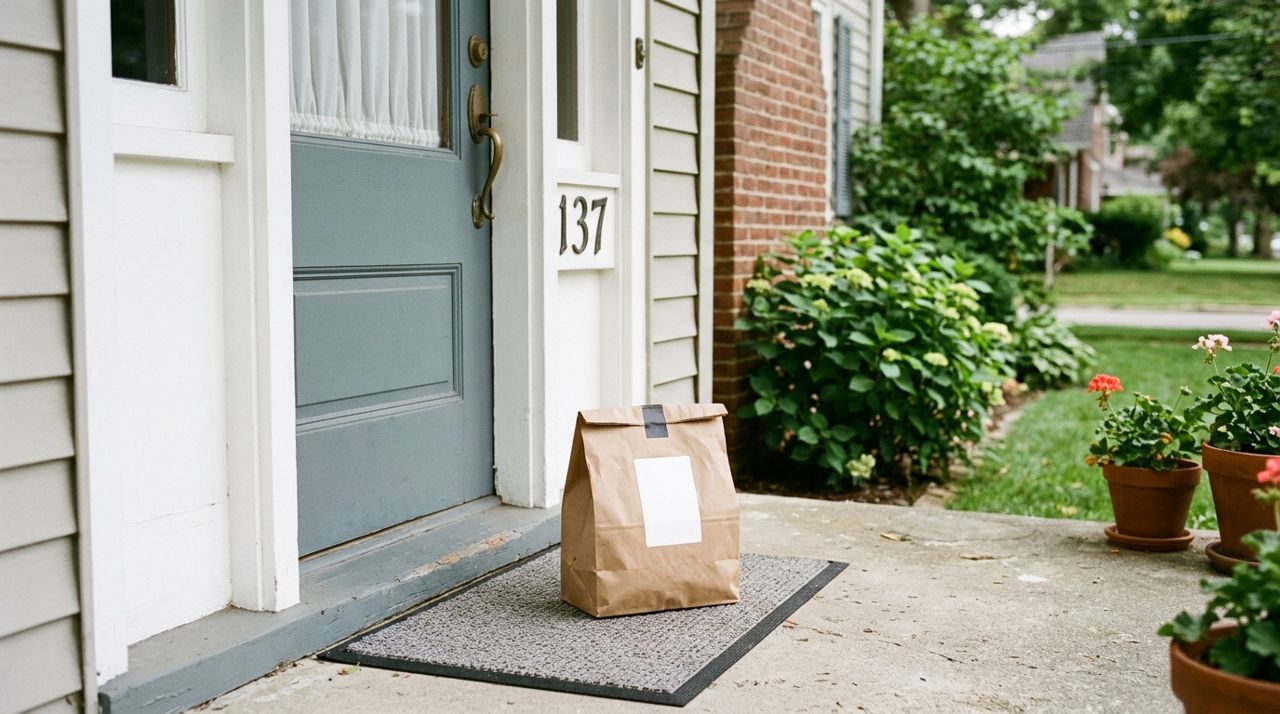
Delivery bag on doorstep with clearly visible house number on door frame Your photo must prove this is the correct address. Include the house number on the door, mailbox, or building in the same frame as the order. If there's no visible number, capture a unique landmark: a doormat with a name, a distinctive planter, a house color, or apartment letter. Step back far enough that both the address marker and the order are clearly visible—don't zoom in so close that the context disappears. If the number is around a corner, take two photos: one showing the order, one showing the number, and note in your delivery message that you took both.
- 03
Step 3: Show the whole order, upright and intact
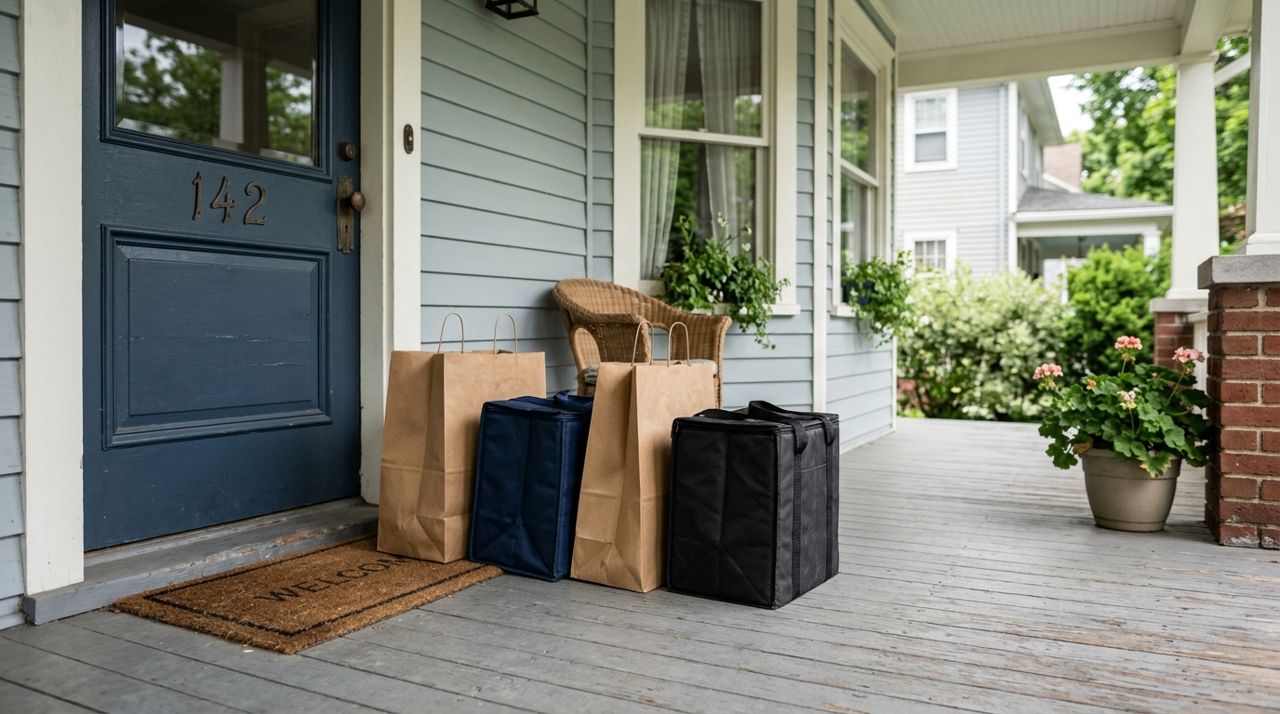
Multiple restaurant delivery bags arranged neatly upright on front porch with visible branding Customers want to see their food hasn't tipped over or been dropped. Set bags upright, arrange multiple bags neatly side by side, and make sure logos or labels face the camera. If you're delivering drinks, show the cup holder is level. For large orders, step back so everything fits in one shot. Never photograph just the top of a bag or half the order cropped out. If the order is too big for one frame, take two photos and send both through the app's messaging feature with a note: 'Full order in two photos.'
- 04
Step 4: Use the rule of thirds for a clear composition
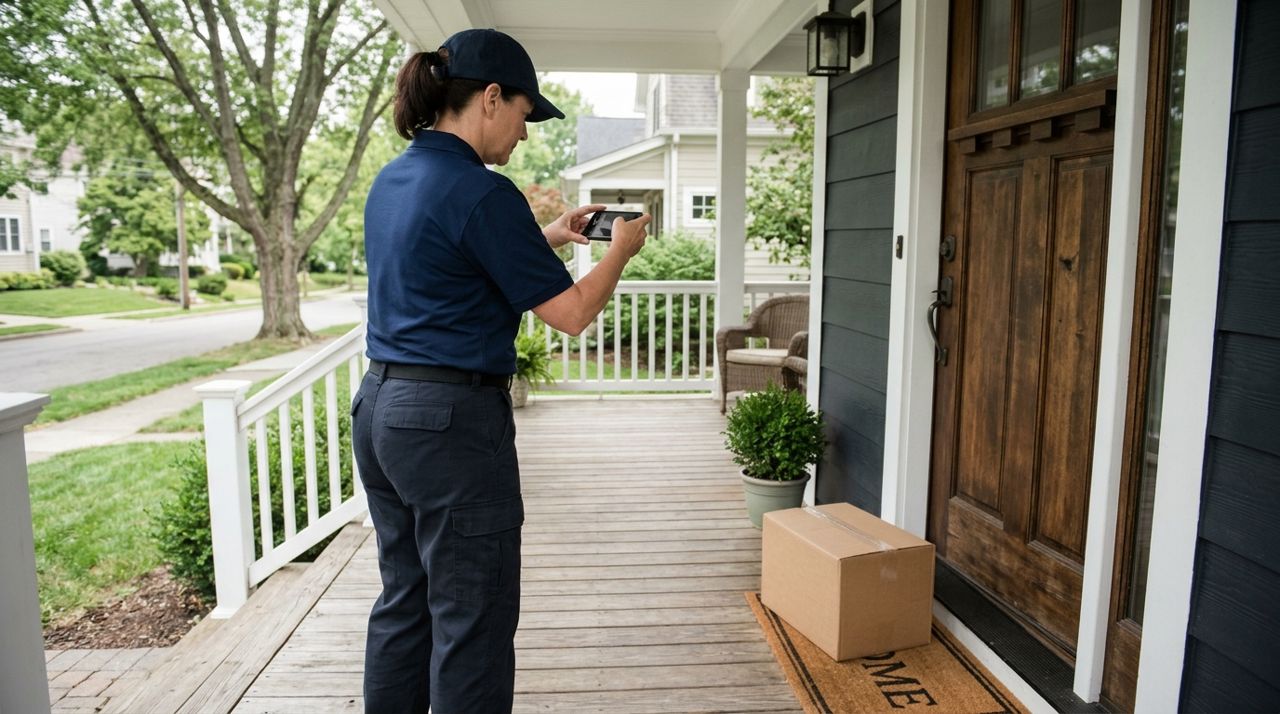
Driver holding phone horizontally at chest height to photograph delivery order on porch Hold your phone horizontally (landscape) and imagine the screen divided into a 3x3 grid. Place the order in the lower third, the house number or door in the middle or upper third. This keeps everything readable and avoids cutting off important details. Don't shoot straight down at the bag—angle your phone so the viewer sees the porch, the door, and the order in context. A slight downward angle from chest height works best. Avoid shooting into bright windows or with the sun directly behind the order, which turns everything into a silhouette.
- 05
Step 5: Tap to focus and check for blur before you leave
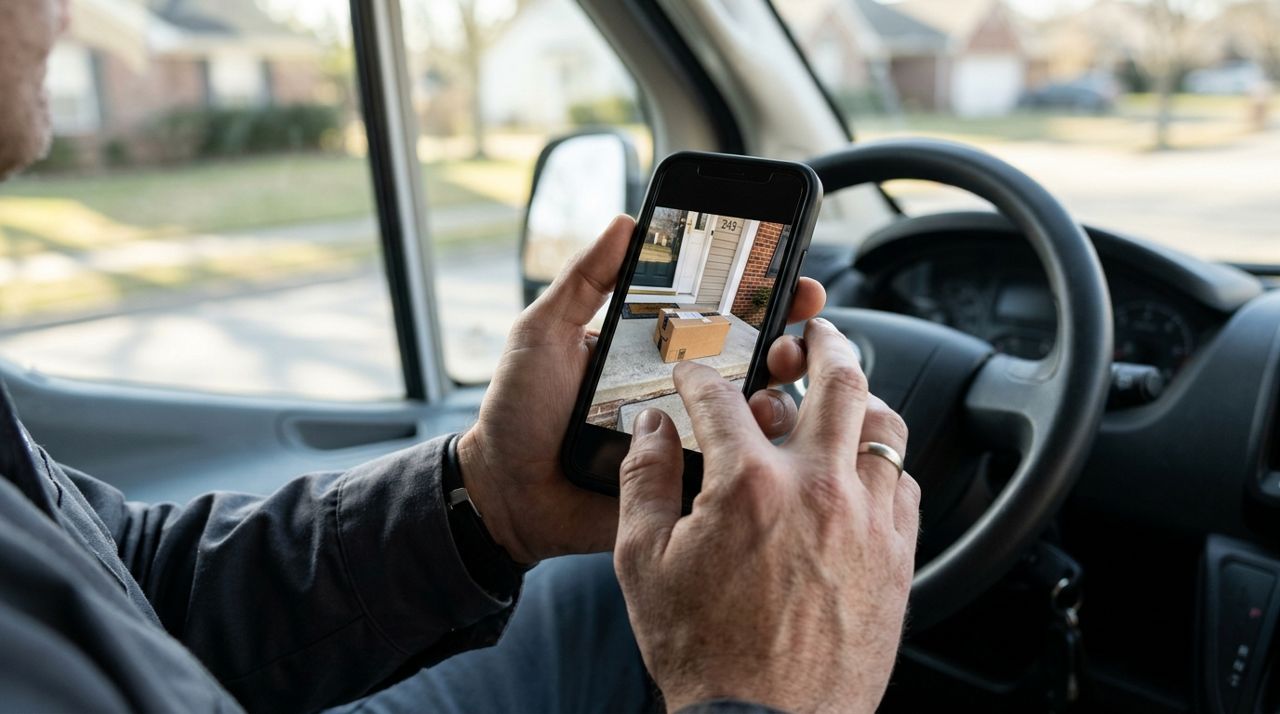
Close-up of driver's hands reviewing delivery photo on smartphone screen for clarity Tap your phone screen on the order to lock focus. Wait half a second for the camera to sharpen, then take the shot. Immediately open the photo and zoom in to check: can you read the restaurant logo? Is the house number sharp? If it's blurry, delete it and reshoot. This five-second check prevents callbacks and disputes. On iPhone, you can also tap and hold to lock focus and exposure (AE/AF Lock); on Android, most camera apps let you tap to focus. If your hands shake, brace your phone against the porch rail or your chest for stability.
- 06
Step 6: Add a timestamp or note in the app message
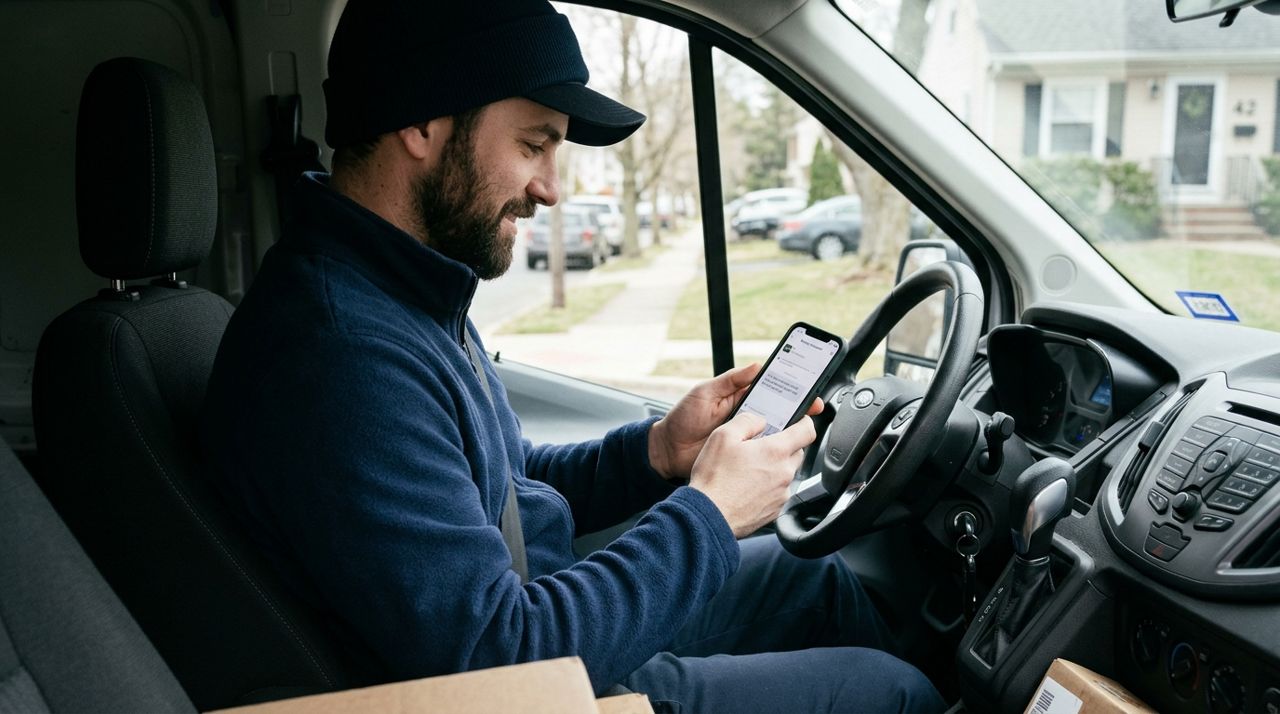
Driver sending follow-up message on delivery app after taking drop-off photo On Lumo and most delivery apps, the photo automatically records the time and GPS location, but customers don't always see that metadata. If the delivery instructions were tricky—'Leave behind the planter' or 'Use side door'—send a quick in-app message after you upload the photo: 'Left by side door as requested, photo attached.' This extra note shows you followed directions and gives the customer confidence. If you meet the customer in person and they ask you to leave it anyway (apartment lobby, for example), still take the photo and note 'Customer requested contactless drop at lobby.' Documentation is everything.
- 07
Step 7: Never leave without uploading the photo first
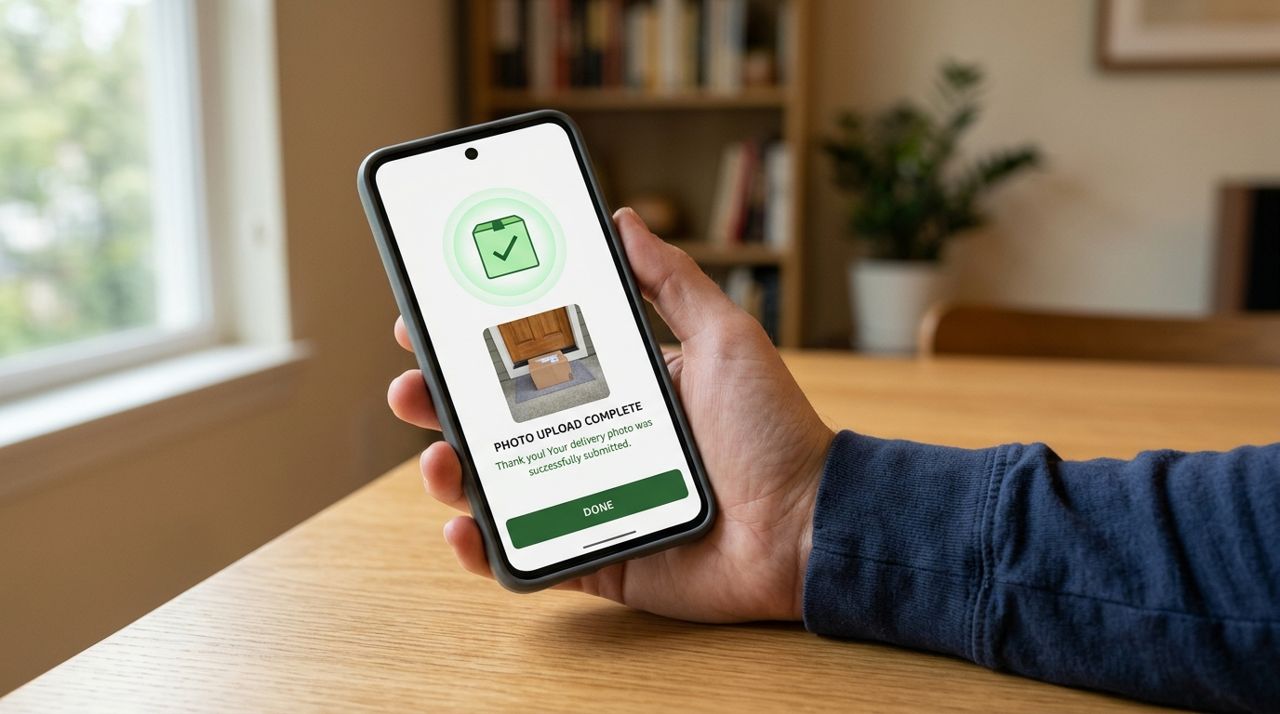
Smartphone screen showing successful delivery photo upload with green confirmation checkmark Don't drive away and upload later—cell service might drop, the app might glitch, or you might forget. Stand on the porch, confirm the photo uploaded, and wait for the green checkmark or confirmation screen. If the upload fails, try again or switch from Wi-Fi to cellular data. Only after you see 'Delivery complete' should you head to your next job. This one habit prevents 'driver never delivered' claims that can cost you your entire payout for that order and damage your ratings. In Lumo, once the photo is uploaded and confirmed, you're covered—100% of your earnings are protected by that proof.
Pro tips
- Keep your phone lens clean—a smudge turns every photo into a blurry mess.
- If a customer meets you at the door, ask 'Mind if I still snap a quick photo for the record?' Most say yes.
- In apartment buildings, photograph the unit number on the door along with the order.
- For 'hand to customer' orders, a photo of the closed door after handoff still protects you.
- Save your own copy of every drop-off photo in a separate album for 30 days as backup proof.
Frequently asked questions
- What if the customer asks me not to take a photo?
- Explain politely that the app requires it for both of your protection, and you can angle it to avoid showing anything personal. Most platforms, including Lumo, require the photo as proof of delivery. If they still refuse, note their request in the app message and photograph just the door or building number without the order visible.
- Do I need to take a photo if I hand the order directly to the customer?
- Yes. Many drivers skip this and regret it later when a customer claims they never received anything. Take a quick photo of the closed door or the building entrance after the handoff, and note in the app 'Handed directly to customer at door.' On Lumo, this practice protects your earnings and keeps your account in good standing.
- What if there's no safe place to leave the order and no one answers?
- Follow the app's protocol: try calling and messaging the customer, wait the required time (usually 5-10 minutes), then photograph the order wherever you leave it—even if that's back at your car. Document everything in the app message: 'No answer after three knocks and two calls, order returned as instructed.' Never just leave food in an unsafe spot without proof.
A clear, well-lit drop-off photo takes ten seconds and saves you from hours of dispute headaches. Practice these steps on every delivery, and your ratings and earnings will reflect the care you put in. Whether you're delivering on Lumo or elsewhere, proof of delivery is your strongest tool—use it every single time.
Photos are illustrative. Service prices are typical ranges and vary by city. How we write our guides.
More guides like this
How to Sign Up to Deliver Food and Packages and Get Your First Job
Delivery work offers flexible hours and immediate income, but getting started requires knowing where to find jobs and how to set yourself up for success.
How to Deliver Food & Groceries by Bike in a Dense City
Bike and e-bike delivery in a crowded city is faster than driving—if you know the routes, pack smart, and handle the weather. Here's how it actually works, from signup to drop-off.
How to Use the Busy Map to Find Where Orders Are Coming In
The busy map shows you real-time order activity in your city. Here's how to read it, position yourself in hot zones, and earn more per hour with less idle time.