
How to Use the Busy Map to Find Where Orders Are Coming In
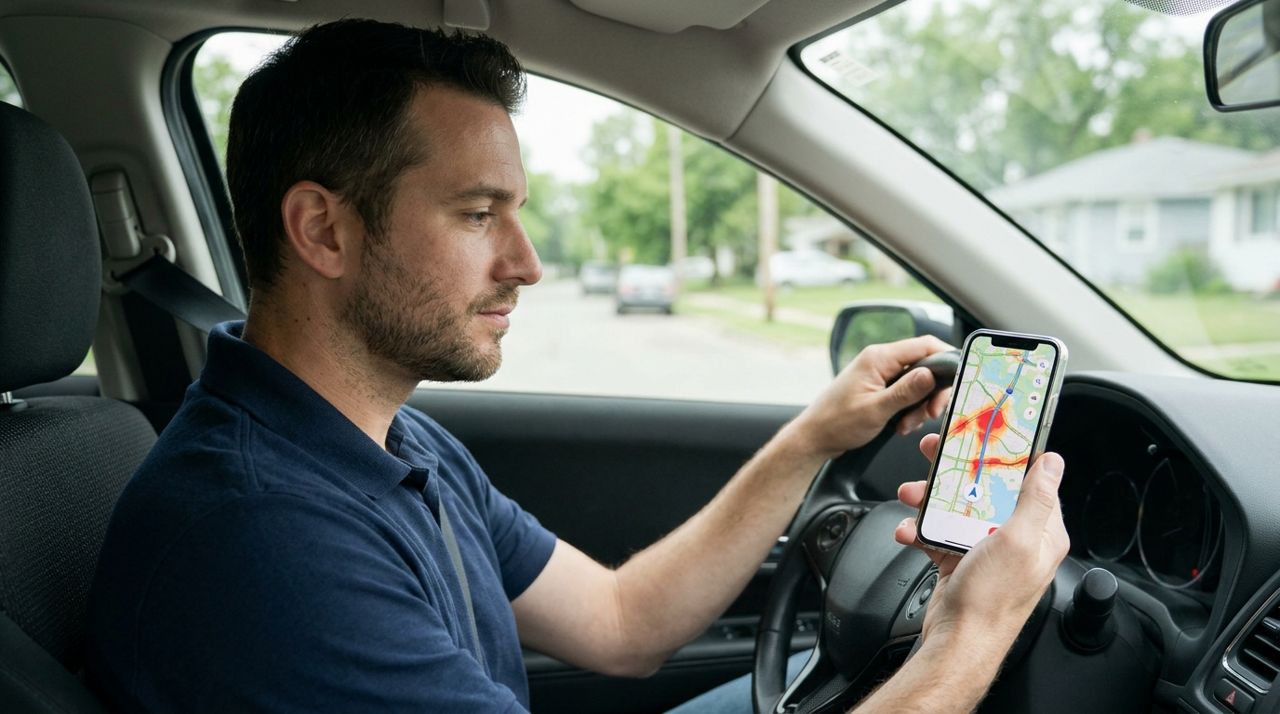
You can sit in one spot waiting for orders, or you can watch where the action is and move closer to it. Most delivery apps show you a busy map—a heat map of where orders are coming in right now—so you can position yourself strategically instead of guessing. Drivers who use the busy map consistently report 20–30% more jobs per shift and shorter wait times between deliveries.
This guide walks you through how to read the busy map, when to move, when to stay put, and how to balance multiple factors like traffic, your fuel tank, and the time of day. By the end, you'll know how to turn that color-coded map into extra earnings every week.
- 01
Step 1: Open the busy map in your driver app
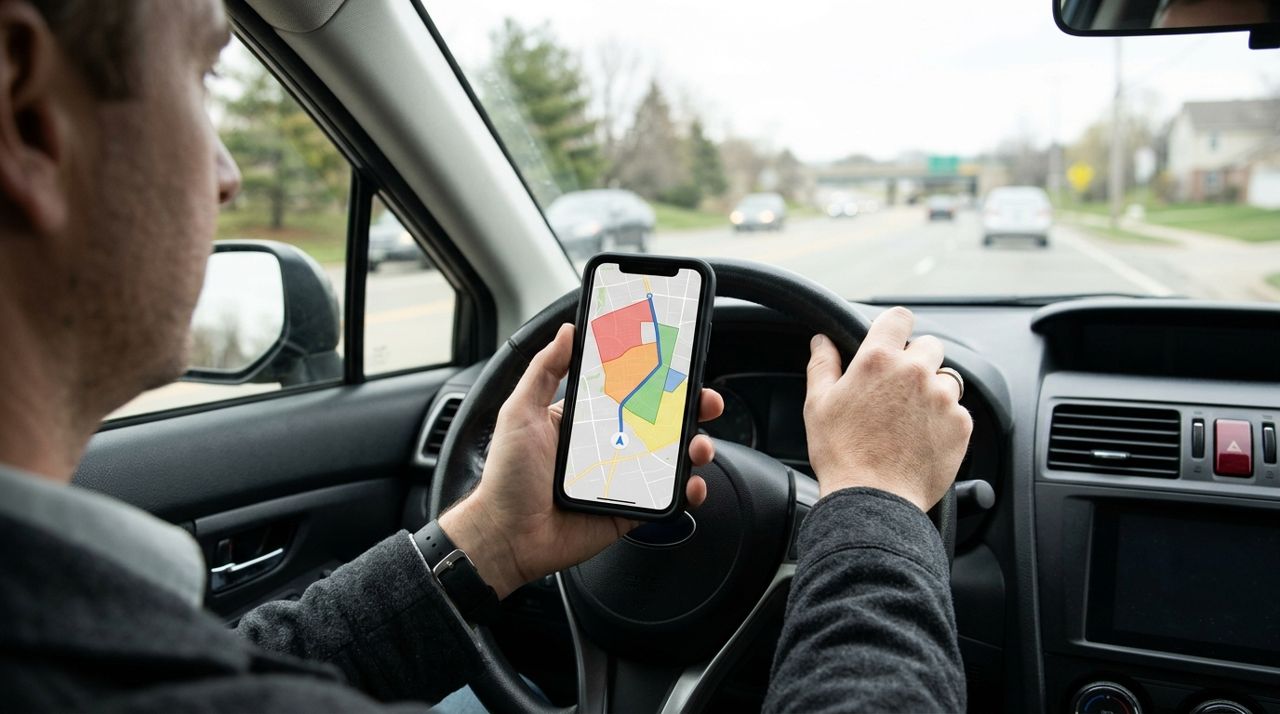
Driver holding smartphone showing a map with colored zones on the screen Most driver apps put the busy map on the home screen or under a 'Hot Zones' or 'Demand' tab. In Lumo's Worker mode, you'll see a map view showing color-coded areas—usually red or orange for high demand, yellow for moderate, and gray or blue for quiet zones. The map updates every few minutes, so refresh it if you've been parked for a while. Some apps overlay these zones on the main map; others put them in a separate view. Spend a minute familiarizing yourself with how your app displays this data: does it show actual order counts, or just relative heat? Does it distinguish between restaurant orders and grocery runs? Knowing what the colors mean will save you from driving into a red zone only to find it's all low-tip orders.
- 02
Step 2: Identify the current hot zones
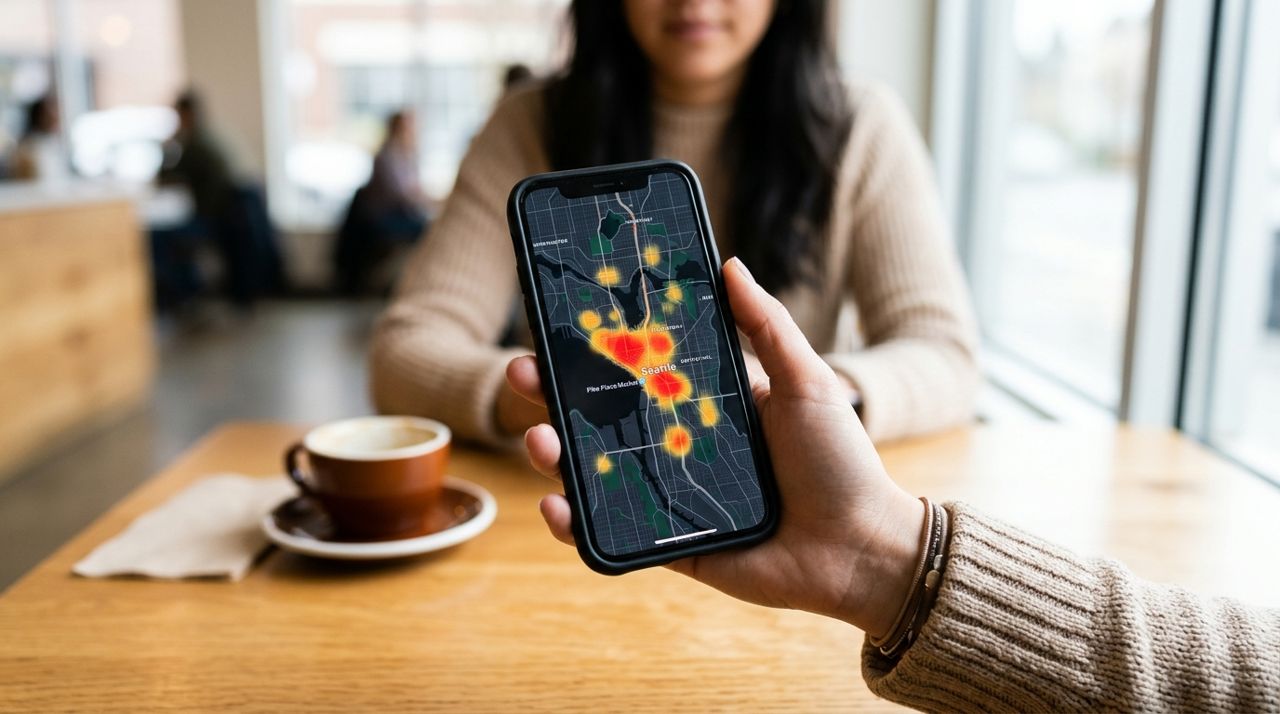
Close-up of a smartphone map showing red and orange heat zones in a city Look for clusters of red or orange. These are neighborhoods where orders are stacking up faster than drivers can claim them. Hot zones shift throughout the day: downtown lunch spots light up from 11:30 a.m. to 1:30 p.m., suburban dinner zones peak from 5:30 to 8 p.m., and late-night zones (bar districts, 24-hour diners) glow after 9 p.m. If you see multiple hot zones, pick the one closest to you first—unless you know one area consistently pays better. Also check the time: a hot zone at 2 p.m. might cool off by the time you drive 15 minutes to get there. Screenshot or mentally note which zones are hot, then cross-reference with your own experience. Some busy areas are busy because orders are small and tips are low; others are gold mines.
- 03
Step 3: Position yourself near (not in) the hottest zone
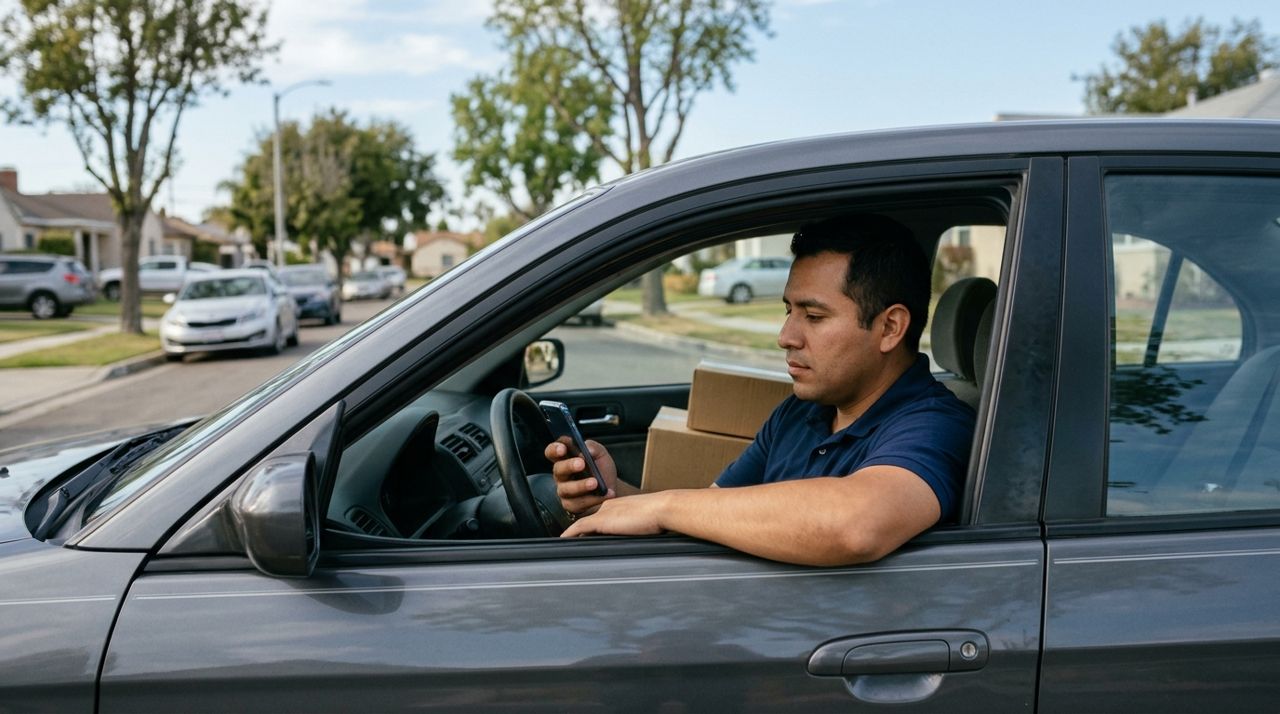
Delivery driver sitting in car looking at phone while parked on a street Don't park in the exact center of a red zone—park on the edge, close to multiple restaurants or shops. This gives you a head start when an order pings, and you're still in range to receive offers. If you're too far into a busy zone, you might be stuck in traffic or construction. Look for parking lots with easy exits: grocery store lots, public libraries, or side streets near clusters of restaurants. In Lumo, you set a job-alert radius, so you'll get pings within that distance; positioning yourself on the border of two hot zones doubles your chances. Keep your engine off to save gas, but stay ready to move. If the app lets you see estimated wait times, factor that in: a moderately busy zone with a two-minute wait might beat a red zone with a ten-minute wait.
- 04
Step 4: Monitor how the map changes over time
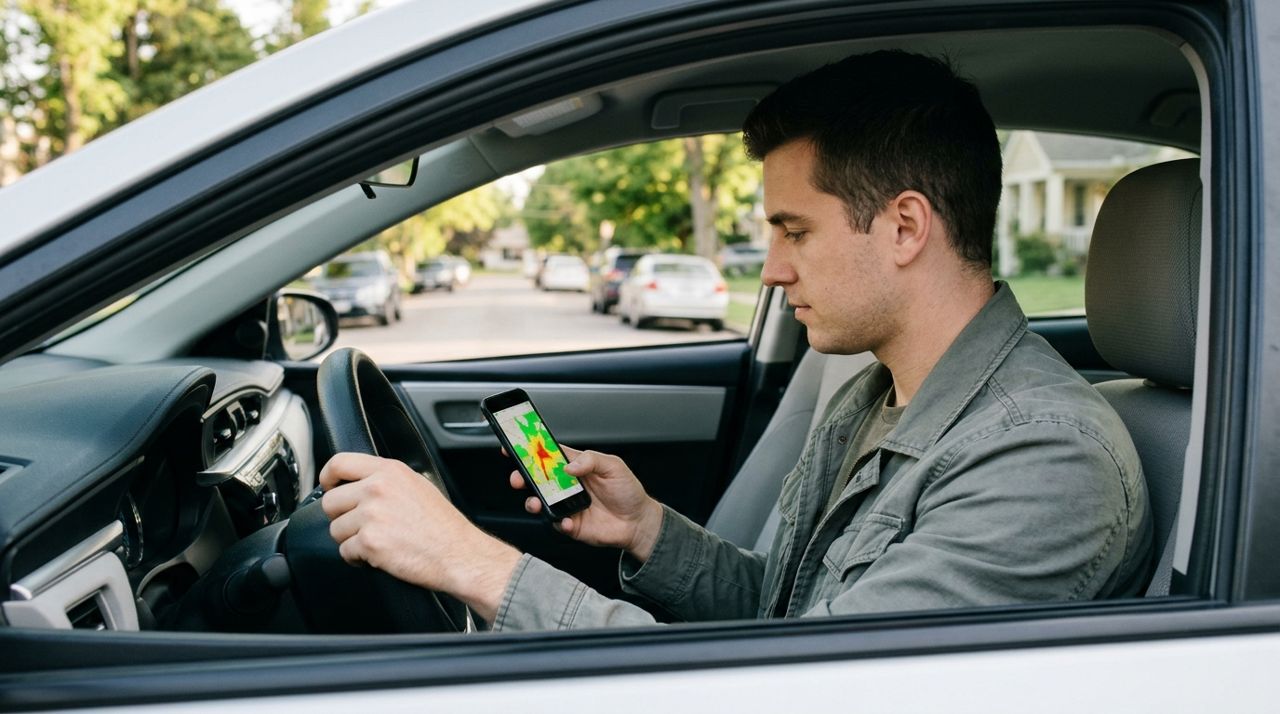
Driver glancing at phone screen showing updated map with changing colored zones Check the busy map every 10–15 minutes. Order volume ebbs and flows: a lunch rush ends, a dinner rush begins, weather changes everything. If your current zone cools down (turns yellow or gray), it's time to move. Some drivers keep a mental log of when and where zones light up: 'Tuesdays at 6 p.m., the west side always goes red.' That pattern recognition is worth money. Also watch for sudden spikes—like a concert letting out, a sports game ending, or bad weather hitting. Those spikes create short, intense bursts of orders. If you see a new red zone pop up and you're only five minutes away, drive over before other drivers notice. The busy map is a live feed; treat it like a stock ticker and react quickly.
- 05
Step 5: Balance the map with your fuel and schedule
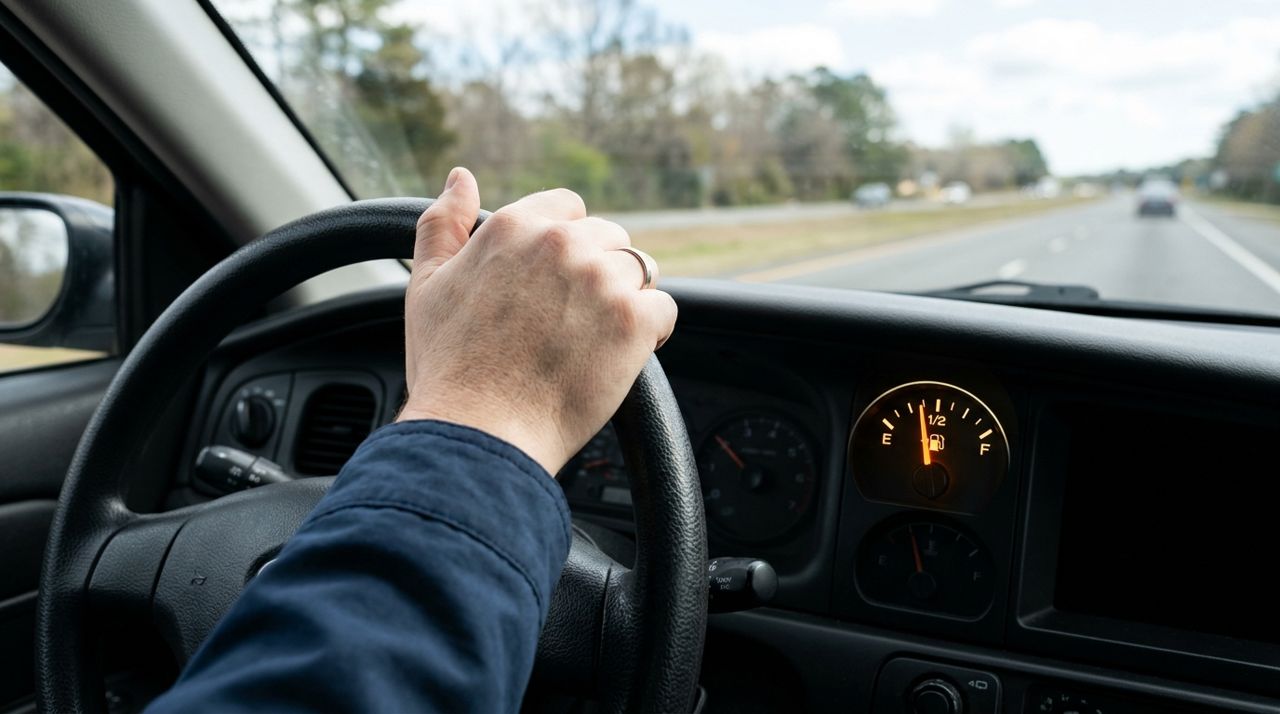
Car dashboard showing fuel gauge and driver's hand on steering wheel A hot zone 20 minutes away might not be worth the gas and time. Calculate: if you spend $4 in gas and 40 minutes round-trip to reach a zone, you need to make at least two deliveries averaging $10 each just to break even on that move. Sometimes it's smarter to stay in a yellow zone close to home than chase a red zone across town. Also consider your shift end time—if you're planning to log off in 90 minutes, moving to a distant hot zone might strand you far from home. Use the busy map as one input, not the only input. Check traffic apps, your fuel gauge, and your own fatigue level. If you're tired, a quiet zone near home beats a busy zone that requires aggressive driving.
- 06
Step 6: Combine the busy map with in-app working hours
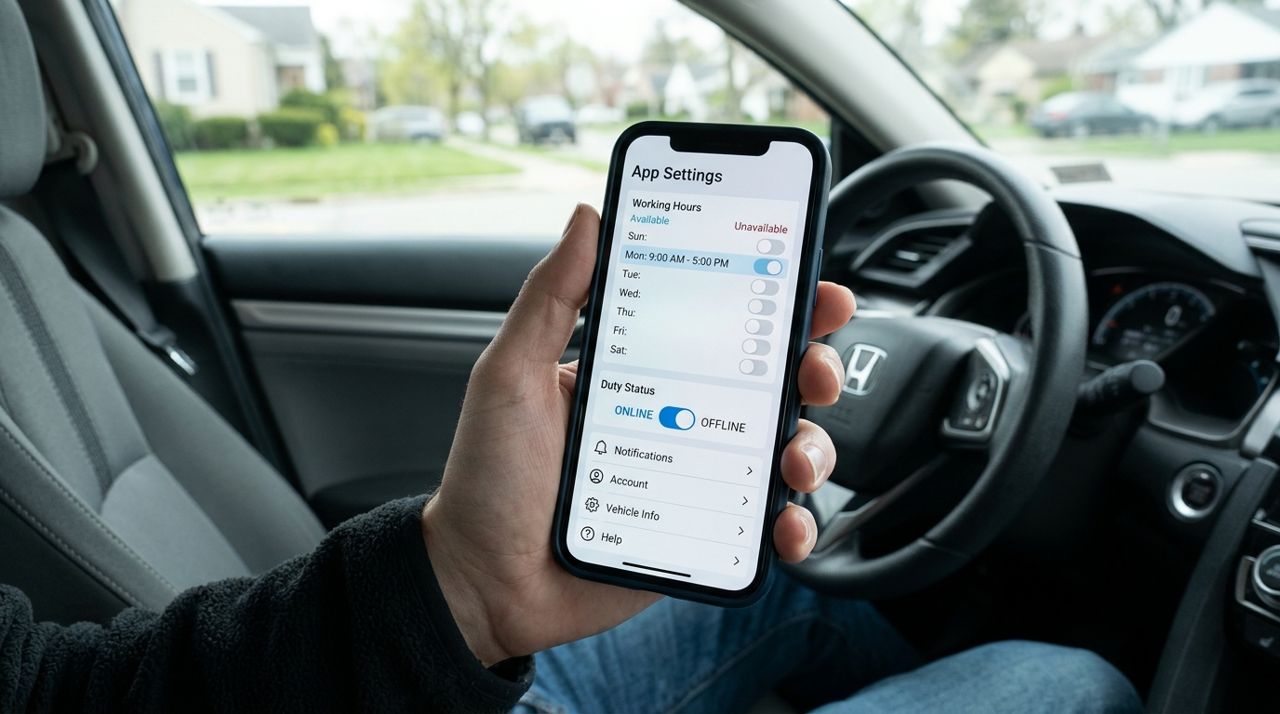
Smartphone screen showing delivery app settings with working hours and duty toggle In Lumo, you can set working hours so you only get alerts during your available times, and you can pause alerts or toggle on/off duty. If you see a hot zone but you're about to take a break, pause alerts before you drive there—otherwise you'll get pings you can't accept, which can hurt your acceptance rate. If you're ending your shift, toggle off duty so you're not tempted by one more order that takes you out of your way. The busy map is most useful when you're actively working; if you're just browsing during off-hours, use it to plan tomorrow's route. Note which neighborhoods are consistently busy at the times you prefer to work, then start your next shift already positioned there.
- 07
Step 7: Track your results and adjust your strategy
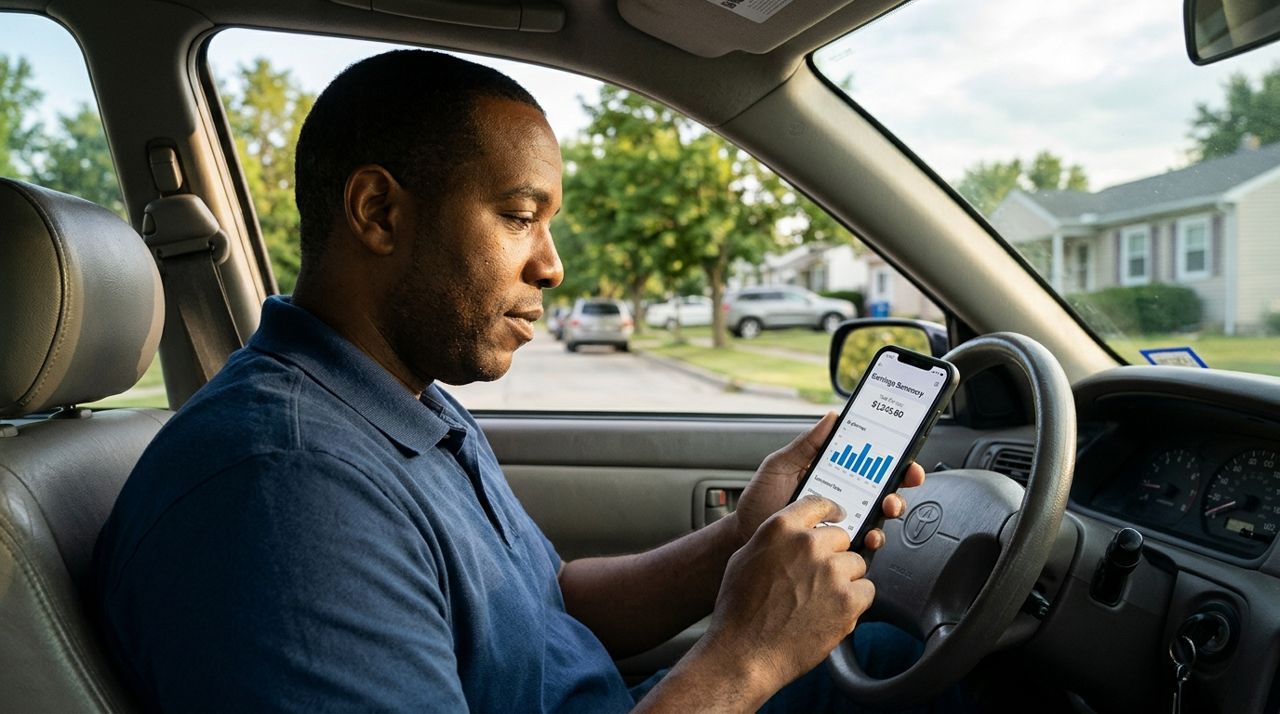
Driver reviewing earnings and completed jobs on a smartphone app screen After a week of using the busy map, compare your earnings to the week before. Did you complete more jobs per hour? Did you spend less time waiting? If the answer is yes, keep refining: note which zones pay best, which times are worth moving for, and which red zones are traps (busy but low-paying). If you didn't see improvement, you might be chasing the map too aggressively—sometimes staying put in a decent zone beats constantly repositioning. Every city is different. In some markets, the busy map is gospel; in others, it lags reality by 10 minutes and you're better off using your own experience. Use your earnings data (in Lumo, check your in-app wallet and payout history) to see if map-based positioning actually increased your take-home.
Pro tips
- Save gas by positioning yourself at the edge of two hot zones instead of driving into the middle of one.
- Learn your city's rush-hour traffic patterns—a red zone stuck in gridlock is worth less than a yellow zone with open roads.
- Keep a charger in your car; a dead phone means you can't see the busy map or accept orders.
- If the busy map shows nothing hot, try a different app or take a break—sometimes demand is just low citywide.
Frequently asked questions
- How often does the busy map update?
- Most apps refresh the busy map every 3–5 minutes, but some update in real time. If you haven't seen a change in 10 minutes, pull down to refresh manually or restart the app. The map reflects recent order volume, not future demand, so it's always slightly behind reality.
- Should I move to a hot zone even if I just got an order?
- No—complete your current delivery first. By the time you finish, the hot zone may have cooled or moved. After you drop off, check the map again and decide whether to reposition or wait for the next ping where you are.
- Do I need to be in a red zone to get orders?
- Not at all. You'll get orders within your job-alert radius no matter what color the zone is. The busy map just helps you maximize volume. Plenty of drivers do fine staying in familiar neighborhoods and never chasing hot zones.
The busy map is a tool, not a mandate. Use it to make smarter positioning decisions, but balance it with your own knowledge of traffic, fuel costs, and what works in your city. Over time, you'll develop instincts about when to move and when to stay put. If you're driving with Lumo, toggle your working hours and duty status to stay in control, and check your in-app wallet regularly to see if your strategy is paying off. Happy driving.
Photos are illustrative. Service prices are typical ranges and vary by city. How we write our guides.
More guides like this
How to Sign Up to Deliver Food and Packages and Get Your First Job
Delivery work offers flexible hours and immediate income, but getting started requires knowing where to find jobs and how to set yourself up for success.
How to Deliver Food & Groceries by Bike in a Dense City
Bike and e-bike delivery in a crowded city is faster than driving—if you know the routes, pack smart, and handle the weather. Here's how it actually works, from signup to drop-off.
How to Take a Perfect Drop-Off Photo Customers Trust
A clear drop-off photo is your proof of delivery and your best protection against 'never arrived' complaints. Here's how to take photos that customers trust every single time.